How to Shorten a URL in Google Sheets: Automation Guide
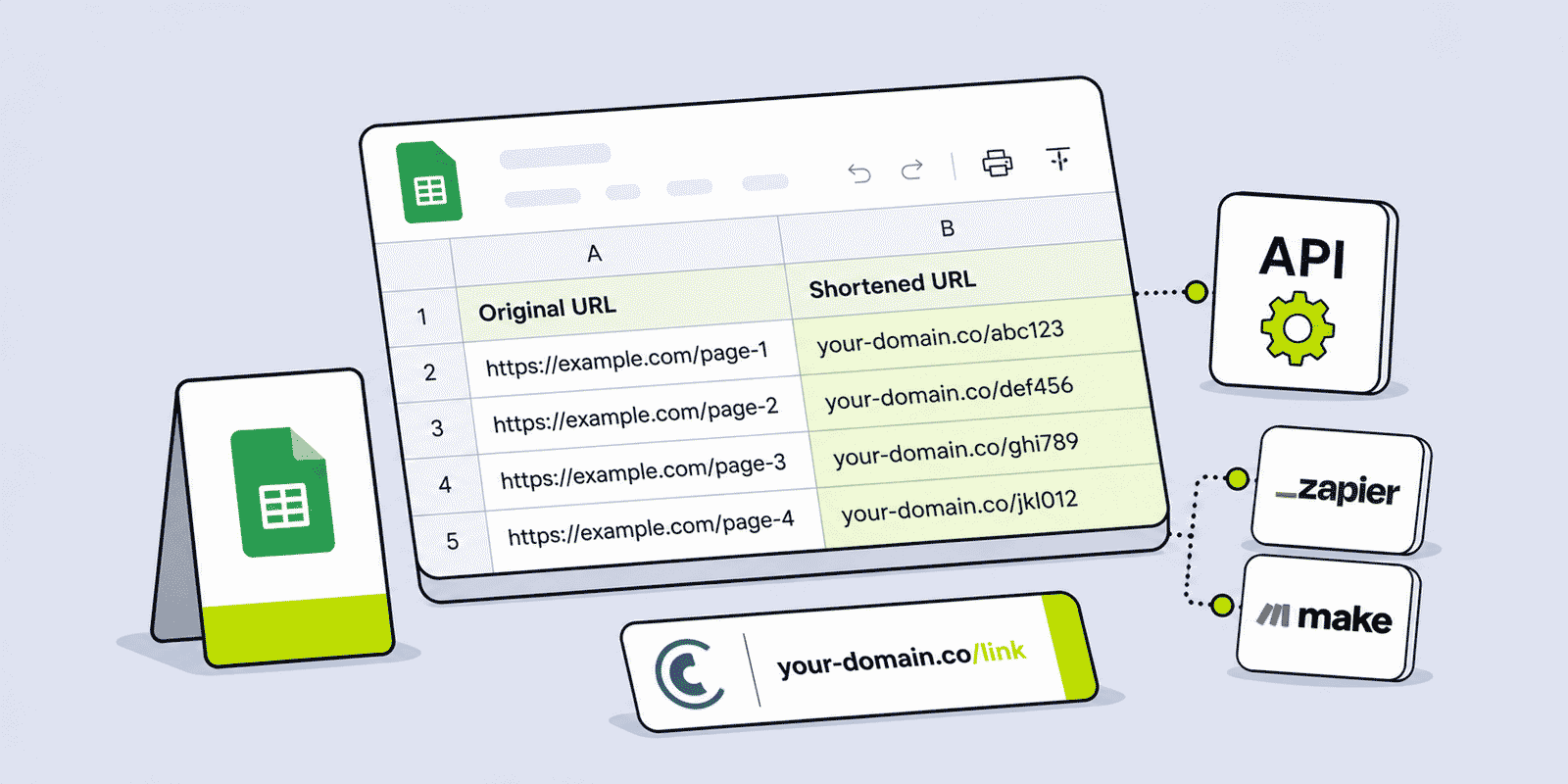
Google Sheets is where a significant share of real marketing link management actually happens — campaign URL lists, content calendars, product catalogues, affiliate link inventories, and outreach tracking spreadsheets all live in Sheets. The natural next step is shortening those URLs directly inside the spreadsheet: creating a short link for each row without leaving the sheet, copying and pasting between tools, or manually creating hundreds of links one by one in a dashboard. There are four realistic approaches to shortening URLs in Google Sheets, ranging from a formula-style custom function built with Apps Script to a no-code automation via Zapier or Make. This guide covers all four: what each approach supports, when to use each, and what to set up for the most capable option.
All approaches in this guide use the Cuttly Regular API. For the complete API parameter reference, see cutt.ly/api-documentation/regular-api.
What This Guide Covers
- Four approaches compared — capabilities, requirements, and when each fits
- Method 1: Google Apps Script custom function — setup, capabilities, and security
- How the Cuttly Regular API works inside Apps Script
- Storing your API key securely in a shared spreadsheet
- Branded domains and custom aliases from sheet columns
- UTM parameters: the right way to include them in API calls from Sheets
- Bulk processing: running the script on an entire column
- Rate limits and how to pace requests from Apps Script
- Tags: what they are and why they require an extra step
- Method 2: IMPORTDATA formula — what it can do and why it is limited
- Method 3: Zapier or Make — always-on automated shortening for new rows
- Method 4: Manual CSV workflow — Cuttly bulk import and export
- Campaign link management template structure
- Which Cuttly plan to use
Four Approaches Compared
Before choosing an approach, it helps to understand the trade-offs. The right method depends on technical comfort level, how frequently links need to be created, whether branded domains or custom aliases are required, and whether the shortening should happen on demand or automatically.
| Method | Technical requirement | Custom alias? | Branded domain? | Best for |
|---|---|---|---|---|
| Apps Script custom function | Basic JavaScript (copy-paste ready) | Yes | Yes | Teams running regular campaigns from Sheets — most capable |
| IMPORTDATA formula | No code — formula only | No | No (cutt.ly only) | Occasional one-off shortening with no setup |
| Zapier / Make automation | No-code — visual workflow builder | Yes (mapped from columns) | Yes | Always-on automation triggered by new rows |
| Manual + CSV export/import | None | Yes (prepared in CSV) | Yes | One-time bulk batch with no automation needed |
Method 1: Google Apps Script Custom Function
This is the recommended approach for most teams. Google Apps Script is a JavaScript environment built into every Google Workspace account. Every Google Sheet has access to it through Extensions → Apps Script. No installation is required. The script runs inside Google's infrastructure, has access to the Cuttly API through the built-in UrlFetchApp service, and can be called directly from a cell as a custom formula or triggered by a button or menu item.
What Apps Script Can Do with the Cuttly API
A Google Apps Script that calls the Cuttly Regular API can:
- Create a short link for any URL in the spreadsheet and write the result to an adjacent cell
- Process an entire column of URLs in a single run, skipping rows already processed
- Set a custom alias for each link, read from a column in the sheet
- Use a branded custom domain for all links (through the Regular API's
userDomainparameter) - Append UTM parameters to destination URLs before shortening, constructed from sheet columns
- Add a tag to each created link via a second API call to the edit endpoint
- Handle errors gracefully and write error messages to the output column for failed rows
- Pause between requests to stay within the API's rate limit
- Be called as a custom formula (
=SHORTENURL(A2)) for individual cells
How the Cuttly API Works Inside Apps Script
The Regular API is a GET endpoint that accepts parameters in the query string. The required parameters are the API key (key) and the destination URL (short). The destination URL must be URL-encoded — Apps Script provides an encodeURIComponent() function (or manual percent-encoding through query string builders) for this purpose. The API returns a JSON response. The Apps Script parses that JSON and checks the url.status field: a value of 7 indicates success, and the short link URL is in url.shortLink. Any other status value indicates a specific error condition that the script should handle.
The complete set of Regular API status codes relevant to link creation: status 7 means success; status 1 means the URL is already a shortened link (already a short link domain); status 2 means the value is not a valid URL; status 3 means the requested alias is already taken; status 4 means the API key is invalid; status 5 means the URL failed validation; status 6 means the domain is blocked; status 8 means the monthly link limit has been reached. The script should write a meaningful error message to the output cell for each non-success status so the user can see which rows failed and why.
Branded Domains in Apps Script
The Regular API uses the userDomain parameter set to 1 to create links on a branded custom domain. This is not a domain name — it is a flag that tells the API to use whichever domain is currently set as active in the Cuttly account. The domain itself is selected in the Cuttly dashboard under Edit Account → Custom Domains. The script does not specify the domain name directly; it sets the flag, and the API uses whatever the account's active domain is at the time of the call.
This means: before running a script that creates branded domain links, verify in the Cuttly dashboard that the correct domain is set as active. If the active domain changes in the dashboard, subsequent script runs will use the new active domain. For a shared team spreadsheet where multiple people might run the script, this is worth documenting — the branded domain behavior is controlled by the Cuttly account setting, not the script.
Tags: The Two-Step Process
Tags cannot be set during link creation through the Regular API. They are applied via the edit endpoint after the link exists, using the full short link URL as the identifier and the tag value as the parameter. A script that needs to apply tags to created links must make two API calls per link: one to create the link, one to apply the tag. Both calls count toward the API rate limit.
For bulk processing of a large column, this doubles the number of API calls and the total processing time. Decide whether tag application is necessary for the specific use case before including it in the script — for many campaign management workflows, tags are applied once manually after bulk creation rather than programmatically per row.
UTM Parameters
UTM parameters are added to the destination URL before passing it to the API. They are not separate API parameters. The script reads the destination URL from the sheet and, if UTM columns are present, constructs the full UTM-tagged URL by appending the UTM parameters. The complete URL — including UTM query string — is then URL-encoded and passed to the API as the destination. The resulting short link redirects to the full UTM-tagged URL, and those UTM values are passed through to the analytics platform.
The UTM values in the sheet columns should be URL-encoded individually before concatenation, especially if they might contain spaces or special characters. Using a utility like encodeURIComponent() on each UTM value before building the query string prevents malformed URLs.
Rate Limiting in Apps Script
The Cuttly API rate limits apply regardless of how the API is called. On the Single plan (60 calls per 60 seconds), the script must pause between requests. The Cuttly documentation recommends using urlencode() for the URL and calls the API via a GET request. In Apps Script, pausing between requests is done with Utilities.sleep(milliseconds). At 1,100 milliseconds between requests, the script stays safely within the Single plan's limit of one request per second. On the Free plan (3 calls per 60 seconds), the pause needs to be 20 seconds between requests — making bulk processing of large columns very slow and the Free plan impractical for batches larger than a few dozen links.
For large batches where processing time matters, the Single plan (60 calls per minute) is the minimum practical choice: a column of 300 URLs processes in about 5 minutes. The Team plan (180 calls per minute) processes the same column in roughly 100 seconds.
Storing the API Key Securely
The API key must not be stored as a plain string in the script code. Anyone with access to the spreadsheet can view the Apps Script code through Extensions → Apps Script — if the key is hardcoded there, it is visible to every collaborator. The correct approach for shared spreadsheets is to store the key in Apps Script's PropertiesService, which stores values associated with the script but does not expose them in the visible code. The key is set once through a one-time setup function run from the script editor, and then retrieved at runtime through PropertiesService.getScriptProperties().getProperty('CUTTLY_API_KEY'). The setup function should be deleted after it is run, so the key value does not remain in the script source.
For a personal spreadsheet that only one person accesses and edits, storing the key in a script variable at the top of the file is acceptable — but use a named constant and add a comment noting it should not be shared. Any time the spreadsheet is shared with another person, move the key to PropertiesService before sharing.
Setting Up the Apps Script
The setup process is:
- Step 1: In the Google Sheet, go to Extensions → Apps Script. The script editor opens in a new tab. The default file is Code.gs.
- Step 2: Write or paste the script. The script needs at minimum: a function that accepts a URL, calls the Cuttly API with that URL and the API key, checks the status in the response, and returns either the short link URL or an error message.
- Step 3: Store the API key. Either hardcode it in the script for personal use, or run a one-time setup function to store it in PropertiesService for shared spreadsheets.
- Step 4: Save the script (Ctrl+S or Cmd+S) and reload the spreadsheet. If a custom menu has been added in the script's
onOpen()function, it will appear in the menu bar after reloading. - Step 5: Authorize the script. The first time the script runs, Google prompts for authorization to access external services (required for
UrlFetchAppto call the Cuttly API). Grant authorization in the popup that appears. - Step 6: Test with a single URL before running a bulk operation on a full column.
After setup, the custom function can be used directly in a cell as =SHORTENURL(A2) for a single URL, or the bulk menu function can be triggered from the custom Cuttly menu to process an entire column in sequence.
Using the Custom Formula
Once the script is saved, the custom function is available as a cell formula. Typing =SHORTENURL(A2) in cell B2 calls the function with the URL from A2, makes the API call, and writes the result — the short link URL or an error message — to B2. The function can be extended to accept optional parameters for alias, domain flag, and tag from adjacent columns, following the same pattern as the main function.
One important caveat: custom formula calls to UrlFetchApp count against Google's daily external URL fetch quota. For large sheets with hundreds of rows, dragging the formula down the entire column triggers many simultaneous external requests and can hit Google's fetch quota. The bulk menu function — which processes rows one at a time with controlled pauses — is more reliable for large batches than the formula approach.
Setting Up the Campaign Link Management Template
For marketing teams using Google Sheets regularly for campaign links, a consistent column structure makes the workflow repeatable and the analytics comparable across campaigns. A recommended structure:
| Column | Header | Example value | Notes |
|---|---|---|---|
| A | Campaign | Summer Launch 2026 | Reference only |
| B | Channel | Used as utm_medium | |
| C | Destination URL | https://yourdomain.com/offer | Raw destination |
| D | Alias | summer-email | Custom alias for the short link |
| E | UTM Source | newsletter | utm_source value |
| F | UTM Medium | utm_medium value | |
| G | UTM Campaign | summer-launch-2026 | utm_campaign value |
| H | Full UTM URL | constructed by formula from C+E+F+G | The URL passed to the API |
| I | Short Link | [auto-filled by script] | Output column |
| J | Notes | Email header CTA | Free text |
Column H is constructed with a formula that concatenates the destination URL with the UTM parameters — it is not typed manually. Each UTM value from columns E, F, and G should be wrapped in an ENCODEURL function within the formula to handle any spaces or special characters in those values. The script reads column H as the destination URL and column D as the alias, writing the result to column I.
This template ensures every short link has correct UTM attribution and a meaningful alias, and the sheet becomes the complete record of every link created for the campaign: what it points to, what UTM values it carries, what alias it uses, and what the final short link URL is.
Method 2: IMPORTDATA Formula — Quick but Limited
Google Sheets' IMPORTDATA function fetches the content of a URL and displays it in the cell. Because the Cuttly API returns data at a URL, IMPORTDATA can theoretically call the API by constructing the full API endpoint URL as a formula. The formula includes the API key and the destination URL (wrapped in ENCODEURL() to handle encoding) as query parameters.
Why this approach is not recommended for regular use: IMPORTDATA is designed for importing data feeds, not for making repeated API calls. Google caches and throttles external URL fetching in formulas heavily — the same formula may return a cached result from an earlier request rather than making a fresh call. Google can also block, throttle, or simply not recalculate the formula, making results inconsistent and unreliable. The approach also does not support custom aliases, branded domains, or any optional parameters beyond the basic URL shortening. And since IMPORTDATA returns the full raw JSON response as text rather than parsed JSON, extracting just the short link URL from it requires additional string manipulation that is awkward in a formula context.
Security note: If this formula is used in a shared spreadsheet, the API key is visible in plain text to every person who opens the spreadsheet and looks at the formula. The API key should never be embedded in a formula in a shared spreadsheet — use the Apps Script approach with PropertiesService instead.
Use IMPORTDATA only for occasional personal one-off shortening in a spreadsheet that no one else accesses, where the setup overhead of Apps Script is genuinely not worth it. For any repeated use or shared context, the Apps Script approach is significantly more reliable and secure.
Method 3: Zapier or Make — No-Code Triggered Automation
If the preference is no-code and the goal is automatic shortening every time a new row is added to the sheet — without any human action — Zapier or Make are the right tools. Both platforms have a Google Sheets trigger that fires when a new row is added, and both have HTTP request actions that can call the Cuttly API.
The Basic Workflow
The automation flow: a new row is added to the Google Sheet → the Zapier or Make trigger fires → the Cuttly API is called with the URL from the new row as the destination → the short link URL from the API response is written back to a specific column in the same row. In Zapier, this uses a "Webhooks by Zapier" action for the API call and a "Update Spreadsheet Row" action for the write-back. In Make (formerly Integromat), this uses an HTTP module for the call and a Google Sheets module for the write-back.
Both platforms allow mapping sheet columns to API parameters — the destination URL comes from column C, the alias from column D, the UTM-tagged URL from column H. Branded domains are configured by adding the userDomain=1 parameter to the HTTP request, which requires the active domain to be set in the Cuttly dashboard before the automation runs.
Zapier vs Make vs Apps Script
The key distinction between Zapier/Make and Apps Script is trigger behavior. Zapier and Make run automatically when a new row appears — the person adding the row does not need to take any additional action. The short link appears in the output column within seconds or minutes, depending on the automation platform's polling frequency. Apps Script requires a human to either type a formula in a cell or click a menu item to trigger the bulk function.
For always-on workflows where shortening should happen automatically every time data is added, Zapier or Make is the better choice. For on-demand batch processing of an existing sheet — for example, processing a completed campaign URL list all at once — Apps Script's menu-triggered bulk function is more practical. Both platforms have free tiers that cover basic automation at low volume.
Rate Limits Apply to Zapier and Make Too
The Cuttly API rate limits apply regardless of the tool making the requests. If a Zapier or Make automation processes many rows simultaneously, it can trigger rate limit errors (HTTP 429) from the Cuttly API. Both platforms allow configuring delays between steps to pace requests. For high-volume automations that add many rows at once, a delay of at least one second between API calls keeps the integration within the Single plan's 60 calls per minute.
Method 4: Manual Workflow — Cuttly CSV Import and Export
For one-time bulk shortening of an existing URL list — a scenario where short links need to be created for a fixed set of URLs, once, with no ongoing automation — the manual CSV workflow is the simplest approach with no technical setup at all.
The Four-Step Process
Step 1: Export the URL column from Google Sheets. Use File → Download → Comma Separated Values to export the sheet as a CSV. The CSV should have URLs in one column, with optional custom aliases in an adjacent column. No header row is required, but ensure the format is clean before import.
Step 2: Import the CSV into Cuttly. The Link Importer, available from the Single plan, accepts a CSV file and creates a short link for each URL. The import processes up to 100 links per month on the Single plan and up to 2,000 per month on the Team plan. Custom aliases can be included in the CSV as a second column. Branded domain assignment for imported links depends on the account's active domain setting at the time of import.
Step 3: Export the created links from Cuttly. After the import completes, export the link inventory from the Cuttly dashboard as a CSV. The export includes the short link URL, destination URL, alias, creation date, and tag for each link.
Step 4: Bring the short links back into Google Sheets. Use VLOOKUP or INDEX/MATCH in Google Sheets to match the exported short links back to the original spreadsheet rows by destination URL, populating the short link column automatically. For clean data, this works reliably — if destination URLs are consistent between the sheet and the Cuttly export, the lookup matches every row.
This four-step workflow takes 10–20 minutes for batches up to 100 URLs and requires no code or external automation account. It is the right approach for a one-time batch where the overhead of setting up Scripts or Zapier is not justified — a product catalogue import, a historical link migration, or a one-off campaign setup.
Which Cuttly Plan to Use
The Free plan ($0) is suitable for testing whether the Apps Script integration works. It allows 3 API calls per 60 seconds and 30 links per month on the cutt.ly domain. The 3-calls-per-60-seconds rate limit means the script must wait 20 seconds between requests, making bulk processing of more than a few rows very slow. The Free plan is not practical for regular campaign link management.
The Single plan ($25/month) is the appropriate plan for most marketing teams using Google Sheets for campaign link management. It provides 60 API calls per 60 seconds, 5,000 links per month, and 1,000 branded domain links per month via API. At one request per second, a 300-row URL column processes in about 5 minutes. The Single plan also includes the CSV import feature (100 links per month) for the manual workflow approach.
The Team plan ($99/month) is needed for high-volume Google Sheets workflows creating thousands of links per month, organizations that want to use the Team API key rather than a personal key in the script, and teams requiring the CSV import for larger batches (2,000 links per month). At 180 calls per minute on the Team plan, the same 300-row column processes in about 100 seconds.
Create a free Cuttly account to get your API key and test the setup. Your API key is available immediately after registration from Edit Account → API. Registration required; free plan available with no credit card needed.
Frequently Asked Questions
Can I shorten URLs automatically in Google Sheets?
Yes — three automation approaches work. Google Apps Script calls the Cuttly API for each URL and writes the short link to an adjacent cell, processing a full column on demand. Zapier or Make automations run automatically when new rows are added. IMPORTDATA can theoretically call the API via formula but is unreliable and not recommended for regular use. For most teams, Apps Script is the most capable and reliable choice.
Is there a Google Sheets formula to shorten a URL?
There is no built-in formula. The Apps Script custom function from this guide creates a =SHORTENURL(A2) formula that behaves like a native function but uses proper API authentication and error handling. IMPORTDATA can be used as a workaround but is unreliable for production use and exposes the API key in the formula if the sheet is shared.
How does the Cuttly API work inside Apps Script?
Apps Script uses UrlFetchApp.fetch() to make outbound HTTPS requests. The script constructs the Cuttly Regular API endpoint URL with the API key, the URL-encoded destination URL, and any optional parameters as query string values. It parses the JSON response with JSON.parse() and checks url.status: status 7 means the link was created and url.shortLink contains the result. See the official API documentation at cutt.ly/api-documentation/regular-api for all parameters and status codes.
Can I create branded short links from Google Sheets?
Yes — the Apps Script uses userDomain=1 in the API call, which creates links on the domain set as active in your Cuttly account. The domain is configured in Cuttly under Edit Account → Custom Domains, not in the script itself. Custom aliases are supported by passing the desired alias as the name parameter. Branded domain links count against the branded domain monthly limit (30 on Starter, 1,000 on Single, 20,000 on Team).
What is the rate limit for the Cuttly API from Google Sheets?
The same rate limits apply regardless of how the API is called. Single plan: 60 calls per 60 seconds — pace requests at one per second in the Apps Script. Free plan: 3 calls per 60 seconds — 20-second pauses required, making bulk processing impractical. For processing large columns efficiently, the Single plan ($25/month) is the minimum practical choice.
- Tools
- URL Shortener →
- Link Analytics →
- QR Code Generator →
- API Documentation
- Cuttly API Reference →
- Regular API Documentation →
- Related Guides
- URL Shortener API Developer Guide →
- URL Shortener for Developers →
- Link Analytics Complete Guide →
- Branded Short Links Guide →
- URL Shortener Best Practices →
- What Is a URL Shortener? →
- Encyclopedia
- Branded Links
- Dynamic QR Codes
- Link in Bio
- Start Here
- Create Free Account
- Plans & Pricing
URL Shortener
Cuttly simplifies link management by offering a user-friendly URL shortener that includes branded short links. Boost your brand’s growth with short, memorable, and engaging links, while seamlessly managing and tracking your links using Cuttly's versatile platform. Generate branded short links, create customizable QR codes, build link-in-bio pages, and run interactive surveys—all in one place.
Cuttly - Consistently Rated
Among Top URL Shorteners
Cuttly isn’t just another URL shortener. Our platform is trusted and recognized by top industry players like G2 and SaaSworthy. We're proud to be consistently rated as a High Performer in URL Shortening and Link Management, ensuring that our users get reliable, innovative, and high-performing tools.


