What Is UTM Tracking? The Beginner's Guide to UTM Parameters
If you have spent any time in digital marketing, you have almost certainly seen URLs with long strings of text appended to them — things like ?utm_source=instagram&utm_medium=social&utm_campaign=spring-sale. These are UTM parameters, and they are the foundation of campaign tracking across every major analytics platform. Understanding what they are, what each one does, and how to use them is one of the highest-leverage skills a marketer can develop — because without them, you cannot tell which of your marketing activities is actually generating results. This guide explains UTM tracking from scratch, with no assumed knowledge.
What This Guide Covers
- What UTM tracking is and why it exists
- What UTM stands for and where the format came from
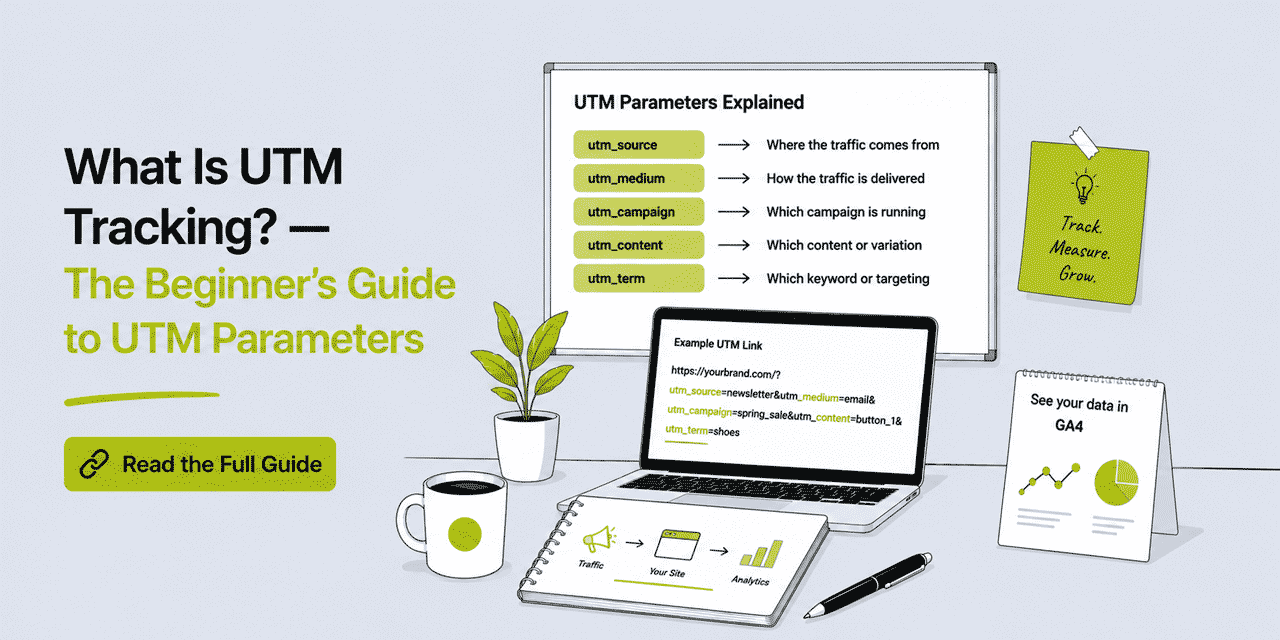
- The five UTM parameters — what each one does
- What a UTM-tagged URL looks like and how to read it
- How UTM tracking works technically
- How to build your first UTM-tagged URL
- Where to find UTM data in GA4
- The most important rules for using UTM correctly
- How UTM tracking works with short links
The Problem UTM Tracking Solves
Imagine you are promoting a product on Instagram, sending an email newsletter, and running a Google ad — all pointing to the same landing page. By the end of the week, GA4 shows you that 500 people visited the page. That is useful. But which of the three channels sent them? Was it the Instagram post, the email, or the ad? Without UTM tracking, GA4 cannot tell you. It can make educated guesses based on referrer data, but referrer data is incomplete — it is missing for email traffic (most email clients do not pass a referrer), inconsistent for social (some apps strip it), and unreliable for any traffic where HTTPS-to-HTTP transitions occur.
UTM tracking solves this problem by making the attribution information explicit — embedded directly in the URL rather than inferred from browser headers. You add UTM parameters to every link before you share it, and GA4 reads those parameters when the visitor arrives. No guessing, no referrer inference, no ambiguity. You know exactly where each visitor came from because you told GA4 exactly where to look.
What UTM Stands For
UTM stands for Urchin Tracking Module. Urchin Software was a web analytics company founded in 1998 that developed one of the earliest sophisticated web analytics platforms. Google acquired Urchin in 2005 and used it as the foundation for Google Analytics. The UTM parameter format that Urchin developed became a de facto standard and has remained unchanged in its core structure for two decades. Every major analytics platform — GA4, Adobe Analytics, Matomo, and others — recognizes and processes UTM parameters.
The Five UTM Parameters Explained
There are five UTM parameters. Three are effectively required for proper campaign attribution; two are optional but useful for granular analysis. Here is exactly what each one does.
1. utm_source — Where Did This Traffic Come From?
utm_source identifies the specific origin of the traffic. It answers the question: "which platform, publisher, or referring entity sent this visitor?" Examples: instagram, newsletter, google, linkedin, partner-blog-name, flyer-june.
Think of utm_source as the proper noun in your attribution — the specific name of where the traffic came from. It should be granular enough to be meaningful but not so granular that it fragments your data. instagram is correct as a source. instagram-story-slide-3 is too granular for a source — that level of detail belongs in utm_content.
2. utm_medium — What Type of Channel Sent This Traffic?
utm_medium identifies the marketing channel or mechanism. It answers: "how did this visitor get here — what type of channel delivered them?" Examples: email, social, cpc (cost-per-click / paid), organic, print, qr, sms, affiliate.
Medium is the category that source belongs to. If source is instagram, medium is social. If source is newsletter, medium is email. If source is google for a paid ad, medium is cpc. GA4 uses medium — combined with source — to assign sessions to its default channel groups. Consistent medium values are essential for clean channel reporting.
3. utm_campaign — Which Campaign Does This Belong To?
utm_campaign identifies the specific marketing campaign, promotion, or initiative. It answers: "which campaign or project drove this link?" Examples: spring-sale-2026, product-launch-june, black-friday, welcome-series, brand-awareness-q2.
Campaign is the grouping level that lets you view total performance across all channels for a single initiative. When all links in a campaign share the same utm_campaign value — whether they appear in email, social, or print — GA4 can show you the total traffic that campaign generated, broken down by source and medium. Without consistent campaign naming, this cross-channel view is impossible.
4. utm_term — Which Keyword or Audience Segment? (Optional)
utm_term was originally designed for paid search — it recorded which keyword triggered the ad that led to the click. In that context it is automatically populated by Google Ads when auto-tagging is used (via gclid, not UTM). In other contexts, some marketers repurpose utm_term to tag audience segments, remarketing lists, or A/B test conditions: retargeting, lookalike, cold-audience. This is an optional parameter and not required for standard campaign tracking.
5. utm_content — Which Specific Creative or Link? (Optional)
utm_content differentiates between multiple links within the same campaign, source, and medium. It answers: "which specific element or creative drove this click?" Examples: header-button, footer-link, hero-image, variant-a, variant-b, story-swipe-up, feed-post-1.
utm_content is particularly useful for A/B testing — if you want to know whether the button in the email header or the text link in the body drove more clicks, give each its own utm_content value while keeping source, medium, and campaign identical. GA4 will show you the click-through and conversion performance of each variant separately.
What a UTM-Tagged URL Looks Like
A URL without UTM parameters looks like this: https://yourdomain.com/spring-sale
The same URL with all five UTM parameters looks like this: https://yourdomain.com/spring-sale?utm_source=instagram&utm_medium=social&utm_campaign=spring-sale-2026&utm_content=story-swipe-up&utm_term=retargeting
Let us break down the structure. The base URL is everything before the question mark: https://yourdomain.com/spring-sale. The question mark separates the base URL from the query string. Each UTM parameter is in the format parameter=value. Multiple parameters are separated by ampersands (&). The order of parameters does not matter — GA4 reads them regardless of sequence.
This URL is 157 characters long. Sharing a 157-character URL in an Instagram bio, an SMS, or a print advertisement is impractical. This is why UTM tracking and URL shortening are almost always used together — you build the full UTM-tagged URL, then shorten it to something like yourbrnd.link/spring-ig before sharing it. The short link redirects to the full UTM-tagged destination, preserving all attribution data.
How UTM Tracking Works Technically
You do not need to understand the technical mechanics to use UTM tracking effectively, but knowing how it works helps you troubleshoot when something seems off.
When a visitor clicks a UTM-tagged URL and arrives at your website, their browser requests the destination page including the full query string with UTM parameters. The GA4 tracking script on your page reads those query string parameters before they are stripped from the browser's address bar. GA4 stores the UTM values as session properties: session source, session medium, session campaign, session content, and session term. These properties are attached to every event and conversion that occurs during that session.
GA4 also stores the first UTM values it saw for a user (first user source, first user medium, first user campaign) alongside the session-level values. This distinction matters for attribution: session-level values tell you what drove this specific session; user-level values tell you what drove the user's first visit to your site.
UTM data is not retroactive. GA4 records UTM values at the moment of the session — if you add or change UTM parameters on a link after it has already been clicked, those changes only apply to future sessions, not past ones. This is why getting UTM parameters right before publishing a link matters.
How to Build Your First UTM-Tagged URL
You need three things: the destination URL you want to track, values for the three required parameters (source, medium, campaign), and a way to assemble them correctly. Here is the step-by-step process.
Step 1: Define Your Parameter Values
Before building the URL, decide what each parameter should be. For a newsletter promoting a summer sale:
- utm_source =
newsletter(the specific origin) - utm_medium =
email(the channel type) - utm_campaign =
summer-sale-2026(the campaign name) - utm_content =
main-cta-button(optional — which specific link)
Write these down before building the URL. Make sure the values are lowercase, use hyphens instead of spaces, and match your naming convention for other links in the same campaign.
Step 2: Use Cuttly's Built-in UTM Builder
The simplest approach is to use Cuttly's UTM builder, which is available on all plans including the free plan. Create a Cuttly account (free, no credit card), create a short link for your destination URL, then click the UTM parameters edit button in the dashboard. Enter your parameter values and save. Cuttly appends the UTM parameters to the destination URL and stores the full tagged URL as the redirect destination.
The result: a clean short link like yourbrnd.link/summer-newsletter that redirects to yourdomain.com/summer-sale?utm_source=newsletter&utm_medium=email&utm_campaign=summer-sale-2026&utm_content=main-cta-button. Your audience sees the short link; GA4 sees the full UTM string.
Step 3: Test Before Publishing
Before publishing any UTM-tagged link, test it. Click the short link yourself and verify that it redirects to the correct destination. Then check GA4 in real-time: go to Reports → Realtime and confirm that your session appears with the correct source, medium, and campaign. If the UTM values appear correctly in Realtime, they are working. If the session appears under (direct) / (none), the UTM parameters are not being passed — which usually means they were not correctly added to the destination URL.
Where to Find UTM Data in GA4
Once your UTM-tagged links are live and generating traffic, here is where to find the data in GA4.
Traffic Acquisition Report
Go to Reports → Acquisition → Traffic acquisition. This report shows sessions grouped by Session default channel group by default. To see your UTM values, change the primary dimension (the dropdown at the top left of the table) to Session source / medium. You will see rows like instagram / social, newsletter / email, google / cpc — each representing a unique source/medium combination. The sessions, engaged sessions, conversions, and revenue columns show the performance attributed to each combination.
To view by campaign, change the primary dimension to Session campaign. Your utm_campaign values appear as rows. This lets you see total traffic per campaign, aggregated across all channels. To break a campaign down by channel, add Session source / medium as a secondary dimension.
User Acquisition Report
Go to Reports → Acquisition → User acquisition. This report shows first user source / medium — the source and medium of the first session for each user. This is the attribution model that answers "what brought this person to us for the first time?" rather than "what brought them during this particular session?" Both views are useful — use Traffic acquisition for campaign performance analysis, User acquisition for understanding what channels are most effective at acquiring new users.
Exploration Reports for utm_content
The standard reports do not surface utm_content (Session content) prominently. To analyze utm_content data, go to Explore → create a new Free Form report. Add Session content as a dimension and Sessions and Conversions as metrics. This gives you a table showing which specific creative variant or link placement drove the most traffic and conversions — the A/B test view for content-level UTM data.
The Most Important Rules for Using UTM Correctly
UTM tracking is simple in concept but easy to corrupt through inconsistency. These rules prevent the most common problems.
Rule 1: Always lowercase. GA4 is case-sensitive for UTM values. Email, email, and EMAIL are three different mediums. Use lowercase everywhere, without exception.
Rule 2: Never use spaces. Spaces in UTM parameters are URL-encoded as %20 or interpreted inconsistently across tools. Use hyphens: spring-sale not spring sale.
Rule 3: Never tag internal links. UTM parameters on links within your own website overwrite the original session attribution. If someone arrives from your email campaign and then clicks an internal link with UTM parameters, GA4 resets the session source to whatever the internal link specifies — and you lose the original attribution. UTM parameters are for external links only.
Rule 4: One campaign name per campaign. Decide on the campaign name before the campaign launches and use it identically on every link across every channel. If the email link says summer-sale and the Instagram link says summer-2026, GA4 treats these as two separate campaigns. Your cross-channel view is broken.
Rule 5: One link per channel per campaign. Never use the same link in email and social media. Create a separate short link for each channel — even if the destination is identical. The only way to distinguish channel performance is to give each channel its own tracked link.
Rule 6: Document your conventions. Maintain a shared reference of your approved source values, medium values, and active campaign names. Anyone creating links should check it before creating a new one. This is especially important in teams — inconsistency multiplies with the number of people creating links.
How UTM Tracking Works With Short Links
UTM parameters and short links are complementary — each solves a different problem that the other creates. UTM parameters make URLs long and unwieldy. Short links make them manageable and brandable. Together they give you URLs that are short, readable, and trackable.
The technical key: UTM parameters are stored in the destination URL that the short link redirects to, not in the short link itself. When someone clicks your short link, Cuttly redirects them to the full destination URL with all UTM parameters included. GA4 sees the UTM parameters in the destination URL and records the attribution. The short link is transparent to GA4 — it never sees the short link, only the destination.
This means you get two independent layers of data for the same link: Cuttly analytics tracks every click at the redirect layer (total clicks, device, geography, referrer, time patterns — independent of JavaScript and cookies), and GA4 tracks sessions at the destination (on-site behavior, conversions, engagement). The two layers are complementary and explain each other: Cuttly shows you that 500 people clicked the link; GA4 shows you that 380 of them became sessions and 22 converted.
Cuttly's built-in UTM builder is available on all plans including the free plan. Create a free account to start building tracked short links today — no credit card required, registration takes under a minute.
A Simple UTM Tracking Template to Start With
If you are setting up UTM tracking for the first time, start with this minimal template. Agree on these values with your team before your first campaign and use them consistently.
| Channel | utm_source | utm_medium | utm_campaign |
|---|---|---|---|
| Email newsletter | newsletter | your-campaign-name | |
| Instagram organic | social | your-campaign-name | |
| Facebook organic | social | your-campaign-name | |
| LinkedIn organic | social | your-campaign-name | |
| TikTok organic | tiktok | social | your-campaign-name |
| Google Ads | cpc | your-campaign-name | |
| SMS campaign | sms-campaign-name | sms | your-campaign-name |
| Print / flyer / QR Code | flyer-or-location-name | your-campaign-name |
Replace your-campaign-name with a consistent lowercase, hyphenated name for the campaign you are running. Create a separate Cuttly short link for each row in this table. Tag each with the corresponding UTM values using Cuttly's UTM builder. Share the appropriate short link on each channel. In GA4, filter the Traffic acquisition report by utm_campaign to see total campaign performance — and break it down by source/medium to see which channel drove the most traffic.
This is the complete foundation of UTM tracking. Everything beyond this — A/B testing with utm_content, audience segmentation with utm_term, multi-touch attribution — builds on this basic structure. Get this right consistently and you will have reliable, actionable campaign data from every link you publish.
Frequently Asked Questions
What is UTM tracking?
UTM tracking is a method of adding small pieces of information — called UTM parameters — to the end of a URL. When someone clicks that URL and arrives at your website, your analytics platform reads those parameters and records where the visitor came from, which channel brought them, and which specific campaign drove the click.
What does UTM stand for?
UTM stands for Urchin Tracking Module. The name comes from Urchin Software, a web analytics company that Google acquired in 2005. The UTM parameter format has remained the standard for campaign tracking ever since.
What are the five UTM parameters?
utm_source (where traffic comes from), utm_medium (the channel type), utm_campaign (the campaign name), utm_term (optional — keyword or audience), utm_content (optional — specific creative or link variant). The first three are required for proper campaign attribution in GA4.
Do I need to be technical to use UTM tracking?
No. UTM parameters are plain text added to URLs — no code, no developer involvement, no technical setup. Build a UTM-tagged URL using Cuttly's built-in UTM builder (available free), then use that URL wherever you share your link. GA4 reads the parameters automatically.
Where do I see UTM data in GA4?
In GA4, go to Reports → Acquisition → Traffic acquisition. Change the primary dimension to Session source / medium or Session campaign. You will see your utm_source and utm_medium combined (e.g. instagram / social) and your campaign names with session and conversion data.
Can I use UTM tracking with short links?
Yes — UTM parameters and URL shorteners work together perfectly. You add UTM parameters to your destination URL, then shorten the resulting long URL. The short link redirects to the full UTM-tagged destination, and GA4 receives the UTM data as if the user clicked the long URL directly. Cuttly has a built-in UTM builder available on all plans including free.
- Tools
- URL Shortener Tool →
- Link Analytics →
- Related Guides
- UTM Parameters Setup Guide →
- How to Use UTM Parameters →
- Clean Campaign Tracking →
- Link Attribution Guide →
- URL Shortener for Email →
- Encyclopedia
- Branded Links
- Start Here
- Create Free Account
- Plans & Pricing
URL Shortener
Cuttly simplifies link management by offering a user-friendly URL shortener that includes branded short links. Boost your brand’s growth with short, memorable, and engaging links, while seamlessly managing and tracking your links using Cuttly's versatile platform. Generate branded short links, create customizable QR codes, build link-in-bio pages, and run interactive surveys—all in one place.
Cuttly - Consistently Rated
Among Top URL Shorteners
Cuttly isn’t just another URL shortener. Our platform is trusted and recognized by top industry players like G2 and SaaSworthy. We're proud to be consistently rated as a High Performer in URL Shortening and Link Management, ensuring that our users get reliable, innovative, and high-performing tools.


