URL Shortener for Zapier and Make: Automation Guide
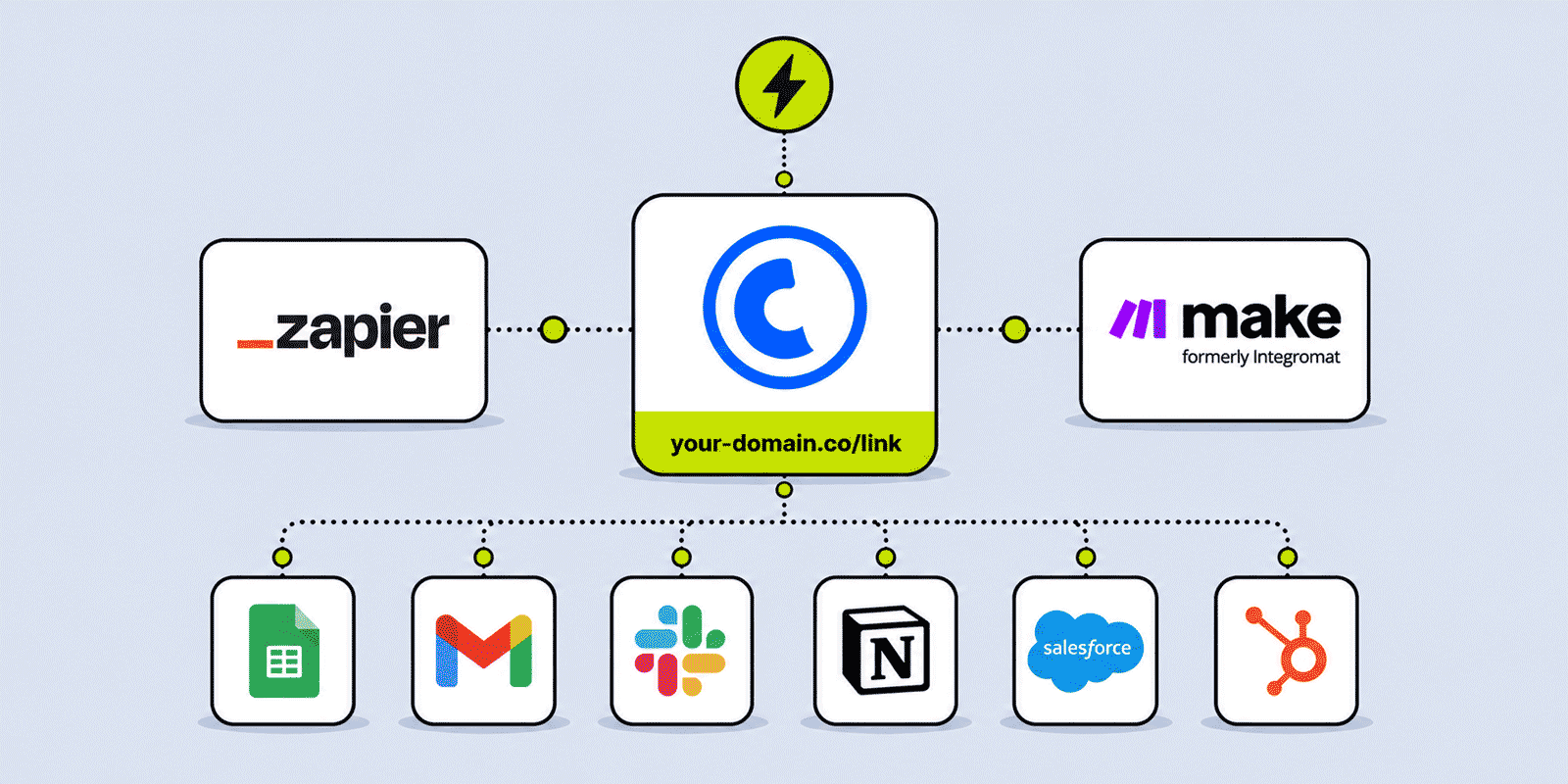
Manual link creation has a ceiling. If someone has to open a dashboard and shorten a URL every time a new product is added to a spreadsheet, a new client lands in a CRM, or a new article is published, the process does not scale — and the inconsistency that builds up over time (missed links, forgotten UTM parameters, random aliases instead of meaningful ones) creates analytics gaps that compound with every skipped step. No-code automation platforms — Zapier and Make — connect the Cuttly URL shortener API to hundreds of other tools without developer involvement. This guide covers exactly how to set that up: the correct HTTP method to use, how to configure each parameter, how to map the short link back into downstream systems, how to handle errors, and the most useful automation patterns for marketing and operations teams.
For the full API parameter reference, see the Cuttly Regular API documentation. For a deeper technical guide including the Team API and production integration patterns, see the URL Shortener API Developer Guide.
What This Guide Covers
- How Cuttly integrates with Zapier and Make — the API approach
- The correct HTTP method to use and why it matters
- Getting your Cuttly API key and storing it securely
- Zapier: configuring Webhooks by Zapier for link creation
- Zapier: mapping the response and writing the short link back to a workflow
- Make: configuring the HTTP module for link creation
- Make: parsing the response and passing the short link forward
- Custom aliases: mapping them from trigger data
- Branded domains: how userDomain works and what to configure first
- Tags: the two-step process required in the Regular API
- UTM parameters: where they belong and how to build them in Zapier and Make
- Automation workflow examples: Google Sheets, CRM, email platform, Slack, Notion
- Rate limit considerations for automation
- Error handling: status codes and what to do with each
- Which Cuttly plan supports your automation volume
How Cuttly Integrates with Zapier and Make
Cuttly does not have a pre-built native app in the Zapier marketplace or the Make app directory — there is no "Cuttly" tile to select when building a Zap or Scenario. What Cuttly has is a documented REST API, and both Zapier and Make include generic HTTP modules that can call any REST API endpoint, including Cuttly's.
In Zapier, the relevant module is Webhooks by Zapier — a built-in action that makes HTTP requests to any URL. In Make, the relevant module is HTTP — Make a Request. Both allow you to configure the URL, HTTP method, parameters, and headers of the API call. Neither requires writing code — configuration uses form fields and dropdowns.
The integration pattern is identical in both platforms:
- A trigger fires in another app (new spreadsheet row, new CRM record, new published article, etc.)
- A Webhooks or HTTP module calls the Cuttly API with the destination URL from the trigger
- The Cuttly API responds with the created short link URL in the JSON response
- A subsequent step uses the short link URL — writes it to the spreadsheet, updates the CRM record, posts it to Slack, etc.
The HTTP Method: GET, Not POST
This is the single most common configuration error in Cuttly automations on Zapier and Make: using POST when the API requires GET.
The Cuttly Regular API link creation endpoint uses GET requests only. All parameters — the API key, the destination URL, the optional alias, the userDomain flag — are passed as query string parameters in the URL, not in a request body. A POST request to the link creation endpoint will not work correctly.
The only operation in the Cuttly API that uses POST is setting a password on an existing link — a specific edge case documented in the API reference. Every other operation, including link creation, statistics retrieval, and link editing, uses GET.
In Zapier: when adding a Webhooks by Zapier action, select the GET action type (not POST). Pass parameters as query string key-value pairs using Zapier's query string fields, or construct the full URL manually with parameters appended after a ?. Zapier handles URL encoding of parameter values automatically when they are entered as separate query string fields.
In Make: set the HTTP module method to GET. Enter parameters in the Query String section rather than the Body section. Make encodes the values automatically.
Getting Your Cuttly API Key
Log in to your Cuttly account and go to Edit Account. Scroll to the API section. Your API key is shown there — copy it. If you do not have a Cuttly account yet, create one here — the API key is available immediately on the free plan.
Store the key securely in your automation platform. In Zapier, avoid pasting it as a plain hardcoded value in a step that is visible to other team members — use Zapier's secure input fields or a connected storage utility. In Make, store it as a scenario variable or in Make's data store. For team environments, use the Team API key (generated in Team Settings) rather than a personal key — the Team API key is not tied to any individual's account and persists when people leave the organization.
The API key is passed as a query parameter named key in every request. Because it appears in the URL, it will be visible in any system that logs full request URLs — Zapier's task history, Make's execution logs. Be aware of who has access to those logs in your workspace.
Zapier: Configuring Webhooks by Zapier for Link Creation
In a Zapier Zap, after your Trigger step has fired and provided the destination URL to shorten, add an Action step. Search for Webhooks by Zapier and select it.
Action Type: GET
Select GET as the action type. This is the correct method for the Cuttly link creation endpoint.
URL
Enter https://cutt.ly/api/api.php as the base URL.
Query String Parameters
In the Query String Params section, add the following key-value pairs:
key— your Cuttly API key. Paste it directly or reference it from secure storage.short— map the destination URL from your trigger step. This is the URL you want to shorten. Zapier automatically URL-encodes the value when entered in a query string field.name— optional. A custom alias for the short link. Map it from trigger data (a product SKU, article slug, deal ID) or leave empty for auto-generation.userDomain— optional. Enter the value1(not your domain name) to create the link on your branded custom domain. Read the branded domains section below before using this.
Test and Verify
Click Test Action. Zapier sends the GET request and shows you the response. The response is a JSON object. Look for url.status — it should be 7 for a successfully created link. The short link URL is in url.shortLink. If you see a different status value, refer to the status codes section of this guide and the official API documentation for diagnosis.
Zapier: Mapping the Short Link Back into the Workflow
After the Webhooks step completes, the response data is available for subsequent steps. The field you want is the value at path url.shortLink in the Webhooks response — Zapier exposes this as a mappable variable labeled something like Url Short Link in the step output.
Add the next action (Google Sheets — Update Spreadsheet Row, HubSpot — Update Contact, Slack — Send Message, etc.) and map the short link variable to the relevant field. Zapier passes the short link value as a plain string — no additional processing needed.
Example — Google Sheets write-back:
- Trigger: Google Sheets — New Spreadsheet Row (reads destination URL from column A)
- Action 1: Webhooks by Zapier — GET to Cuttly API with column A value as
short - Action 2: Google Sheets — Update Spreadsheet Row, mapping
url.shortLinkto column B of the same row
The Google Sheets row update step needs the row number from the trigger — Zapier's Sheets trigger provides a row identifier that can be passed directly to the update action.
Make: Configuring the HTTP Module for Link Creation
In a Make Scenario, after your trigger module (Google Sheets Watch Rows, HubSpot Watch Contacts, WordPress Watch Posts, etc.), add an HTTP — Make a Request module.
Method: GET
Set the method to GET. The Cuttly link creation endpoint does not accept POST for standard operations.
URL
Enter https://cutt.ly/api/api.php.
Query String Parameters
In the Query String section (not the Body section), add:
key— your Cuttly API key.short— map the destination URL from the trigger module using Make's dynamic variable syntax. Make handles URL encoding automatically for query string fields.name— optional custom alias, mapped from trigger data or set as a static value.userDomain— optional. Enter1to use the branded domain active in your account. See the branded domains section.
Parse Response
Toggle on Parse response so Make automatically parses the JSON response body into individual mappable fields. Without this, the response arrives as a raw string and requires manual parsing.
Test the Module
Run the scenario with a test record. In the HTTP module's output bundle, verify url.status equals 7 and url.shortLink contains the created short link URL. If the status is not 7, check the status codes section below.
Make: Mapping the Short Link Forward
With Parse response enabled, the HTTP module exposes the response fields as mappable outputs in subsequent modules. Add the next module (Google Sheets Update a Row, HubSpot Update a Contact, Slack Create a Message, Notion Update a Database Item, etc.) and map the url.shortLink field from the HTTP module's output to the relevant field.
Example — Airtable write-back:
- Trigger: Airtable — Watch Records
- Module 2: HTTP — Make a Request (GET to Cuttly API, destination URL from Airtable Product Page URL field)
- Module 3: Airtable — Update a Record, mapping
url.shortLinkto the Short Link field
Custom Aliases: Mapping from Trigger Data
If the trigger step provides a value that can serve as a meaningful alias — a product SKU, an article slug, a client ID, a campaign code — map it to the name parameter. The resulting short link will use that value as its alias instead of a random string: go.yourbrand.com/product-SKU123 instead of go.yourbrand.com/xK7mQ2. In both Zapier and Make, this is a field mapping — no logic or code required if the alias value comes from the trigger directly.
If the trigger provides a value that needs formatting before use as an alias — a full article title rather than a slug, a name with spaces — Make's text functions (substring, replace, lowercase) can clean it before passing it to the API parameter. In Zapier, the Formatter by Zapier action can transform text between the trigger and the Webhooks step.
Alias conflicts: if the requested alias is already taken, the API returns status 3. In a production automation, handle this explicitly: either append a suffix to the alias and retry (a second HTTP module step in Make, or a Paths branch in Zapier), or treat status 3 as confirmation the link already exists and extract the existing short link URL from the domain and alias combination. The second approach works when aliases are deterministic — derived from a stable unique ID — so the same alias always refers to the same entity.
Branded Domains: How userDomain Works
The userDomain parameter controls whether the created short link uses the cutt.ly domain or your branded custom domain. To create a branded link, set userDomain to the value 1.
Important: the value is 1, not your domain name. Passing the domain name string (such as go.yourbrand.com) as the userDomain value will not work — the parameter only accepts the integer flag 1, which tells the API to use the domain that is currently set as active in your Cuttly account.
The domain itself is selected in the Cuttly dashboard: go to Edit Account → Custom Domains and mark the desired domain as active. That domain is then used for all API calls where userDomain=1 is passed. Only one domain can be active at a time in the Regular API model. Changing the active domain in the dashboard changes the domain used by every subsequent automated link creation.
Before turning on any Zapier or Make automation that uses userDomain=1, verify in the Cuttly dashboard that the correct domain is set as active. If the domain is not verified or not set as active, the API will return an error and no link will be created.
Branded domain links have their own monthly limit — separate from the total link limit. Check the plan limits table later in this guide before designing an automation that creates a large volume of branded domain links.
Tags: The Two-Step Process
Tags cannot be set during link creation in the Regular API. The shortening endpoint does not accept a tag parameter. Tags are applied via the edit endpoint after the link is created, using the full short link URL as the identifier.
In Zapier or Make, applying a tag means adding a second HTTP/Webhooks step:
- Step 1: GET request to the shortening endpoint — creates the link, returns
url.shortLink. - Step 2: GET request to the same API endpoint, passing
edit(the full short link URL from step 1) andtag(the tag value, static or mapped from trigger data).
Both steps use the same base URL (https://cutt.ly/api/api.php) and the same key parameter. Both are GET requests. Both count against the API rate limit — so an automation that creates and tags links requires two API calls per link rather than one.
Tags can be static (every link created by this automation gets the tag q3-campaign) or dynamic (the tag is mapped from a field in the trigger — a CRM campaign name, a spreadsheet category column). The tag value in the edit step can be hardcoded or mapped from the trigger data the same way as any other parameter.
UTM Parameters: Build Before You Shorten
UTM parameters are not separate API parameters — they are part of the destination URL itself. The correct approach is to construct the full UTM-tagged destination URL before passing it to the short parameter. The Cuttly API shortens whatever destination URL it receives; it does not add, modify, or validate UTM values.
In Zapier: add a Formatter by Zapier step before the Webhooks action. Use the Text — Compose function to build the full destination URL by concatenating the base URL with UTM parameters. Each UTM value can be mapped from trigger data (a campaign name field, a channel field, a source field). The resulting composed URL is then passed as the short parameter in the Webhooks step.
In Make: use the URL module or a text formula directly in the HTTP module's short query string field to build the full UTM-tagged URL. Make's URL-encode function ensures any spaces or special characters in UTM values are properly encoded. The constructed URL — including UTM query string — is passed as the destination to the Cuttly API.
UTM values that contain spaces or special characters must be URL-encoded before concatenation, otherwise the destination URL is malformed and either fails API validation or redirects to a broken URL. Both Zapier Formatter and Make's URL functions handle this encoding automatically when used correctly. When building the URL manually as a plain text concatenation, use the platform's dedicated URL-encoding function on each UTM value individually.
Automation Workflow Examples
Google Sheets: Auto-Shorten a Column of URLs
Use case: a marketing team maintains a Google Sheet of campaign landing pages. Column A contains destination URLs. When a new row is added, a branded short link is automatically created and written to column B.
Zapier: Trigger — Google Sheets New Spreadsheet Row → Action 1 — Webhooks by Zapier GET to Cuttly API (short = column A, name = column C if present, userDomain = 1 if branded) → Action 2 — Google Sheets Update Spreadsheet Row (url.shortLink to column B). Add a Filter step between Actions 1 and 2 to continue only if url.status equals 7.
Make: Trigger — Google Sheets Watch Rows → HTTP GET to Cuttly API → Google Sheets Update a Row. Add a Router module after the HTTP step to handle status 3 (alias taken) separately from other errors.
CRM: Tracked Short Link for Each New Deal
Use case: a sales team uses HubSpot, Salesforce, or Pipedrive. For each new deal, a unique short link to the proposal or product page is created automatically and stored on the deal record. Reps include it in outreach emails to see whether the prospect clicked through.
Make: Trigger — HubSpot Watch New Deals → HTTP GET to Cuttly API (short = deal website URL, name = deal ID, userDomain = 1) → HTTP GET to Cuttly edit endpoint (edit = url.shortLink from previous step, tag = crm-deals) → HubSpot Update Deal (Tracking Link field = url.shortLink).
Using the deal ID as the alias makes the link creation idempotent: if the automation triggers twice for the same deal (a common scenario with CRM webhooks), the second attempt returns status 3 (alias taken), which the automation treats as confirmation the link already exists.
CMS / Blog: Short Link to Slack on Publish
Use case: a content team uses WordPress, Ghost, or a headless CMS. When a new article is published, a short link with the article slug as alias is created and posted to the team's Slack channel, ready to share on social media.
Make: Trigger — WordPress Watch Posts (filter: status = published) → HTTP GET to Cuttly API (short = post URL, name = post slug trimmed to a suitable length, userDomain = 1) → Slack Create a Message in #marketing (message includes article title and url.shortLink).
Email Platform: Campaign Link Pre-Generation
Use case: a marketing team uses Mailchimp, Klaviyo, or ActiveCampaign. When a new campaign is created, a short link for the campaign's primary CTA URL is generated automatically — with a campaign-specific alias and UTM parameters — and sent to the campaign manager via Slack DM.
Zapier: Trigger — Mailchimp New Campaign → Action 1 — Formatter by Zapier (compose UTM-tagged URL from campaign URL + utm_source + utm_medium + utm_campaign) → Action 2 — Webhooks by Zapier GET to Cuttly API (short = composed URL, name = campaign ID) → Action 3 — Slack Send Direct Message (short link + alias to campaign manager).
Notion: Short Link Column Auto-Population
Use case: a team manages a content or campaign database in Notion. When a new row with a destination URL is added, the short link is created automatically and written back to the Short Link property.
Make: Trigger — Notion Watch Database Items → HTTP GET to Cuttly API → Notion Update a Database Item (Short Link property = url.shortLink).
E-Commerce: Per-Product Marketing Links
Use case: a store on Shopify, WooCommerce, or a similar platform creates a branded short link for every new product at listing time — with the product SKU as alias and a category tag — ready for product-specific marketing distribution.
Make: Trigger — Shopify Watch Products → HTTP GET to Cuttly API (short = product URL with UTM parameters, name = SKU, userDomain = 1) → HTTP GET to Cuttly edit endpoint (edit = url.shortLink, tag = product category) → Shopify Update Product (custom metafield for short link = url.shortLink).
Rate Limit Considerations for Automation
The Cuttly API rate limit applies regardless of what tool is making the requests. On the Single plan, 60 calls per 60 seconds. On Team, 180 per 60 seconds. This becomes relevant when an automation triggers for a large batch of records simultaneously — importing 200 rows to Google Sheets at once, a CRM bulk import, or a product catalogue migration.
In Make, add a Tools — Sleep module between iterations to pace requests. A sleep of 1,100 milliseconds between records stays within the Single plan's limit of one request per second. For automations that use two API calls per record (create + tag), use a sleep of 2,500 milliseconds to account for both calls comfortably.
In Zapier, batch operations through Zapier Tables can be configured with delays between steps. For workflows triggered by a single-row trigger (a single new row causes one Zap run), rate limiting is generally not an issue because Zapier itself paces Zap runs at a human-reasonable interval. It becomes relevant if multiple records trigger simultaneously.
When the rate limit is exceeded, the API returns HTTP 429. Both platforms retry automatically on 429s, but without deliberate pacing, retries can create cascading spikes. Pacing requests proactively is more reliable than depending on retry logic.
Error Handling in Automated Workflows
Automated workflows that create links without human review need error handling — otherwise alias conflicts, invalid URLs, or exhausted monthly limits create silent failures where records are missing short links and no one is alerted.
The critical principle: check url.status in the API response, not just the HTTP status code. The Cuttly API returns HTTP 200 for many error conditions — the actual outcome is in the url.status field. An HTTP 200 response with url.status not equal to 7 means the link was not created.
In Zapier: add a Filter step immediately after the Webhooks action. Set the filter to continue only if url.status equals 7. Add a Paths branch for other values — the error path sends a Slack message or email including the failed destination URL and the status value for diagnosis.
In Make: add an error handler route to the HTTP module (right-click the module → Add error handler). Configure a Resume or Commit handler that logs the failure — writing the failed URL and status to an error log in Google Sheets, or sending a Slack notification.
Status Codes and What to Do
The Regular API link creation endpoint returns these status values:
| Status | Meaning | Recommended action in automation |
|---|---|---|
| 7 | Success — link created | Continue workflow, use url.shortLink |
| 1 | Destination is itself a shortened link | Log and skip, or use the destination as-is |
| 2 | Not a valid URL | Log the bad URL for manual correction |
| 3 | Alias already taken | Treat as idempotent success if alias is deterministic, or append suffix and retry |
| 4 | Invalid API key | Alert immediately — integration is broken |
| 5 | URL failed validation (invalid characters) | Log for manual review |
| 6 | Domain is blocked | Log and notify |
| 8 | Monthly link limit reached | Alert account administrator immediately — all automation is halted until upgrade or reset |
Status 4 (invalid API key) and status 8 (monthly limit reached) require immediate human attention — they affect every subsequent API call until resolved. Configure alerts for both that notify the account administrator, not just log to a spreadsheet.
Which Cuttly Plan Supports Your Automation Volume
| Plan | API calls / 60s | cutt.ly links / month | Branded domain links / month via API |
|---|---|---|---|
| Free ($0) | 3 | 30 | — |
| Starter ($12/mo) | 6 | 300 | 30 |
| Single ($25/mo) | 60 | 5,000 | 1,000 |
| Team ($99/mo) | 180 | 20,000 | 20,000 |
| Enterprise ($149/mo) | 360 | 50,000 | 50,000 |
The Free plan ($0) allows only 3 calls per 60 seconds and 30 links per month. The only practical use is testing whether the Zapier or Make integration connects and returns the expected response. Not suitable for any regular automation.
The Single plan ($25/month) is the right starting point for most marketing automation — a Zap that creates a short link for every new blog post, every new CRM deal, or every new product listing will typically stay within 5,000 links per month. At 60 calls per 60 seconds, the automation can sustain one link per second, which is more than sufficient for most event-triggered workflows.
The Team plan ($99/month) is appropriate for high-frequency automation (e-commerce platforms with large product catalogues, CRMs with thousands of new contacts per month) and for any organizational integration where the API key should belong to a workspace rather than an individual — which means the Team API key rather than the Regular API key. The Team plan also enables date-range analytics filtering, useful for automations that pull click data back into reporting tools.
Create a free Cuttly account to get your API key and test the setup in Zapier or Make. Registration required; free plan available with no credit card needed.
Frequently Asked Questions
Does Cuttly have a native Zapier integration?
Cuttly does not have a pre-built native Zapier app, but integrates fully via the Cuttly Regular API using the Webhooks by Zapier action with GET requests. This gives access to all API capabilities — link creation, custom aliases, branded domains, edit operations — without writing code. The same applies to Make via the HTTP Make a Request module.
What HTTP method does the Cuttly API use in Zapier and Make?
GET — not POST. All parameters for link creation (API key, destination URL, alias, userDomain flag) are passed as query string parameters. In Zapier, select the GET action type in Webhooks by Zapier. In Make, set the HTTP module method to GET and enter parameters in the Query String section. The only Cuttly API operation that uses POST is setting a link password — link creation and all other operations use GET.
Can I add a tag to a short link created via Zapier or Make?
Yes, but it requires a second API call. The Regular API shortening endpoint does not accept a tag during link creation — tags are applied via the edit endpoint after the link exists. Add a second Webhooks or HTTP module step with the edit parameter (the full short link URL) and the tag value. Both steps use GET.
Which Cuttly plan do I need for API-based automation?
API access is available on all plans including free (3 calls per 60 seconds, 30 links per month). For branded domain links: Starter (30/month), Single (1,000/month), Team (20,000/month). For organizational automation where the API key should belong to a workspace rather than an individual, the Team plan and Team API are required.
How do I handle API errors in Zapier and Make automations?
Check url.status in the API response — not just the HTTP status. HTTP 200 can accompany a failed link creation. Status 7 is the only success. In Zapier, add a Filter step after the Webhooks action to continue only on status 7, and add an error notification path for other values. In Make, add an error handler route to the HTTP module. Alert immediately on status 4 (invalid API key) and status 8 (monthly limit reached) — both stop all automation until resolved.
- Tools
- URL Shortener Tool →
- Link Analytics →
- QR Code Generator →
- API Documentation
- Regular API Reference →
- Team API Reference →
- Related Guides
- API Developer Guide 2026 →
- URL Shortener for Developers →
- URL Shortener in Google Sheets →
- URL Shortener API Overview →
- Branded Short Links Guide →
- UTM Parameters Guide →
- Link Analytics Guide →
- Encyclopedia
- Branded Links
- Dynamic QR Codes
- Link in Bio
- Start Here
- Create Free Account
- Plans & Pricing
URL Shortener
Cuttly simplifies link management by offering a user-friendly URL shortener that includes branded short links. Boost your brand’s growth with short, memorable, and engaging links, while seamlessly managing and tracking your links using Cuttly's versatile platform. Generate branded short links, create customizable QR codes, build link-in-bio pages, and run interactive surveys—all in one place.
Cuttly - Consistently Rated
Among Top URL Shorteners
Cuttly isn’t just another URL shortener. Our platform is trusted and recognized by top industry players like G2 and SaaSworthy. We're proud to be consistently rated as a High Performer in URL Shortening and Link Management, ensuring that our users get reliable, innovative, and high-performing tools.


