How to Add a QR Code to a Business Card: The Complete Guide
A QR Code on a business card solves one of the most persistent friction points in professional networking: the gap between handing someone a card and them actually following up. A printed URL requires memorization or manual typing. A QR Code requires a single camera tap. When it is done correctly — right destination, right design, right size, right placement — the QR Code on a business card dramatically increases the percentage of card exchanges that convert into a meaningful digital connection. When it is done poorly — wrong destination, static code, too small, unclear call to action — it creates an impression of technical effort without actual results. This guide covers every dimension of doing it correctly: the destination strategy, the dynamic-versus-static decision, the step-by-step creation process in Cuttly, the design rules that govern print scannability, placement, production file formats, and the analytics framework for understanding whether the QR Code is actually working.
All QR Codes discussed in this guide are created with Cuttly's QR Code generator — available free on all plans, with full customization from the Single plan ($25/month). No credit card required to start.
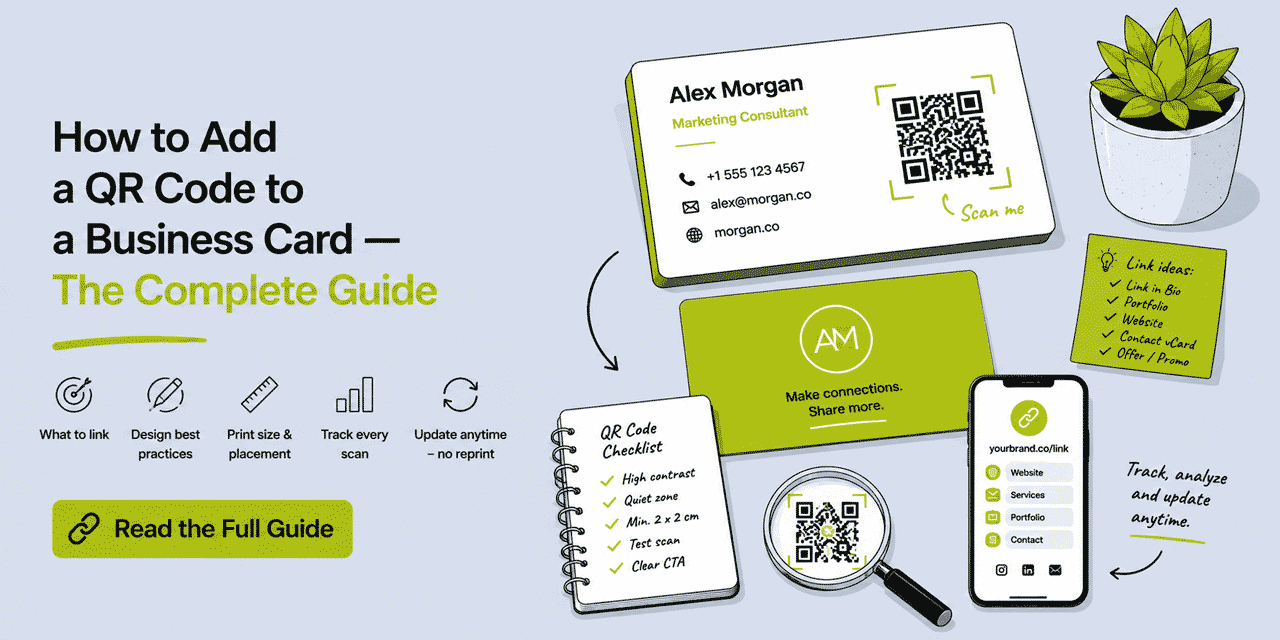
What This Guide Covers
- Why a QR Code on a business card matters — and when it does not
- Destination strategy: what to link your QR Code to, by profession and use case
- Dynamic vs static: why the distinction is critical for business cards specifically
- Step-by-step: creating a tracked, branded, updatable QR Code with Cuttly
- Design rules: size, color contrast, dot style, logo overlay, error correction level
- The quiet zone: why most printed QR Codes fail and how to prevent it
- Placement: front vs back, corner vs center, with or without printed URL
- Working with print designers: file formats, proofing, what to check
- What to do when you need to update the destination after printing
- How to track scans and interpret the data
- Professional use cases: consultant, creative, sales, healthcare, hospitality, trades
- Common mistakes and how to avoid them
Why a QR Code on a Business Card Matters — and When It Does Not
The fundamental value of a business card QR Code is friction reduction. In a networking context — a conference, a client meeting, a referral introduction — the card exchange happens in a moment of mutual interest. That interest has a half-life. By the time the recipient is back at their desk, the context of the conversation has faded, the stack of cards from the day is competing for attention, and the motivational energy to type a URL or search for someone on LinkedIn is lower than it was at the moment of exchange.
A QR Code closes that gap. At the moment of exchange — or at any point the recipient picks up the card — a single camera tap navigates directly to the destination. The friction of typing a URL, remembering a name, or searching a platform is eliminated. The result, consistently reported by professionals who measure card conversion rates, is higher follow-through from card exchanges that include a functional, well-placed QR Code compared to cards without one.
The qualifier is "functional and well-placed." A QR Code that links to a generic homepage that does not acknowledge the context of the card exchange, or that is too small to scan reliably, or that links to a dead URL because it was printed as a static code whose destination changed — these do not reduce friction. They create it, and they create the additional negative impression of a professional who invested in the appearance of digital sophistication without the underlying functionality.
The situations where a card QR Code does not add meaningful value: when the primary audience is non-technical, when the most valuable follow-up action is a phone call (in which case a large, clear phone number is the correct design choice), or when the card will primarily be distributed in contexts where phones are not in hand. For most professional contexts in 2026, these exceptions are rare.
Destination Strategy: What to Link Your Business Card QR Code To
The destination is the most consequential decision in business card QR Code design. The QR Code is the mechanism; the destination is the value. A technically perfect QR Code that links to the wrong destination is a worse outcome than no QR Code at all — it creates a scan, delivers a disappointing experience, and associates that disappointment with the person whose card it is.
The ideal destination answers the implicit question the card recipient is asking at the moment they scan: "Who is this person and what do they do, and what should I do next?" The destination should be the most efficient, most compelling answer to that question for your specific professional context.
Option 1: A Link in Bio Page — The Most Versatile and Future-Proof Choice
A Link in Bio page is the strongest default destination for most professionals. It provides a single scannable URL that resolves to a curated page with multiple links: your LinkedIn profile, your website, your booking or scheduling page, your portfolio, your email contact, your latest project or publication. The person who scans the card lands on a page that gives them everything they need to take the next step — and they choose which step based on their interest.
The strategic advantage over any single-destination link is that different people who receive your card want different things from you. A potential client wants to see your work. A potential employer wants to see your LinkedIn profile. A journalist wants your press contact. A collaborator wants your portfolio. A Link in Bio page serves all of them with one QR Code.
The operational advantage is editability. A Link in Bio page hosted in Cuttly can be updated at any time — add a new link, remove an old one, change the profile image, update the title. Every card in existence, printed or in circulation, now points to the updated page. No reprinting required.
Cuttly's Link in Bio builder is available on all plans including free. From the Single plan ($25/month), you can host the page on cutt.bio/yourname or on your own branded domain — bio.yourdomain.com/yourname. The URL is clean, brandable, and printable below the QR Code as a typed fallback.
Option 2: Your LinkedIn Profile — Best for B2B and Professional Networking
For professionals in B2B sales, consulting, executive roles, or recruitment — where the primary follow-up action is a LinkedIn connection — linking directly to your LinkedIn profile is often the highest-conversion destination. The profile contains your complete professional history, recommendations, and contact information. The recipient can connect in one tap.
The implementation: create a Cuttly short link pointing to your LinkedIn profile URL. Set a memorable alias — go.yourdomain.com/linkedin or cutt.ly/yourname-li. Generate the QR Code from that short link. Print the short URL below the QR Code on the card. Every scan is tracked. If you ever need to update your LinkedIn profile URL (which LinkedIn occasionally requires after a profile restructure), update the short link destination in Cuttly — the QR Code on every printed card continues to work.
Option 3: A Booking or Scheduling Page — Best for Service Professionals
For service businesses — therapists, coaches, consultants, personal trainers, lawyers, accountants, photographers, any professional whose income depends on appointments — the most valuable action a card recipient can take is booking a time. A QR Code linking directly to a booking page (Calendly, Acuity, a native booking system, or a contact page with a booking form) removes every step between "this person interests me" and "I have scheduled a meeting."
This destination is highest-conversion when the booking page is simple, mobile-optimized, and fast-loading. A booking page that requires account creation, asks for too much information before confirming, or takes more than 3 seconds to load on mobile loses the impulse that the QR Code captured. Test your booking page on mobile specifically before printing a batch of cards with this destination.
Short link the booking URL via Cuttly with a clean alias: go.yourname.com/book or cutt.ly/bookwithname. If you change booking platforms — a common occurrence for service professionals — update the short link destination. Every existing card continues to link to the new booking system.
Option 4: A Portfolio or Case Study Page — Best for Creatives and Agencies
For designers, architects, photographers, developers, copywriters, and anyone whose work product is the primary selling point — a curated portfolio page is the highest-value destination. The card exchange introduces you; the portfolio demonstrates your capability. The window between receiving the card and deciding whether to follow up is narrow. A QR Code that immediately shows work closes that window with evidence rather than leaving it open with a generic website.
If your portfolio lives on a platform with a complex or lengthy URL (Behance, a custom domain with a long path), short link it via Cuttly. If your portfolio spans multiple platforms — a website, Instagram, Behance, a video showreel — use a Link in Bio page that aggregates all of them behind one QR Code.
Option 5: A vCard or Contact Page — Best for People Who Prioritize Phone Contact
A vCard page — a mobile-optimized contact page that displays phone, email, address, and a one-tap "Add to Contacts" button — is the highest-value destination for professionals whose primary follow-up channel is phone or direct email, and whose audience may not use LinkedIn or booking apps. Real estate agents, financial advisors, insurance brokers, and local tradespeople often find this destination highest-converting because it transfers contact information directly into the recipient's phone without any typing.
Build the contact page on your website or as a standalone page, short link it via Cuttly, and use that short link's QR Code on the card. The scan transfers your contact information to their phone in one tap. All scans are tracked.
What Not to Link To
Your homepage. Unless your homepage is explicitly designed as a first-touch professional introduction — which most are not — it is too generic for a card exchange context. The person who just met you at a networking event wants to see your work, book a time, or connect professionally. They do not want to navigate your top-level website from a homepage that serves customers who arrived via search.
A specific campaign page, event page, or time-limited promotion. These expire. A static QR Code linking to an expired campaign page is a worse first impression than no QR Code. Even with a dynamic QR Code, if you use a campaign-specific destination and forget to update it when the campaign ends, every card you distributed during that campaign now shows a 404 page or an outdated promotion to anyone who scans it months later.
Your social media profile alone. A single social platform profile — Instagram, Twitter/X, TikTok — is too narrow for a professional card unless that platform is specifically where your primary professional value lives (a social media consultant whose Instagram demonstrates their work, for instance). For most professionals, a Link in Bio page that includes the social profile alongside other destinations is more complete.
Dynamic vs Static: Why the Distinction Is Critical for Business Cards
This is the single most important technical decision in business card QR Code design, and it is the decision most frequently made incorrectly by first-time users. Understanding the distinction is straightforward; understanding why it matters specifically for business cards requires thinking about print run timelines.
A static QR Code encodes the destination URL directly in the QR matrix — the pattern of black and white modules. The destination is part of the QR Code itself, embedded permanently at the moment of creation. Once the card is printed, that URL is fixed. If the URL changes — if your website moves to a new domain, if your LinkedIn URL is restructured, if your booking platform changes, if you rebrand — every card in existence, in every wallet and drawer and conference bag, now contains a dead link. The only solution is a new print run.
A dynamic QR Code encodes a short link URL. The short link — something like go.yourname.com/card or cutt.ly/yourname — is stable and permanent. The destination that short link redirects to is stored in Cuttly's database and can be updated at any time. When you update the destination in Cuttly, every printed card now redirects to the new URL. The QR Code matrix on the card has not changed. The short link URL encoded in it has not changed. Only the redirect destination has changed — and that change propagates to every physical card in existence simultaneously.
For business cards specifically, the lifecycle argument is particularly strong. A batch of 500 cards may take 2 to 3 years to fully distribute. The professional who ordered those cards in early 2026 may have changed their booking platform by late 2026, moved their website to a new domain in 2027, and updated their LinkedIn URL after a profile restructure. With a static QR Code, any one of these changes breaks every card. With a dynamic QR Code, each change requires one update in Cuttly, and the entire inventory of cards continues to work correctly.
There is also a tracking advantage. Static QR Codes are invisible to analytics — there is no mechanism to count scans, identify devices, or understand geographic patterns. Dynamic QR Codes record every scan automatically in Cuttly's analytics dashboard. For professionals who want to understand whether their networking efforts are translating into digital engagement, this data is directly relevant.
There is no reason to use a static QR Code on a business card. The dynamic option costs nothing additional — Cuttly's free plan generates dynamic QR Codes for every short link. The only situation that favors a static code — encoding non-URL data like a WiFi password or vCard directly in the QR matrix — does not apply to the standard business card use case.
Step-by-Step: Creating a Tracked, Branded QR Code for Your Business Card
The following process takes approximately 15 to 20 minutes for the initial setup and produces a QR Code that is tracked, updatable, branded to your visual identity, and export-ready in SVG format for professional print production.
Step 1: Create Your Cuttly Account
Go to cutt.ly/register and create a free account. No credit card required. Registration takes under two minutes. If you already have an account, skip to Step 2.
Step 2: Create the Short Link
In the dashboard, go to the URL Shortener. Paste your destination URL — whether that is your Link in Bio page, LinkedIn profile, booking page, or portfolio. In the alias field, set a memorable, clean back-half: your name, your business name, or a descriptive term. Examples: yourname, yourbrand-card, book-call. If you have a branded domain connected to your Cuttly account, select it here — your short link will be go.yourdomain.com/yourname rather than cutt.ly/yourname. Click Shorten.
This short link is now the stable, permanent URL that will be encoded in the QR Code. It never changes. The destination it redirects to can be updated whenever needed, but the short link URL itself — the one in the QR Code and printed on the card — is permanent.
Step 3: Open the QR Code Editor
In your dashboard link list, find the short link you just created. Click the QR Code icon next to it. The QR Code editor opens in a side panel. You will see the QR Code preview at the top, updating in real time as you make changes, and the configuration options below it.
Step 4: Set Quality to H (High Error Correction)
This is the first setting to configure, and it is the most important one. In the Quality field, select H. Error correction level H means the QR Code can still be scanned correctly even if up to 30% of its modules are obscured, damaged, or covered. At H level, you can add a logo overlay and maintain full scannability — provided the logo does not exceed the safe size threshold. Even without a logo, H level is recommended for print use because printed materials accumulate minor damage over time — scratches, creases, wear — and the higher redundancy extends the scannable life of the card.
Step 5: Customize Dots Style and Color
In the Dots Style dropdown, choose the module shape. The available options are Square, Dots, Rounded, Extra Rounded, Classy, and Classy Rounded. For business cards, Rounded or Classy Rounded tend to produce the most visually refined result while maintaining strong scannability. Square dots produce a functional, conventional appearance. Dots (circular modules) scan reliably but can appear visually busy at small sizes. Extra Rounded produces a very soft, modern appearance.
In the Dots color field, set your brand's primary color — or a dark, high-contrast color against your intended card background. The constraint is contrast: the dots must be significantly darker than the background for reliable scanning. Dark navy, dark forest green, dark charcoal, and deep burgundy all work well as dot colors against a white or off-white background. Mid-tones — medium grey, medium blue, olive green — reduce scan reliability and should be avoided. Test your chosen color at actual print size before approving the card design.
Step 6: Set Corner Style and Color
The three corner elements — the square finder patterns in three corners of the QR Code — have their own style and color controls. Corners Square Style sets the outer frame shape: Square (conventional), Extra Rounded (softer), or Dot (circular). Corners Dot Style sets the inner fill: Square, Dot. For visual cohesion, match the corner style to the dots style you selected. Rounded dots look best with Extra Rounded corners; Square dots look best with Square corners.
Corner color can match the dots color or differ. A common approach: corner frames in a darker shade of the brand color, corner fills in a slightly lighter shade, dots in the primary brand color. This creates a subtle depth effect while maintaining contrast.
Step 7: Set Background Color
Default background is white — which is the safest and most reliable choice for print. Do not set a dark background with light dots unless you have tested this extensively. The QR Code standard was designed for dark on light; while scanners can technically read light-on-dark codes, reliability decreases significantly across older devices and in non-ideal lighting conditions. For the business card use case, where a single failed scan can lose a connection, a conservative white or very light background is the correct choice regardless of the card's overall design scheme.
If the card's background is a brand color and you want the QR Code to integrate rather than appear as a white box, set the QR Code background to match the card background color — then ensure your dots color maintains sufficient contrast against that background. A very light cream card background with dark green dots, for example, integrates cleanly.
Step 8: Add Your Logo (Optional, Single Plan+)
In the logo/image upload section, upload your logo or monogram. Set the Image size value to no more than 0.4 — this represents 40% of the QR Code's total area, which is the maximum that H error correction can reliably compensate for. In practice, logos set at 0.3 to 0.35 tend to scan most reliably while remaining clearly visible. Set Image margin to 1 to 2 — this adds a small buffer between the logo and the surrounding QR Code modules, preventing edge ambiguity in the scan.
After uploading the logo, scan the QR Code preview immediately using your phone's camera. Do not wait until print production to test scannability. If the code does not scan from the preview: reduce the Image size value, simplify the logo (a monogram or solid-fill logo works better than a detailed or transparent logo), or increase the overall QR Code size. Resolve any scanning issues in the editor before exporting.
Step 9: Set Size and Download Format
For print use, always download in SVG format. SVG (Scalable Vector Graphics) is a vector format that scales to any print dimension without pixelation or quality loss. The pixel width setting in the editor is relevant for raster formats (PNG, JPG, WEBP) but has no effect on SVG output. Set it to 800 or 1000 for a high-resolution PNG backup, but deliver SVG to your printer or designer.
If your print service or designer cannot use SVG, export a PNG at the largest available size (1000px wide minimum) and verify the resolution is sufficient for your target print dimensions. At 300 DPI print resolution, a 1000px image prints clearly at approximately 3.3 cm × 3.3 cm — sufficient for most business card QR Code placements.
Step 10: Final Test Before Print Approval
Before sending any file to print, scan test the QR Code in three scenarios: on screen at approximately the intended print size, from a physical proof at arm's reach under office lighting, and from a physical proof in lower ambient light. Test with at least two different smartphones — an iOS device and an Android device. If any test fails, return to the editor and resolve the issue. The most common causes of test failure are: logo too large, dot color too low-contrast with background, size set too small, or quiet zone violated.
Design Rules for Business Card QR Codes
Technical functionality is non-negotiable. A QR Code that does not scan reliably is worse than no QR Code. The following rules are the minimum standards for a scannable, professionally presented QR Code on a business card.
Rule 1: Minimum Size Is 2 cm × 2 cm
This is the lower bound — not the target. A QR Code measuring 2 cm × 2 cm will scan on a modern smartphone with a good camera in adequate lighting. It will fail to scan on older phones, in poor lighting, or when the camera is at an angle. For a business card — which will be scanned by a wide range of devices, often in conference environments with mixed overhead lighting — aim for 2.5 cm × 2.5 cm as the standard size. This provides meaningful margin above the minimum and adds less than 10% to the area occupied on the card.
The single most common reason business card QR Codes fail to scan in practice is insufficient size combined with fine detail in the module style. Rounded or classy dot styles at 2 cm can become too fine to read reliably. At 2.5 cm, the same styles scan consistently. If your card design has limited space, prioritize QR Code size over surrounding design elements.
Rule 2: High Contrast — Dark Dots, Light Background
QR Code scanners work by detecting the contrast boundary between dark modules and light background. The higher the contrast, the more robustly and quickly the scan completes. Minimum contrast ratio of 4:1 between dots and background is the functional threshold. Maximum contrast — black on white — is always the most reliable choice for printed QR Codes.
Brand color considerations: if your brand uses a mid-weight color (medium blue, medium green, orange, red) as the primary color, that color at full saturation may not meet the 4:1 contrast threshold against white. Test it. If it fails, consider using a darker shade of the brand color for the QR Code dots — maintaining brand association while improving contrast.
Rule 3: The Quiet Zone Is Not Optional
The quiet zone is the clear border around all four sides of the QR Code. The QR standard requires a minimum quiet zone of 4 module widths on all sides. In practical print terms, this means there should be visible, unobstructed white space between the edge of the QR Code pattern and any surrounding design element — text, logos, decorative borders, or the card edge itself.
This is the rule most frequently violated in business card designs created without specific QR Code knowledge. A designer who places the card's address or tagline too close to the QR Code, or who extends a decorative border element into the quiet zone, creates a code that fails to scan reliably. The scanner uses the quiet zone to identify where the QR Code begins and ends. When that zone is compromised, the scanner's orientation algorithm fails, and the code cannot be read.
When reviewing a card proof: look at the QR Code specifically. Is there clear, unobstructed space on all four sides? Is the bottom space (typically where the printed URL appears) also clear of the QR matrix? The URL should be below the quiet zone, not adjacent to it.
Rule 4: Use SVG for Print Production, PNG for Digital
SVG renders as a perfect vector at any size. When a print designer or production service places an SVG QR Code file in a card design, it can be scaled to any dimension — 2 cm, 5 cm, 10 cm — without any quality degradation. PNG and JPG are raster formats; they have a fixed pixel resolution, and scaling them beyond that resolution introduces pixelation that reduces module sharpness and scan reliability.
Always supply SVG to your printer or designer. If they cannot accept SVG (some online card printers have limited file format support), supply a PNG at the largest available resolution — minimum 1000px wide — and do not scale it up in the design software. Scaling a small PNG up to fill a larger space introduces exactly the quality loss that makes QR Codes scan poorly.
Rule 5: Never Apply Filters, Effects, or Distortions to the QR Code
A QR Code is a precision data structure. Any visual modification that alters the geometry or contrast of the module pattern — drop shadows, gradient overlays, slight rotation, emboss effects, transparency, compression artifacts — can break its scannability. This is particularly relevant when working with designers who may apply effects globally across design elements without realizing the QR Code is functionally distinct from decorative graphics.
When briefing a designer: specify explicitly that the QR Code file must not be modified, filtered, or distorted. The file should be placed as-is, at the specified size, with no effects applied. Any color or style modifications should be made in Cuttly's editor and re-exported, not applied in the design software.
Placement on the Card
Back of the Card — The Standard Location
The back of the card is the conventional and most effective location for a business card QR Code. It reserves the front for the information that communicates at a glance — name, title, company, phone, email — while giving the back a clear, purposeful function. A recipient who is interested enough to turn the card over is already engaged; presenting them with a prominent, well-labeled QR Code at that moment captures that engagement.
Back placement also provides more design space for the QR Code. A card back can dedicate a significant portion of its area to the QR Code without competing with contact information for visual hierarchy. The back can be designed specifically around the QR Code — branded background, the QR Code as the primary element, the short URL and call to action as supporting text.
Front of the Card — When It Works
Front placement works when the card design is deliberately minimalist — when the QR Code is intended to be the primary interactive element and the card communicates identity through design rather than text volume. A card that shows only a name, a title, and a QR Code on the front, with contact details on the back, can be striking and effective. It signals digital-first professional identity clearly.
Front placement fails when the card front is already dense with information and the QR Code is added as an afterthought. A cluttered front with a small QR Code competing for space is visually confusing and practically unusable. If the front is full, put the QR Code on the back.
Corner vs Center
Corner placement is the professional standard. It treats the QR Code as a functional element — present but not the entire visual message. It integrates cleanly with other design elements and leaves space for text, branding, and the call to action. Center placement creates a strong visual hierarchy that works when the card design is built around it from the start. Never center a QR Code as an afterthought in a design that was not originally planned for it — the result is visually awkward and typically violates the quiet zone requirement on all sides.
Always Include a Call to Action and Printed URL
A QR Code without context is an ambiguous symbol. What does it link to? Why should the recipient scan it? A brief call to action — three to five words — answers both questions and increases scan rates measurably. "Scan to connect," "Scan for my portfolio," "Scan to book a call," "Scan for my links." The CTA should be set in a legible typeface at minimum 7pt print size, in a color that contrasts with the card background.
The printed short URL below the QR Code serves two functions. First, it provides a typed fallback for recipients who prefer not to scan QR Codes. Second — and arguably more important — it signals that the QR Code links to a real, specific destination rather than an unknown URL. A printed short URL like cutt.bio/yourname or go.yourdomain.com/card is recognizable, brandable, and reassuring. It tells the recipient that scanning is safe and purposeful.
Working with Print Designers
Most graphic designers are capable of integrating a QR Code into a business card design — but many are not aware of the specific technical requirements that distinguish a functional QR Code from a decorative one. Providing clear specifications upfront eliminates most production errors.
The briefing should specify: the QR Code is to be placed as a supplied SVG file, at the exact dimensions specified (minimum 2.5 cm × 2.5 cm), with no effects, filters, or modifications applied. The quiet zone (clear space around the QR Code) must be maintained at all four sides — minimum 4 module widths, practically a visible margin of blank space between the QR matrix and any surrounding element. The call to action text and printed URL placement should be agreed before design begins, and both should be placed below or beside the QR Code, outside the quiet zone.
Request a physical proof — a printed sample card — before approving the full print run. Scan the QR Code on the physical proof with your own phone, under realistic lighting conditions. If it fails to scan on the proof, do not proceed with the full run. Identify the cause — typically quiet zone violation, size below minimum, color contrast failure, or an applied filter — and correct it before approving production.
How to Update the Destination After Printing
This is the practical advantage of dynamic QR Codes that justifies everything in the previous sections. The update process is simple: log in to Cuttly, find the short link associated with your business card QR Code, click the edit button, change the destination URL to the new address, and save. That is the entire process.
The change takes effect immediately. Every card that has been printed and distributed — every card in every wallet, drawer, conference bag, and business card holder in existence — now redirects to the new destination when scanned. No new QR Code. No new print run. No communication to people who already have your card.
A practical scenario: you are a consultant who printed 500 business cards in January 2026 with a QR Code linking to your Calendly booking page. In September 2026, you move from Calendly to Acuity. You update the short link destination in Cuttly to your new Acuity URL. Every card distributed since January continues to work correctly — linking to your new booking page.
A second scenario: you are a designer who printed 250 business cards with a QR Code linking to your Behance portfolio. In March 2027, Behance restructures its URL format and your portfolio URL changes. You update the short link destination. Every card continues to work.
A third scenario: you decide to change the QR Code destination entirely — from a LinkedIn profile to a Link in Bio page that you just built. Update the short link destination to the new Link in Bio URL. Every card now links to the richer destination.
How to Track Scans and Interpret the Data
Every scan of your business card QR Code appears in Cuttly's analytics as a click on the short link. In your dashboard, open the short link and click the analytics icon. The analytics view shows total clicks (total scans), unique clicks (unique scans, deduplicated by device within a session window), a timeline of clicks by day and time of day, geographic distribution by country and city, device type breakdown (mobile, tablet, desktop — for QR Codes this will be almost entirely mobile), operating system breakdown (iOS vs Android percentage split), and referrer sources.
Interpreting total scan volume: for a business card QR Code, expected scan volume depends heavily on how actively and in what contexts the card is distributed. A single conference appearance might generate 15 to 40 scans in the following 72 hours. A steady professional networking cadence might generate 5 to 15 scans per week. Volume significantly below these ranges indicates either the QR Code is not visible enough on the card, there is no call to action prompting scanning, or the card is being distributed in contexts where scanning is not a natural behavior.
The day and time of scan data is particularly useful for business card QR Codes because it reveals when recipients are acting on the card. Scans that cluster in the 24 to 48 hours after a specific event confirm that card distribution at that event generated engagement. Scans that arrive weeks after distribution confirm that cards are being retained and consulted — a positive signal about card quality and relevance.
Geographic data confirms the professional markets you are reaching. If you distribute cards primarily in London but see a significant percentage of scans from other cities, your card is being passed along — which is a positive organic distribution signal.
The iOS/Android split reflects your specific professional audience. In B2B and professional services contexts in the US and UK, iOS tends to be majority. In other markets and industries, Android may dominate. If your destination page has any iOS-specific or Android-specific elements (app store links, platform-specific features), the device split informs which to prioritize.
Professional Use Cases
Consultant or Executive
Destination: Link in Bio page aggregating LinkedIn, company website, calendar booking link (Calendly or equivalent), and most recent publication or thought leadership content. Card back, lower right corner. Call to action: "Scan to connect." Printed URL: go.yourname.com/links or cutt.bio/yourname. Branded dot color in the firm's primary color. SVG delivered to print designer with quiet zone brief.
Value: a CEO or partner who distributes cards at board-level meetings wants the recipient to be able to connect on LinkedIn, review their profile, and book a call — all from one scan. The Link in Bio page serves all three without requiring multiple QR Codes on the card.
Freelance Designer or Creative
Destination: Portfolio website or a Link in Bio aggregating portfolio, Instagram, Behance, and contact form. Card design: the QR Code can be a design element — styled with the designer's brand colors, distinctive dot style, possibly with studio monogram in the center. The card itself demonstrates design sensibility; the QR Code reinforces the digital dimension of that sensibility. Call to action: "Scan for my work." SVG of the QR Code created in Cuttly with brand color configuration.
Sales Professional or Account Manager
Destination: LinkedIn profile for direct connection, or a product demo booking page. Card distributed in client meetings, conferences, and sales calls. QR Code on back of card with call to action: "Scan to connect on LinkedIn" or "Scan to book a demo." Analytics particularly useful here: a spike in scans in the 24 hours following a sales meeting confirms the card recipient took action. A flat scan line after multiple card distributions may indicate the card is not being retained or the QR Code is not visible enough.
Healthcare or Wellness Practitioner
Destination: appointment booking page (the most valuable single action a prospective patient or client can take). Card distributed at end of a consultation, at health events, at a reception desk. Call to action: "Scan to book your next appointment." Clean, professional QR Code — high contrast, readable, standard Rounded dot style in practice's brand color. Analytics shows how many consultation recipients scan immediately versus days later, and from which locations — useful for understanding whether cards distributed at partner clinics are generating bookings.
Tradesperson or Independent Contractor
Destination: a contact page with one-tap phone call, email, and "Add to Contacts" functionality. For plumbers, electricians, builders, and tradespeople, the highest-value action is getting the number saved in the phone. A vCard-style contact page accessible via QR Code achieves this more reliably than asking the customer to type a number from the card. Call to action: "Scan to save my details." Simple, high-contrast QR Code — no logo overlay required, maximum scannability, large size (2.5 cm × 2.5 cm minimum).
Hospitality Professional
Destination: a Link in Bio page aggregating the property website, booking link, TripAdvisor profile, Instagram, and contact form. For hotel managers, restaurant owners, or event venue operators who network with event planners and corporate travel buyers, the Link in Bio provides the full picture — venue details, availability booking, social proof — in one scan. Card distributed at hospitality trade events, weddings expos, and corporate events. Analytics reveals which industry events generate the most engaged scanners.
Common Mistakes and How to Avoid Them
Using a static QR Code. Every professional argument in this guide points toward dynamic. Static QR Codes for business cards are a false economy — the cards cost the same to print, the QR Code generation is free either way, but the static version expires silently whenever the destination URL changes. Always use dynamic.
No call to action. A QR Code with no label is an unexplained symbol. "Scan me" performs better than nothing. "Scan for my work" performs significantly better than "Scan me." Be specific about what the scan delivers.
Linking to a mobile-unfriendly destination. A business card QR Code will be scanned on a mobile phone every single time. If the destination page is not optimized for mobile — small text, horizontal scrolling, unclickable phone numbers, slow load time — the scan captures the attention but the destination destroys it. Test your destination on mobile before printing the cards.
Quiet zone violation. Allowing design elements to encroach on the QR Code's clear border is the most common technical failure in designer-produced business cards. Specify the quiet zone requirement explicitly in your design brief and verify it on the proof.
No scan test before print approval. Every design proof should include a live scan test with a real smartphone. This takes 10 seconds and catches every production error before it is replicated across 250 or 500 cards.
Never checking the analytics. The tracking exists to tell you whether the card is working. A QR Code that generates zero scans despite regular card distribution is telling you something — either the destination is wrong, the call to action is unclear, or the card is not being retained. Review your scan data monthly and let it inform your next card redesign or destination update.
Ready to create your business card QR Code? Create a free Cuttly account — no credit card required — and follow this guide step by step. Your first tracked, updatable QR Code can be ready in under 15 minutes. Registration required; free plan available with no credit card needed.
Frequently Asked Questions
What should a QR Code on a business card link to?
The most effective destinations are: a Link in Bio page aggregating all your key links (most versatile, recommended), your LinkedIn profile (best for B2B networking), a booking or scheduling page (best for service professionals), or a portfolio page (best for creatives). A Link in Bio page is recommended for most professionals because it serves every type of recipient and is updatable without reprinting the card.
What is the minimum size for a QR Code on a business card?
The minimum is 2 cm × 2 cm (0.8 in × 0.8 in). The recommended target is 2.5 cm × 2.5 cm for consistent scanning across all devices and lighting conditions. Use error correction level H when adding a logo overlay — it allows up to 30% of the code to be obscured while remaining readable.
Should I use a dynamic or static QR Code on a business card?
Always dynamic. A dynamic QR Code (generated by Cuttly) points to a short link — the destination can be updated at any time without reprinting. A static QR Code encodes the URL permanently; if the URL changes, every printed card becomes a dead link. Dynamic QR Codes also track every scan. There is no reason to use a static code on a business card.
Can I add my logo to a QR Code on a business card?
Yes — with Cuttly's Single plan ($25/month). Set error correction level to H, keep the logo area at Image size 0.4 (40% maximum), and always scan test before sending to print. If the code does not scan after adding the logo, reduce the logo size or simplify the graphic.
How do I track how many people scan my business card QR Code?
Every Cuttly QR Code is automatically tracked — every scan appears in the short link's analytics with date, time, device type, OS, and location. No setup required. Free plan: 30 days of history. Single plan ($25/month): 1 year of history.
Where should I place the QR Code on a business card?
The back of the card, typically in a lower corner, with a brief call to action above it and the printed short URL below. Maintain a quiet zone — clear space — around all four sides. Never allow text, borders, or decorative elements to encroach on the QR Code's clear border.
- Tools
- QR Code Generator →
- URL Shortener →
- Link in Bio Builder →
- Related Guides
- QR Codes on Product Packaging →
- Dynamic vs Static QR Codes →
- What Is a Dynamic QR Code? →
- QR Code Generator Guide →
- QR Code with Logo Guide →
- Track QR Code Scans →
- Link in Bio Without Linktree →
- Encyclopedia
- Dynamic QR Codes
- Branded Links
- Verticals Hub
- URL Shortener for Every Industry →
- Start Here
- Create Free Account
- Plans & Pricing
URL Shortener
Cuttly simplifies link management by offering a user-friendly URL shortener that includes branded short links. Boost your brand’s growth with short, memorable, and engaging links, while seamlessly managing and tracking your links using Cuttly's versatile platform. Generate branded short links, create customizable QR codes, build link-in-bio pages, and run interactive surveys—all in one place.
Cuttly - Consistently Rated
Among Top URL Shorteners
Cuttly isn’t just another URL shortener. Our platform is trusted and recognized by top industry players like G2 and SaaSworthy. We're proud to be consistently rated as a High Performer in URL Shortening and Link Management, ensuring that our users get reliable, innovative, and high-performing tools.


