How to Create a QR Code for a PDF Document: Complete Guide
A QR Code for a PDF is one of the most practical and widely used applications of QR technology. Teachers share course materials via QR Codes on classroom handouts. Businesses distribute product brochures and technical manuals via QR Codes on packaging and signage. Event organizers share programmes and speaker bios via QR Codes on badges and posters. Real estate agents link floorplans and property information sheets from "For Sale" boards. The use cases span almost every professional context. This guide covers the complete process: how to host the PDF so it is accessible via URL, how to create a tracked branded short link, how to generate and customize the QR Code, how to configure whether the PDF opens in a browser or downloads, and the critical advantage of dynamic QR Codes — updating the PDF behind the code without reprinting any physical material that contains it.
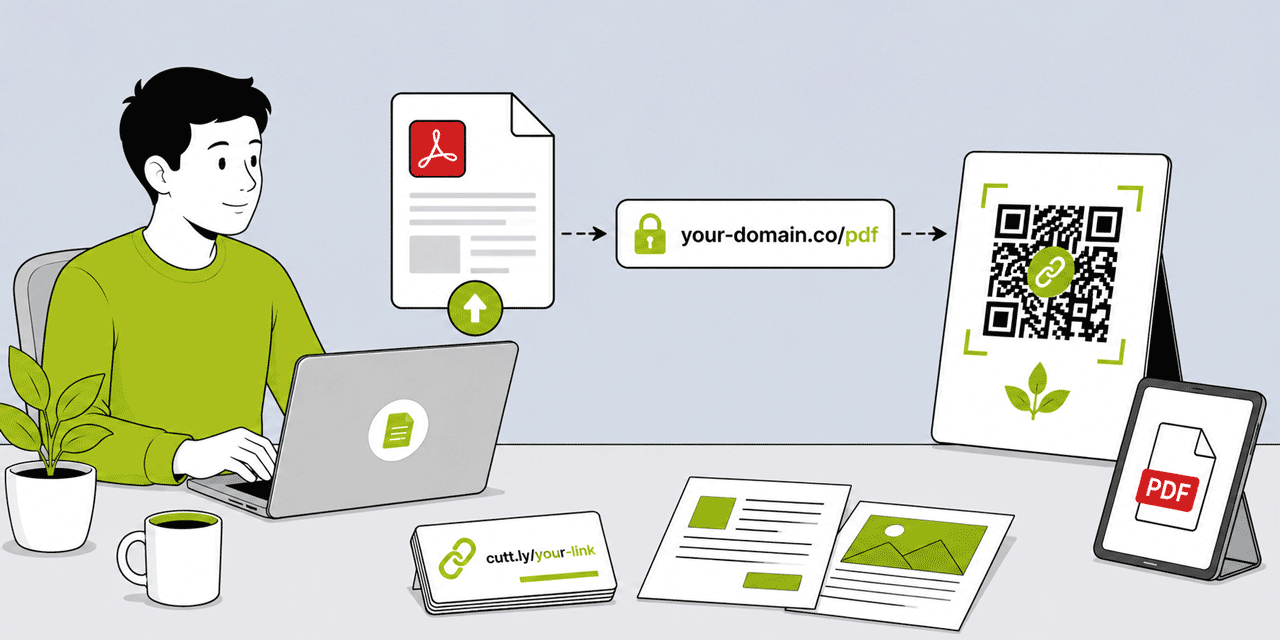
What This Guide Covers
- Why PDF QR Codes need a dynamic short link — not a static QR Code
- Step 1: Hosting the PDF — where and how
- Step 2: Getting a stable, shareable PDF URL
- Step 3: Creating a short link for the PDF in Cuttly
- Step 4: Generating and customizing the QR Code
- Step 5: Choosing open-in-browser vs download behavior
- Step 6: Downloading in the right format for your use case
- Step 7: Placing the QR Code and printed URL in your materials
- How to update the PDF without reprinting the QR Code
- Tracking PDF QR Code scans
- Use cases: education, business, events, real estate, healthcare, retail
- Common mistakes and how to avoid them
Why PDF QR Codes Need a Dynamic Short Link — Not a Static QR Code
The most important decision when creating a QR Code for a PDF is not the visual design — it is the underlying architecture. A static QR Code encodes the PDF's URL directly in the QR matrix. A dynamic QR Code encodes a short link that redirects to the PDF's URL.
For PDFs specifically, the dynamic approach is not optional — it is the only professionally sound choice. Here is why.
PDFs get updated. A product brochure, a policy document, a course syllabus, a terms and conditions document, a price list — these change. When you update the PDF and upload a new version, it typically gets a new URL (most hosting services generate a new URL for a new file upload). A static QR Code pointing to the old URL now links to the old version — or to a file that no longer exists. A dynamic QR Code pointing to a Cuttly short link allows you to update the short link's destination to the new PDF URL in seconds. Every printed QR Code — on every brochure, every flyer, every piece of packaging — now links to the updated document.
PDF URLs are often impractically long. Google Drive, Dropbox, SharePoint, and most document management systems generate PDF shareable URLs of 100 to 200 characters, including authentication tokens, document identifiers, and sharing parameters. A static QR Code encoding a 180-character URL produces a dense, high-version QR matrix — harder to scan reliably at small print sizes. A dynamic QR Code encoding a 25-character Cuttly short link produces a simpler, less dense matrix that scans more reliably, especially at the small sizes typical for QR Codes on business cards, leaflets, and product labels.
PDFs deserve to be tracked. A static QR Code generates zero analytics — you have no way to know how many people scanned it, when, from where, or on what device. A dynamic QR Code from Cuttly tracks every scan automatically. For any professional PDF distribution — a product manual, an event programme, a property information sheet, an educational resource — knowing how many people accessed the document and from which placements is directly useful operational data.
Step 1: Host the PDF
A QR Code for a PDF requires the PDF to be accessible via a URL — publicly reachable on the internet, or at minimum reachable by everyone who will scan the QR Code. The hosting choice determines the URL structure, the access control options, and how reliably the PDF remains accessible over time.
Option A: Your Own Website (Recommended for Professional Use)
Uploading the PDF to your own website's server and linking to the file URL is the most professional and most stable option. The URL is on your own domain (yourdomain.com/documents/product-guide.pdf), it does not depend on a third-party service's link format or availability, and you control whether the file requires authentication or is publicly accessible. If you update the PDF, you can upload the new version to the same path and filename — meaning the URL stays identical and the Cuttly short link destination does not need updating.
If your website uses a CMS (WordPress, Squarespace, Wix, Webflow, Shopify), there is a media or document upload section where you can upload the PDF and get its permanent URL. Use that URL for the Cuttly short link.
Option B: Google Drive
Google Drive is the most widely used option for PDF sharing outside of website hosting. Upload the PDF to Google Drive. Right-click the file and select "Share." Set access to "Anyone with the link can view." Copy the sharing URL.
The default Google Drive sharing URL looks like: https://drive.google.com/file/d/FILE_ID/view?usp=sharing. This URL opens the PDF in Google Drive's viewer — which works on desktop but may have limitations on some mobile devices. For QR Code use, where mobile is the primary scanning device, test the sharing URL on an Android and iOS device before finalizing.
Important: do not use the "Download" URL format (/uc?export=download&id=FILE_ID) for QR Codes — this triggers a file download rather than opening the document for viewing, which is usually the wrong experience for someone who scanned a QR Code and expected to read a document on their phone.
Option C: Dropbox
Upload the PDF to Dropbox. Get the shareable link (Share → Copy link). The default Dropbox share link includes ?dl=0 at the end — this opens the document in Dropbox's viewer rather than triggering a download. If the link ends in ?dl=1, change it to ?dl=0 for browser viewing. Test on mobile before using the link in a QR Code.
Option D: Other Cloud Storage and Document Platforms
OneDrive, Box, SharePoint (with appropriate public sharing settings), Notion (as a linked PDF page), Issuu, Scribd, and similar platforms all support shareable links for PDF documents. The principles are the same: obtain a stable, public-access URL for the PDF, test it on mobile to confirm it opens correctly, and use that URL in the Cuttly short link.
What to avoid: hosting platforms that change their URL structure periodically, require the recipient to log in to access the document (unless that is intentional), generate time-limited sharing links, or may delete files after a period of inactivity. Any of these will break the QR Code without warning.
Step 2: Get a Stable, Shareable PDF URL
Before creating the Cuttly short link, verify the PDF URL is working correctly. Open a private or incognito browser window (to simulate a user without any logged-in session to the hosting service) and paste the PDF URL. Confirm the document opens or is accessible without requiring a login. If it requires login, the QR Code will fail for anyone who does not have a Google, Dropbox, or other account logged in on their device — which is a poor user experience for most public-facing PDF QR Codes.
Also test on mobile. PDF URL behavior differs between desktop and mobile browsers. On a phone, Google Drive sharing links open in the Drive app if installed, or in the mobile browser's Drive viewer. Dropbox links open in the Dropbox app or mobile browser viewer. Raw .pdf file URLs on your own website typically open in the mobile browser's built-in PDF viewer (on iOS, this is well-handled; on Android, behavior varies by browser). Test both iOS and Android specifically before printing any materials with the QR Code.
Step 3: Create a Short Link for the PDF in Cuttly
Log in to your Cuttly account — or create a free account if you have not already. Go to the URL shortener in the dashboard. Paste the PDF's URL into the destination field.
Set a custom alias that clearly identifies what the QR Code links to. Use a descriptive, stable alias: go.yourbrand.com/product-guide, go.yourbrand.com/terms-2026, go.yourbrand.com/event-programme. The alias should be stable enough to remain valid for the entire print run's lifecycle — do not use date-specific aliases like guide-march-2026 for documents that will be in circulation beyond March.
If you have a branded domain connected to your Cuttly account, select it from the domain dropdown before shortening. If not, the link will use the cutt.ly domain — perfectly functional, but a branded domain produces a more professional appearance for the printed URL below the QR Code.
Click Shorten. Your short link is created. This is the stable URL that the QR Code will encode. The PDF URL behind it can change; this short link URL will not.
Step 4: Generate and Customize the QR Code
In the Cuttly dashboard link list, find the short link you just created for the PDF. Click the QR Code icon next to it. The QR Code editor opens.
Quality Setting — Always Use H for Print
Set Quality to H. Error correction level H allows up to 30% of the QR Code to be obscured while still scanning correctly. This is the appropriate level for any QR Code that will appear in print materials, particularly if you plan to add a logo overlay. Even without a logo, H level is recommended for print use — it provides resilience against printing variations, minor damage, and reduced contrast in difficult lighting conditions.
Dots Style and Color
On the Single plan ($25/month), you can set the dots style (Square, Dots, Rounded, Extra Rounded, Classy, Classy Rounded) and dots color. For professional documents — brochures, menus, property details — Rounded or Classy dots in a brand color produce a polished result. For educational materials or healthcare documents, standard Square dots in dark color against white background is the clearest, most accessible choice. Set contrast: dots must be significantly darker than the background for reliable scanning.
Logo Overlay (Optional)
If adding a logo: upload in the logo/image field. Set Image size to 0.35 or below (35% of QR Code area). Set Image margin to 2. After uploading, immediately scan the QR Code preview on your phone to verify it reads correctly. If it fails to scan, reduce the logo size or use a simpler logo variant (a solid icon or monogram rather than a detailed full-color logo).
Size
Set Width to at least 800px for raster formats, or download as SVG (recommended for all print use). The minimum print size for a PDF QR Code is 2 cm × 2 cm — but 2.5 cm × 2.5 cm is more reliably scannable across all devices and is the recommended minimum for any material where scanning reliability matters.
Step 5: Open-in-Browser vs Download Behavior
Whether the PDF opens in a browser window or triggers a download when the QR Code is scanned depends on three factors: the hosting platform's URL format, the recipient's device settings, and the recipient's installed apps.
For view-in-browser behavior (most user-friendly for mobile):
- Google Drive: use the
/view?usp=sharingURL format - Dropbox: use the shareable link with
?dl=0 - Your website: embed the PDF in an HTML page and link to that page rather than the raw .pdf file
For download behavior:
- Your website: link directly to the .pdf file URL — most browsers will trigger a download on mobile when accessing a raw PDF file URL
- Google Drive: use the
/uc?export=download&id=FILE_IDURL format - Dropbox: use the shareable link with
?dl=1
For most QR Code PDF use cases — menus, brochures, programmes, guides — view-in-browser is the better user experience. The user scans, reads the document on their phone, and goes back to the physical context. Download is appropriate when the document is intended for saving and repeated reference (an instruction manual, a compliance form, a certificate).
Because Cuttly's short link is dynamic, you can always change the destination URL to switch between view and download behavior — update the short link destination in Cuttly to the view URL or download URL version as appropriate. No reprinting required.
Step 6: Download in the Right Format
SVG: always the correct format for print production. SVG scales infinitely without quality loss — a QR Code downloaded as SVG can be placed at any size in InDesign, Illustrator, Figma, Affinity Designer, or any professional design tool and will remain sharp at any output resolution. Deliver SVG to your designer or directly to your print service.
PNG: use when SVG is not supported by your design tool or print service. Download at the maximum available size (1000px+ wide). Do not scale a small PNG up in your design software — scaling raster images up introduces pixelation that degrades QR Code scan reliability.
Digital use only (no printing): PNG, JPG, or WEBP at 600px+ wide. For embedding in digital documents, presentations, websites, or email bodies, any raster format at sufficient resolution is adequate.
Step 7: Place the QR Code and Printed URL in Your Materials
The QR Code placement in any printed material should follow consistent design principles that maximize scannability and user understanding.
Minimum size: 2.5 cm × 2.5 cm for any print context. Larger for materials that will be scanned from further away (posters, signage, banner displays).
Quiet zone: maintain clear, unobstructed space on all four sides of the QR Code. No text, borders, or design elements should encroach on the QR Code's border zone. This is the most common cause of scanning failure in designer-produced print materials.
Call to action: include a brief, specific call to action above or beside the QR Code that tells the user what scanning will show them. "Scan to read the full guide," "Scan for the menu," "Scan to view the floorplan," "Scan to download the manual." Specific CTAs generate significantly more scans than generic ones ("Scan me," "Find out more").
Printed short URL: include the Cuttly short link below the QR Code as a typed fallback. This serves two purposes: provides a way to access the PDF for people who prefer not to scan, and reinforces that the QR Code leads to a specific, trustworthy destination. Print it at minimum 7pt size in a color that contrasts with the background.
Background: the QR Code area must have a light background with high contrast against the dark dots. Avoid placing the QR Code on photographic, textured, or gradient backgrounds without a dedicated white or light-colored box behind it.
Surface finish: avoid spot UV varnish over the QR Code area — it creates reflective glare that prevents scanning under overhead lighting. If the material uses gloss varnish overall, specify matte finish specifically over the QR Code area in your print instructions.
How to Update the PDF Without Reprinting the QR Code
This is the operational advantage that justifies using dynamic QR Codes for every PDF application. The update process:
Upload the revised PDF to your hosting location and obtain the new URL (or, if uploading to the same path and filename on your website, the URL remains unchanged — in which case no update is needed at all).
If the URL has changed: go to the Cuttly dashboard, find the short link associated with the PDF QR Code, click the edit button, change the destination URL to the new PDF URL, and save. The change takes effect immediately.
Every physical material containing that QR Code — every brochure in the rack, every product box on shelf, every business card in circulation, every event programme already distributed — now redirects to the updated PDF when scanned. No recalls, no reprinting, no communication to people who already have the material.
Practical examples: a restaurant that updates its menu PDF at the start of each season does not need to reprint the QR Code table cards — one Cuttly update redirects all cards to the current menu. A property agent who updates a property information PDF with new photos after staging does not need to reprint the "For Sale" board QR Code. A teacher who updates a course syllabus PDF before the start of term does not need to reprint the classroom QR Code poster.
Tracking PDF QR Code Scans
Every scan of a Cuttly dynamic QR Code is recorded automatically — no setup required. In the Cuttly dashboard, navigate to the short link associated with the PDF QR Code and open its analytics panel.
Analytics available: total scans, unique scans (Single plan+), scan timeline by day and time, geographic distribution (country and city), device type (mobile will dominate for QR Code scans), operating system (iOS vs Android split), and referrer.
What this data tells you: total scan count shows how many people accessed the PDF through the QR Code. The timeline shows when scans happened — useful for correlating with distribution events (a leaflet distribution, a conference, a product launch). Geographic data shows where in the world the PDF is being accessed. The iOS/Android split tells you the device platform of your PDF audience — relevant if the PDF has any interactive or dynamic elements that behave differently by platform.
For PDF QR Codes placed in multiple physical locations — a menu card at each table in a restaurant, a brochure at reception and in each treatment room at a clinic, a property information sheet at different viewing locations — create a separate short link per placement. Each generates its own analytics. Comparing per-placement scan volumes shows which location generates the most PDF engagement, informing where to prioritize future print material placements.
Use Cases by Context
Education and Training
QR Codes for PDFs are used extensively in educational settings: course syllabi linked from classroom posters, reading lists linked from module handout sheets, assignment briefs linked from course booking confirmations, and research papers linked from conference programme QR Codes. Dynamic QR Codes allow educators to update course materials without reprinting classroom materials.
Business and Professional Services
Product catalogues on product packaging QR Codes (updated when the catalogue is revised without reprinting packaging), proposal PDFs linked from QR Codes in pitch presentations, terms and conditions documents linked from onboarding materials, and policy documents linked from waiting area displays. The ability to update without reprinting is particularly valuable for regulatory documents that change frequently.
Events and Conferences
Event programmes linked from QR Codes on conference badges, speaker bios linked from session room posters, presentation slides linked from speaker business cards, and post-event resource packs linked from QR Codes on printed handouts. For multi-day events, a single QR Code destination can be updated daily to reflect the current day's schedule.
Real Estate
Property information sheets, floorplans, and EPC certificates linked from QR Codes on "For Sale" and "To Let" boards. When the agent uploads updated photos or a revised floorplan, the Cuttly short link destination is updated — the board QR Code now shows the latest version without a site visit to replace the physical board.
Healthcare
Patient information leaflets, medication guides, aftercare instructions, and health screening results forms linked from QR Codes in waiting area displays or on prescription bag inserts. When the clinical team updates the patient information leaflet, one Cuttly update ensures every patient who scans any existing QR Code receives the current version.
Retail and Product
Extended product information, nutritional data, assembly instructions, warranty documents, and care guides linked from packaging QR Codes. For products with long packaging lifecycles (12 to 24 months from print to last-unit-sold), dynamic QR Codes ensure that any document update reaches all products in the market without a packaging reprint.
Common Mistakes and How to Avoid Them
Static QR Code for a document that will be revised. If the document will ever be updated (and most documents eventually are), a static QR Code guarantees future link breakage. Always use a dynamic QR Code from a Cuttly short link for any PDF that may be revised. The marginal effort to set up the short link is minutes; the avoided reprinting cost over the document's lifecycle can be significant.
Using a Google Drive link that requires Google account login. Test the PDF link in an incognito browser window with no Google account. If it asks for login, the QR Code will fail for a large proportion of scanners. Change the sharing settings to "Anyone with the link can view."
Not testing on mobile before printing. Desktop PDF viewing is reliably consistent. Mobile PDF viewing is not. Test the QR Code scan flow on both iOS and Android before committing to a print run. Confirm the PDF opens in an acceptable format on both platforms.
No call to action near the QR Code. A QR Code with no explanation generates fewer scans than one with a specific CTA. Always include a brief label: "Scan to read the full guide," "Scan to view the menu," "Scan to download the manual."
Spot UV varnish applied over the QR Code area. Creates mirror-like glare that prevents scanning under overhead lighting. Specify matte finish over the QR Code area in print instructions.
QR Code too small for the scanning distance. Less than 2 cm × 2 cm produces unreliable scanning on many devices. Less than 1.5 cm produces consistent failures. Always use a minimum 2.5 cm × 2.5 cm for any print context.
Ready to create your PDF QR Code? Create a free Cuttly account — no credit card required. Create the short link, generate the QR Code, and download SVG for print in under 10 minutes. Registration required; free plan available immediately.
Frequently Asked Questions
How do I create a QR Code for a PDF?
Host the PDF on Google Drive, Dropbox, your website, or any accessible storage. Get the shareable URL. Create a Cuttly short link pointing to that URL. Open the QR Code editor, set quality to H, customize if needed, download as SVG. The QR Code is dynamic — the PDF can be updated without reprinting.
Can I update the PDF behind a QR Code without reprinting?
Yes — with a dynamic QR Code. Upload the updated PDF, get the new URL, update the Cuttly short link destination to the new URL. Every QR Code that encodes that short link now redirects to the updated PDF. No reprinting required. This is the critical advantage of dynamic over static QR Codes for documents.
Where should I host a PDF for a QR Code?
Best options: your own website (most professional, full URL control), Google Drive (use /view format for in-browser viewing), Dropbox (use ?dl=0 for viewing). Avoid platforms with time-limited links, login requirements, or URLs that change. Test in incognito mode and on both iOS and Android before printing.
How do I make the PDF open in a browser instead of downloading?
Google Drive: use the /view?usp=sharing URL format. Dropbox: use the sharing link with ?dl=0. Your website: embed in an HTML page and link to the page rather than the raw .pdf file. Test on mobile — behavior varies by device and platform.
Can I track how many times a PDF QR Code is scanned?
Yes. Every Cuttly dynamic QR Code tracks every scan automatically — total scans, unique scans, date and time, device type, OS, and geographic location. No setup required. Free plan: 30 days of history. Single plan ($25/month): 1 year of history.
- Tools
- QR Code Generator →
- URL Shortener Tool →
- Link Analytics →
- Related Guides
- QR Code for Google Form →
- QR Code on Business Cards →
- QR Codes on Packaging →
- Dynamic vs Static QR Codes →
- What Is a Dynamic QR Code? →
- QR Code Generator Guide →
- QR Code with Logo Guide →
- URL Shortener for PDF Sharing →
- Track QR Code Scans →
- Encyclopedia
- Dynamic QR Codes
- Branded Links
- Start Here
- Create Free Account
- Plans & Pricing
URL Shortener
Cuttly simplifies link management by offering a user-friendly URL shortener that includes branded short links. Boost your brand’s growth with short, memorable, and engaging links, while seamlessly managing and tracking your links using Cuttly's versatile platform. Generate branded short links, create customizable QR codes, build link-in-bio pages, and run interactive surveys—all in one place.
Cuttly - Consistently Rated
Among Top URL Shorteners
Cuttly isn’t just another URL shortener. Our platform is trusted and recognized by top industry players like G2 and SaaSworthy. We're proud to be consistently rated as a High Performer in URL Shortening and Link Management, ensuring that our users get reliable, innovative, and high-performing tools.


