How to Create a QR Code for a Google Form: Complete Guide
Google Forms is one of the most widely used tools for data collection — event registrations, attendance check-ins, customer feedback surveys, classroom quizzes, employee satisfaction forms, booking enquiries, and hundreds of other use cases. In every context where the form needs to be accessed from a physical material — a poster, a table tent, a badge, a handout, a business card — a QR Code is the most frictionless delivery mechanism. This guide covers the complete process for creating a QR Code for a Google Form: getting the correct form URL, creating a tracked dynamic short link, generating and customizing the QR Code, sizing for different print contexts, tracking scans versus form completions, and updating the form URL without reprinting materials if the form changes.
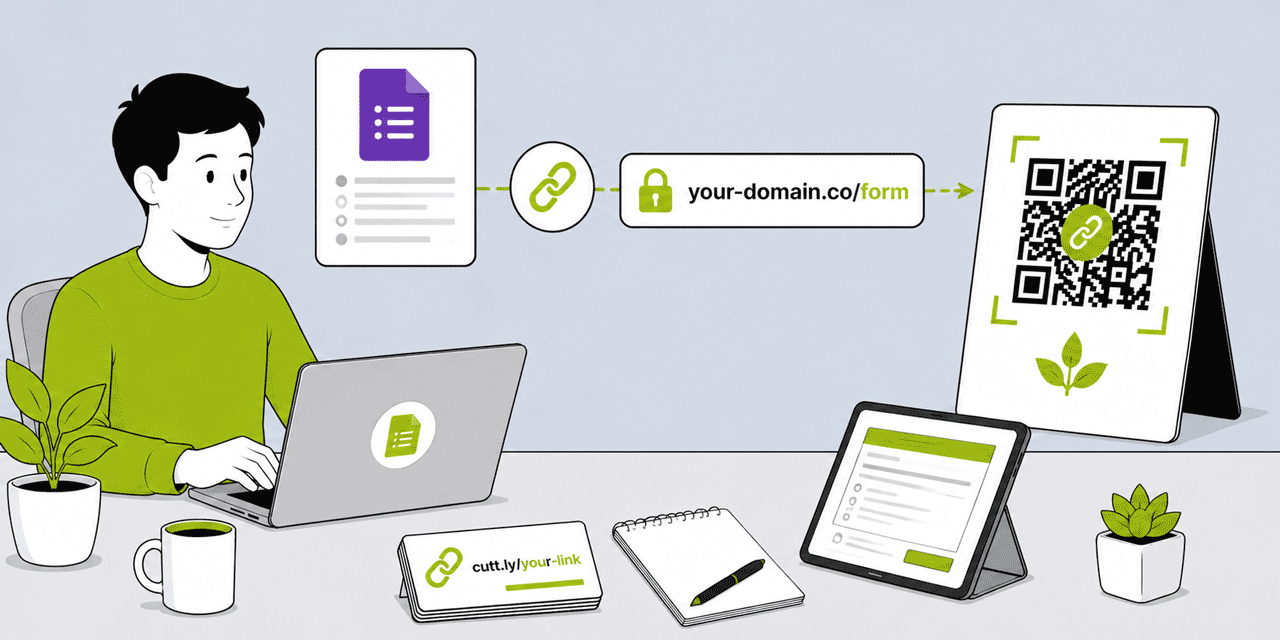
What This Guide Covers
- Why use a QR Code for a Google Form — the use cases
- Why a dynamic short link, not a direct QR Code of the Google Form URL
- Step 1: Getting the correct Google Form URL
- Step 2: Creating a short link for the Google Form in Cuttly
- Step 3: Generating and customizing the QR Code
- Step 4: Sizing for the right context — handouts, posters, signage
- Step 5: Placing the QR Code in your printed or digital materials
- Tracking scans vs form responses — the two-layer picture
- Updating the form without reprinting the QR Code
- Use cases in detail: events, education, hospitality, healthcare, HR
- Common mistakes and how to avoid them
Why Use a QR Code for a Google Form
The fundamental problem a QR Code solves for Google Forms is distribution. Google Forms generates a URL that is 60 to 100 characters long — not practical to type, not printable as a short URL in a card or poster, and difficult to share in physical contexts. A QR Code converts the URL into a scannable visual that anyone with a smartphone can access in one tap.
The specific contexts where QR Codes for Google Forms generate the highest value:
Event registration forms on conference flyers, invitation cards, and event posters. Attendees scan the QR Code and complete registration immediately from their phone — no URL typing, no searching. The QR Code can appear at physical locations where the event is relevant: notice boards, reception desks, community centres, shop windows.
Feedback and satisfaction surveys on table cards in restaurants, in hotel rooms, at service desks, on product packaging, in waiting areas. The QR Code converts the physical context — the post-meal moment, the post-stay check-out, the post-service interaction — directly into a feedback collection opportunity without requiring the recipient to remember a URL, download an app, or navigate to a survey platform.
Classroom and educational forms on printed course materials, textbook covers, classroom posters, and assignment sheets. Students scan and complete a quiz, register for a session, submit a reflection, or respond to a formative assessment question directly from the physical material.
Event check-in and attendance forms displayed on a screen or poster at an event entrance. Attendees scan on arrival, submit their name and ticket reference — a digital check-in process without requiring a dedicated app or scanner device.
HR and internal forms on internal communications, policy acknowledgment notices, suggestion box cards, and onboarding materials. Employees scan from a posted notice or a printed handout and complete the form on their own device without logging into a specific system.
Healthcare patient forms on appointment confirmation cards, waiting area displays, and prescription bag inserts. Patients scan and complete pre-appointment questionnaires, consent forms, or follow-up surveys from their phone without any physical paperwork exchange.
Why a Dynamic Short Link, Not a Direct QR Code of the Google Form URL
Google Forms generates shareable URLs in two formats: a long URL (something like https://docs.google.com/forms/d/e/1FAIpQLSe.../viewform) and a shortened version offered in the Send dialog (https://forms.gle/...). Many people attempt to create a QR Code directly from one of these URLs using a basic static QR Code generator. This approach has two significant limitations.
No tracking. A static QR Code generates zero analytics. You cannot know how many people scanned the code, when, from what device, or from which physical placement. You can see Google Forms response count, but that only tells you completions — not scans. The gap between scans and completions (people who scanned but did not complete the form) is invisible with a static QR Code.
No update flexibility. When you create a new Google Form for the next event cycle — a new year's registration form, a new conference feedback form, an updated intake questionnaire — you need a new QR Code for the new form URL. Every printed material containing the old QR Code is now obsolete. With a dynamic Cuttly short link, you update the destination URL and every printed QR Code routes to the new form without reprinting.
Unnecessarily dense matrix. Google Forms' long URLs (70+ characters) produce dense QR Code matrices. At small print sizes — a table card, a handout, a business card — a dense matrix means smaller individual modules, which scan less reliably. A Cuttly short link is 20 to 30 characters, producing a less dense, more reliably scannable matrix at equivalent print sizes.
The recommended approach for every Google Form QR Code: create a Cuttly dynamic short link pointing to the Google Form URL, generate the QR Code from that short link. You get tracking, update flexibility, and better scannability — at no additional cost on Cuttly's free plan.
Step 1: Get the Correct Google Form URL
Open your Google Form in the editor. Click the Send button in the top right corner. In the Send form dialog, click the link icon (the chain link symbol in the second tab). You see two options: the full form URL and a "Shorten URL" toggle. Either works.
Which URL to use: use the full form URL (docs.google.com/forms/d/e/.../viewform) rather than the Google-shortened forms.gle URL. The full URL is stable for the life of the form. The forms.gle short link is also stable in practice, but using the full URL ensures no dependency on Google's own URL shortening service.
Verify the URL is correct by opening it in a browser and confirming the form displays correctly. Check in an incognito window to simulate a user who is not logged into your Google account — the form should be accessible without requiring Google login unless you have intentionally restricted the form to specific users. If the form requires Google account login to access, note that respondents must be signed in to complete it; if that is not the intent, change the form's access settings in Google Forms settings (the gear icon) to allow responses from anyone.
Test on mobile. Open the form URL on your phone and confirm it renders correctly. Google Forms is mobile-optimized, so this should work cleanly in any modern mobile browser. Confirm that all fields are accessible and the submit button is visible without excessive scrolling.
Step 2: Create a Short Link for the Google Form in Cuttly
Log in to your Cuttly account — or create a free account. In the URL shortener, paste the Google Form URL. Set a descriptive, purpose-specific alias that clearly identifies the form:
go.yourbrand.com/event-registration-2026— for an event registration formgo.yourbrand.com/feedback-june— for a monthly feedback surveygo.school.edu/attendance-3b— for a classroom attendance formgo.clinic.com/pre-appointment— for a patient pre-appointment questionnaire
The alias should be descriptive enough for anyone who reads the printed URL below the QR Code to understand what scanning will show, but not so specific that it becomes misleading when the form is reused across multiple cycles.
If you have a branded domain connected to Cuttly, select it from the domain dropdown before shortening. This creates a branded URL — go.yourbrand.com/alias — rather than a cutt.ly URL. For professional materials distributed to clients, customers, or external audiences, a branded URL significantly improves the impression and trust associated with the QR Code.
Click Shorten. Your short link is created. This is the URL that the QR Code encodes — permanent and stable. The Google Form URL behind it can be updated at any time without changing the QR Code.
Step 3: Generate and Customize the QR Code
In the Cuttly dashboard, find the short link you just created and click the QR Code icon. The QR Code editor opens.
Quality — Set to H
Set Quality to H. Error correction level H allows up to 30% of the QR Code to be obscured while still scanning correctly. This is the appropriate level for any QR Code that will be printed — it provides resilience against print production variations, handling damage, and lighting conditions. It is also required if you plan to add a logo overlay.
Dots Style and Color (Single Plan+)
For materials that will be distributed publicly — event flyers, restaurant table cards, classroom posters — brand-consistent QR Code styling signals professionalism. Select a dot style that matches your brand's visual character: Rounded or Classy for premium or professional aesthetics, Square for clean functional contexts, Dots for modern or playful contexts. Set the dot color to your brand's primary dark color — ensure it is significantly darker than the background.
For internal or educational materials where visual design is not a priority, the default Square dots in black on white is perfectly appropriate and maximally reliable for scanning.
Logo Overlay (Optional)
A logo in the center of the QR Code reinforces brand recognition and signals that the code is safe to scan. With Quality set to H, the logo area can occupy up to 30% of the QR Code area. In Cuttly's editor, set Image size to 0.35 or below (35% of area — slightly conservative for reliability). Set Image margin to 2. After adding the logo, scan the QR Code preview with your phone to confirm it reads correctly before downloading for print.
Background Color
Default white — correct for most contexts. If the material has a brand-colored background, set the QR Code background to match the material's background color, ensuring the dots remain significantly darker than the background. Avoid dark backgrounds with light dots — while technically scannable, reliability degrades significantly on older devices.
Step 4: Sizing for the Right Context
The minimum reliable print size for a Google Form QR Code depends on the scanning distance — how far the person's phone is from the code when scanning.
| Context | Typical Scanning Distance | Minimum QR Code Size | Recommended Size |
|---|---|---|---|
| Business card / pocket-sized handout | 10–15 cm | 2 cm × 2 cm | 2.5 cm × 2.5 cm |
| A4/Letter handout or flyer | 20–30 cm | 2.5 cm × 2.5 cm | 3 cm × 3 cm |
| Table card / tent card | 20–35 cm | 2.5 cm × 2.5 cm | 3.5 cm × 3.5 cm |
| A3 poster / classroom display | 40–60 cm | 4 cm × 4 cm | 5 cm × 5 cm |
| Event entrance sign / pull-up banner | 60–100 cm | 6 cm × 6 cm | 8 cm × 8 cm |
| Screen display (digital) | Screen dependent | 150px × 150px minimum | 400px × 400px |
The general rule: QR Code size in cm ÷ 10 ≈ maximum reliable scanning distance in meters. A 3 cm code scans reliably up to approximately 30 cm. A 5 cm code up to approximately 50 cm.
Download format for print: always SVG. SVG scales to any size without quality degradation — deliver the SVG file to your designer and let them place it at the exact required size without any rasterization issues. If SVG is not supported by your design tool, download PNG at the maximum available width (1000px+) and do not scale it up in the design software.
Step 5: Placing the QR Code in Materials
Effective QR Code placement for Google Form access follows consistent design rules regardless of the material type.
Call to action: always include a brief, specific label above or beside the QR Code that tells the scanner what they will see. "Scan to register," "Scan to complete the feedback survey," "Scan to check in," "Scan to submit your response." The more specific the CTA, the higher the scan rate. Generic labels ("Scan me" or "Scan here") perform measurably worse.
Printed short URL: include the Cuttly short link below the QR Code as a typed fallback. This serves users who prefer to type rather than scan, and it signals to all users that the QR Code leads to a specific, trustworthy destination. Print it at minimum 7pt, clear and legible against the background.
Quiet zone: maintain clear, unobstructed space on all four sides of the QR Code. No text, decorative elements, or borders should encroach within the QR Code's margin. This is the single most common cause of scanning failure in designer-produced materials.
Background: the QR Code area needs a light, high-contrast background. If the material has a colored or photographic background in the QR Code area, place a white rectangle behind the QR Code and its surrounding text.
Prominence: for materials where the form completion is the primary call to action — a feedback card, an attendance check-in poster — the QR Code should be the most visually prominent element on the page or face, not a small element in the corner.
Tracking Scans vs Form Responses
When you use a Cuttly dynamic QR Code for a Google Form, you gain two independent data points that together reveal more than either alone.
Cuttly scan analytics: total scans (everyone who scanned the QR Code), unique scans, device breakdown, geographic distribution, and time patterns. This is the top-of-funnel number — everyone who engaged with the QR Code enough to scan it.
Google Forms response count: everyone who scanned the code, navigated to the form, and actually submitted a response. This is the conversion number — the people who completed the intended action.
The gap between the two numbers is the form abandonment rate from QR Code traffic. If 200 people scanned the code and 145 completed the form, 55 people (27.5%) scanned but did not complete. This abandonment rate reveals whether there is friction in the form itself — too many questions, questions that feel too personal, confusing question wording, a form that loads slowly on mobile, or a required Google account login that prevents non-Google users from completing.
Monitoring the scan-to-completion gap over multiple form cycles reveals whether form redesigns are improving completion rates. A 30% abandonment rate on one form version compared to a 12% rate on a revised version with fewer questions provides direct evidence of the impact of the change.
For events running multiple QR Codes in different physical locations — a poster at the entrance, a table card at each table, a handout at the registration desk — create separate Cuttly short links per placement. Each generates independent scan analytics. Google Forms receives all responses together in one sheet, but Cuttly's per-placement scan data shows which physical placement generated the most form engagement. This attribution informs where to invest in signage for the next event.
Updating the Form Without Reprinting the QR Code
The dynamic short link architecture makes it trivial to update the Google Form behind any printed QR Code. The most common scenarios:
The form is replaced by a new version for the next cycle. A restaurant that uses the same feedback card for 12 months creates a new Google Form each quarter with updated questions. Update the Cuttly short link destination to the new form URL. Every table card in the restaurant now routes to the new form.
The form's Google URL changes. This occasionally happens when a Google account is migrated, a Google Workspace is restructured, or a form is transferred between accounts. Update the Cuttly short link destination to the new URL. Printed materials continue to work.
The form is closed and replaced with a "form closed" notice. When a registration period ends, update the Cuttly short link destination to a page that explains the form is closed and provides next steps. Printed materials that are still in circulation route to the closure notice rather than an error page.
The form is temporarily taken offline for revision. Update the Cuttly short link destination to a holding page during the revision period, then back to the live form URL when revisions are complete. Printed QR Codes continue to route appropriately throughout.
Important note from Cuttly's own documentation: changing the alias (back-half) of the short link changes the QR Code — any QR Code generated from the old alias stops working. Only the destination URL is safe to change after printing. The alias — and therefore the QR Code pattern — must remain unchanged once it has been printed.
Use Cases in Detail
Events: Registration and Check-In
Event registration QR Codes placed on event promotional materials — posters in venues, invitation cards, email footers, social media posts — allow direct registration from any context where the material appears. Each placement gets a separate Cuttly short link so post-event analytics show which placement drove the most registrations.
Event check-in forms accessed via a QR Code at the entrance — displayed on a screen, a poster, or a pull-up banner — allow attendees to check in by scanning and submitting their name and ticket reference. A dynamic QR Code means the form destination can be updated mid-event if the form needs revision or is replaced.
Education: Quizzes, Registrations and Feedback
Classroom QR Codes for Google Forms are widely used in secondary and tertiary education. A QR Code on a printed worksheet, a classroom display, a textbook supplement, or a course handbook links to a Google Form quiz, reflection prompt, or session feedback form. Students scan from their own device — no URL to type, no link to click in an email. The QR Code on the printed material is the access mechanism.
For teachers who use Google Forms across multiple class groups, a separate Cuttly short link per class (all pointing to the same form, but with distinct aliases) enables per-class scan analytics — confirming which class is engaging with the form most actively.
Hospitality: Table Feedback Forms
A QR Code on a table card or receipt linking to a Google Form feedback survey is one of the most cost-effective guest satisfaction tools for restaurants, cafés, and bars. The form asks 3 to 5 questions about the visit experience. The QR Code on the table card or the receipt is the distribution mechanism — no staff time required to ask for feedback verbally.
Create separate Cuttly short links per physical location (different restaurants in the same chain, different floor sections in a large venue) to compare per-location engagement and response rates.
Healthcare: Patient Intake and Feedback Forms
A QR Code on an appointment confirmation card linking to a Google Form pre-appointment questionnaire reduces clinical time spent on initial information gathering. Patients complete the form from their phone at home before attending — without printing, posting, or bringing a paper form to the appointment.
Post-appointment feedback forms delivered via QR Code on a discharge card or prescription bag insert capture satisfaction data from the highest-intent moment — immediately after the appointment. A 3-question form with a scan-to-complete mechanism generates significantly higher response rates than an email survey sent days later.
HR: Employee Forms and Internal Surveys
Posted notices, internal communications, or desk cards with QR Codes linking to HR forms — policy acknowledgment, wellbeing surveys, training registration, suggestion submissions — allow employees to complete forms from their own devices without navigating to a specific intranet URL or email link. The QR Code on the physical notice provides a more accessible and lower-friction access mechanism than an email link for employees who may not regularly access internal communications platforms.
Common Mistakes and How to Avoid Them
Static QR Code directly from Google Forms URL. No tracking, no update flexibility, denser matrix than necessary. Always route through a Cuttly dynamic short link.
Form requires Google account login, but the audience includes non-Google users. Check the form's access settings — if responses are required from everyone, disable the "Restrict to [domain] users only" setting and enable responses without account login.
QR Code too small for the placement context. A table card placed flat on a table requires a larger QR Code than a handout held in the hand — the scanning distance is similar but the angle is less favorable. Use the sizing table above to confirm the minimum size for each specific context.
No call to action near the QR Code. A QR Code with no explanation generates fewer scans. Include a specific CTA above or beside every Google Form QR Code.
Changing the short link alias after printing. This changes the QR Code pattern. As Cuttly's documentation confirms, changing the alias means the old QR Code stops working. Only change the destination URL, never the alias, once a QR Code has been printed.
Not testing on both iOS and Android before printing. Google Forms renders consistently on both platforms, but always test the scan-to-form experience on both an iOS and Android device before committing to a print run, particularly for forms with conditional logic, file upload questions, or image-based questions.
Ready to create your Google Form QR Code? Create a free Cuttly account — no credit card required. Create the short link, generate the QR Code, and have it ready to print in under 10 minutes. Registration required; free plan available immediately.
Frequently Asked Questions
How do I create a QR Code for a Google Form?
Open your Google Form, click Send, and copy the form link. In Cuttly, paste the URL and create a short link with a descriptive alias. Open the QR Code editor, set quality to H, customize if needed, and download as SVG for print. Every scan is tracked automatically.
Should I use a dynamic or static QR Code for a Google Form?
Always dynamic. A Cuttly dynamic QR Code tracks every scan, allows you to update the form URL without reprinting, and produces a simpler matrix from the short link URL. A static QR Code encodes Google's long form URL directly — no tracking, no update flexibility, and a denser matrix that scans less reliably at small sizes.
Can I track how many people scan a QR Code to reach my Google Form?
Yes. Every Cuttly dynamic QR Code tracks every scan — total scans, unique scans, date and time, device type, OS, and location. Compare Cuttly scan count (people who scanned) to Google Forms response count (people who completed) to measure your form completion rate from QR Code traffic.
Can I use one QR Code for multiple Google Form versions?
Yes. Update the Cuttly short link destination to the new form URL when you replace the form. Every existing QR Code routes to the new form immediately. Do not change the short link alias — only the destination URL. Changing the alias changes the QR Code pattern.
What is the best QR Code size for a Google Form on printed materials?
Minimum 2.5 cm × 2.5 cm for handouts and flyers. Minimum 3.5 cm × 3.5 cm for table cards. Minimum 5 cm × 5 cm for A3 posters and classroom displays. Minimum 8 cm × 8 cm for pull-up banners and entrance signage. Sizing rule: code width in cm ÷ 10 ≈ maximum reliable scanning distance in meters.
- Tools
- QR Code Generator →
- URL Shortener Tool →
- Link Analytics →
- Related Guides
- QR Code for a PDF →
- QR Code Best Practices 2026 →
- QR Codes on Business Cards →
- QR Codes on Product Packaging →
- Dynamic vs Static QR Codes →
- What Is a Dynamic QR Code? →
- QR Code Generator Guide →
- QR Code with Logo Guide →
- Track QR Code Scans →
- Encyclopedia
- Dynamic QR Codes
- Start Here
- Create Free Account
- Plans & Pricing
URL Shortener
Cuttly simplifies link management by offering a user-friendly URL shortener that includes branded short links. Boost your brand’s growth with short, memorable, and engaging links, while seamlessly managing and tracking your links using Cuttly's versatile platform. Generate branded short links, create customizable QR codes, build link-in-bio pages, and run interactive surveys—all in one place.
Cuttly - Consistently Rated
Among Top URL Shorteners
Cuttly isn’t just another URL shortener. Our platform is trusted and recognized by top industry players like G2 and SaaSworthy. We're proud to be consistently rated as a High Performer in URL Shortening and Link Management, ensuring that our users get reliable, innovative, and high-performing tools.


