Switching from Linktree to Cuttly Link in Bio The Complete Guide
A bio page is the smallest migration you will ever run and the most visible one. It usually holds a handful of links, yet its address sits in every social profile you own, in your email signature, on business cards and printed QR codes, and in years of video descriptions and show notes. Moving it badly means followers tapping a dead page for weeks. Moving it well takes an afternoon of building and a few minutes per profile, as long as the steps happen in the right order.
This guide covers that order for a move from Linktree to Link in Bio on Cuttly, the URL Shortener platform where your bio page sits in the same account as your short links, QR codes, surveys and analytics. It explains what can move and what cannot, how to choose the new address before anything gets printed, how to rebuild links and design, which references to update first, and how to run a bridge period so the old address keeps sending people to the new one until traffic has fully shifted. Steps inside your current provider's dashboard are described generically, because their interface is theirs to change and their help pages are the authority on it.
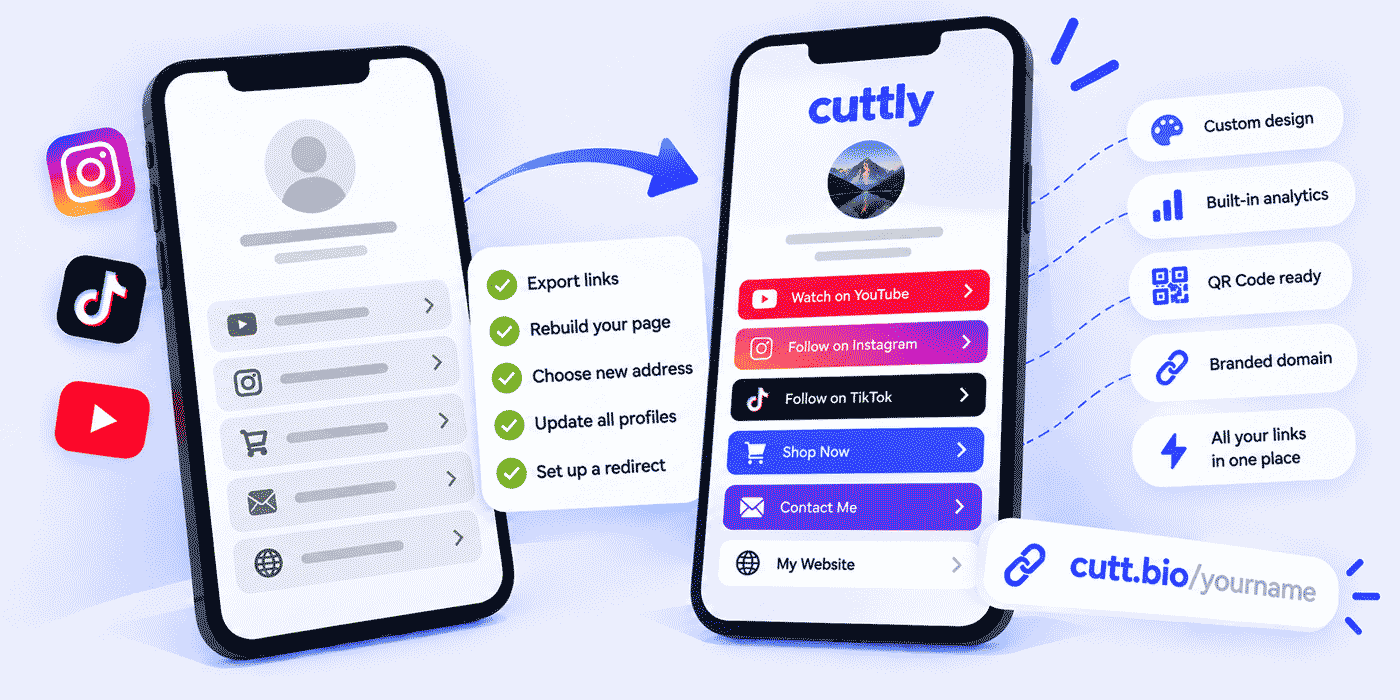
What This Guide Covers
- Why a bio page move differs from a bulk link migration
- The one thing that cannot move: the old page address
- Choosing the new address first: cutt.ly/bio, cutt.bio or your own domain
- The QR rule that makes the address decision urgent
- Inventorying and trimming your current links
- Rebuilding the page: content, links, icons and design controls by plan
- Testing before the swap
- The swap: every place your bio address lives, in priority order
- Running the bridge period on the old page
- Analytics on the new page: what restarts, what you gain
- Plan guide, two worked examples and the common mistakes
Why a Bio Page Move Is Its Own Kind of Migration
Our bulk link migration guide is built for inventories of hundreds or thousands of short links, where the hard parts are triage, import volume and DNS. A bio page turns those proportions upside down. The inventory is tiny, often five to twenty links, so there is nothing to import in bulk: you rebuild the page by hand in minutes. The hard part is distribution. A single address is repeated across many surfaces you do not all control, and some of them are permanent, like a QR code on printed packaging or a link in a video description you will never edit again.
That shifts where the care goes. In a bulk migration the work is getting links into the new system correctly. In a bio page migration the work is choosing an address you will never want to change, then making sure every surface that shows the old address either gets updated or keeps pointing somewhere useful while it ages out. Get the address right and the rest is housekeeping.
The One Thing That Cannot Move
Your current bio page lives at an address on your provider's domain. That domain belongs to them, so the address cannot be transferred to Cuttly or anywhere else. This is true of every hosted bio page service, not a quirk of one, and it is the single fact the whole plan is built around.
It means three things. Your new page will have a new address. Every surface you control that shows the old address needs to be updated. And for the surfaces you cannot update, the old page should stay alive for a while, pointing to the new one, so that someone who taps an old link still reaches you. Everything else on the page (your links, titles, order, profile image and overall look) can be rebuilt, and usually improved, in the process.
Before You Start: Five Quick Checks
Most bio page migrations that drag on do so for small, avoidable reasons. Five checks before you begin keep the whole job to one afternoon plus the bridge period.
- Access to every profile. Confirm you can log in to every social account whose bio shows the old address, including the ones a former assistant or agency set up. A profile you cannot edit is a profile that keeps pointing at the old page.
- A list of printed materials. Business cards, packaging inserts, flyers, stickers, signage. You do not need to replace them immediately, but you need to know they exist, because they decide how long the bridge period lasts.
- Domain access, if you want a branded address. Connecting your own domain requires DNS A and TXT records at your registrar. Find the login before the day you need it. Use a dedicated domain or an empty subdomain, because a website on that exact hostname becomes unavailable once the A record points elsewhere.
- Your current data, saved. Whatever reports your current provider shows, saved before you change the page. The old page's numbers are your only baseline.
- A quiet week. Do not switch during a launch, a sale or a campaign whose traffic depends on the bio link. The swap itself is quick; the first days after it are when you want to be watching rather than firefighting.
Step 1: Choose the New Address Before Anything Else
The Three Address Options
Cuttly offers three places a Link in Bio page can live, as documented in the support article on Link in Bio domain options:
- The cutt.ly domain:
cutt.ly/bio/your-back-half. Available on every plan, and the domain used on Free and Starter. - The dedicated cutt.bio domain:
cutt.bio/your-back-half. Short, purpose-built for bio pages, and available from the Single plan. - Your own branded domain:
your-domain.co/bio/your-back-half. Your name in the address itself, available from the Single plan once the domain is connected and verified through DNS A and TXT records.
From the Single plan you can also edit the page alias, which is what turns an address into your name, for example cutt.bio/studio-maya. On Free and Starter the page lives on the cutt.ly domain without an editable alias. State this plainly to yourself before deciding: if a personal, memorable address is the reason you are switching, Single is the plan that delivers it.
Which Address Fits Which Situation
For creators who mainly need a working hub and are testing the platform, the cutt.ly address on Free is enough to start, with the understanding that moving to a named address later means one more swap round. For creators and freelancers whose name is the brand, cutt.bio/your-name on Single is the natural choice: short, readable aloud, and clearly a bio page. For businesses and anyone who already owns a domain, the branded option puts the company name first, which is the strongest trust signal a bio address can carry and keeps the address under your control for as long as you own the domain.
If You Choose Your Own Domain
A branded address takes a little more setup and pays it back for as long as you own the domain. Connect the domain first, before building the page: add it in your Cuttly account, set the DNS A record (which makes the domain serve Cuttly pages and links) and the DNS TXT record (which verifies ownership) at your registrar, and wait for verification and approval. From the Single plan, SSL for the domain is included through Let's Encrypt. Once the domain is live, the bio page sits at your-domain.co/bio/your-back-half, and the same domain can carry your individual short links too, so every link you share, from the bio page to a single post, shows the same name. The full setup is covered in the custom domain guide.
The QR Rule That Makes This Urgent
One documented behavior turns the address choice from a preference into a deadline. Per the support article on changing a Link in Bio alias, changing the back-half of a bio page also changes its QR code, and previously generated QR codes will not work correctly. Every Link in Bio page gets a QR code on every plan, and creators print them on business cards, stickers, packaging and event signage. If you print first and rename later, every printed code stops working. The rule is simple: settle the final address, then generate and print the QR code, never the other way around.
Step 2: Inventory Your Current Page
Open your current bio page on a phone and capture it completely before you change anything. Bio pages are small enough that a manual inventory is faster and more reliable than any export: write down each link's title, its destination URL, and its position on the page. Take a screenshot of the full page as a design reference. Note which links use social icons rather than text buttons, and whether your page has a description, a video or a featured item at the top.
Then save whatever performance data your current provider shows you, in whatever form it offers. Click history does not transfer between platforms in either direction, so a saved report is the only record of which links your audience actually used. That record is also the basis for the next step.
Step 3: Trim Before You Rebuild
Bio pages accumulate. A link added for a campaign two years ago, a podcast episode that is no longer new, a store collection that sold out: each one stays because removing it never felt urgent. A migration is the cheapest moment to clean up, because you are rebuilding anyway. Sort each link into one of three groups. Keep: links people still use, plus evergreen essentials like your shop, booking page or newsletter. Replace: links whose purpose is still valid but whose destination has moved, such as the latest episode instead of a specific old one. Drop: links nobody clicks and nobody would miss.
Plan limits make this practical. A Cuttly bio page holds up to 5 links on Free and Starter, 20 on Single, 50 on Team and 99 on Team Enterprise. If your trimmed list fits within your plan's limit, you are ready. If it does not, either trim further or treat the limit as a signal about which plan fits your page. Many creators find that a page with fewer, clearer choices is easier for followers to use anyway; the order of links does more work than their number.
Step 4: Rebuild the Page on Cuttly
Two Ways to Create It
The support article on creating a Link in Bio documents two methods. In the first, you open the Link-in-Bio section of the dashboard, click "Create new Link-in-Bio", add your first target link, choose the domain for the page, and then open the editor to add the rest. In the second, you start from the main dashboard: select existing short links with their checkboxes, click "Create Link-in-Bio", and choose the domain. The second method suits people who already shortened their key links on Cuttly, because the bio page is assembled from links that are already in the account.
Content: Profile, Title, Description, Links
Every plan lets you upload a profile image or logo and set the page title. From Starter you can add a description, edit the display titles of the links, and change their order, which matters more than it sounds: the first two positions on a bio page get the most attention, so put your current priority there. From Single you can add a YouTube or Vimeo video to the page, useful for a trailer, an introduction or a featured episode.
Writing Link Titles People Tap
The rebuild is a chance to fix titles that made sense when you wrote them and mean little to a new visitor. A good bio link title says what the visitor gets, not what the destination is called internally. "Book a free 15-minute call" tells someone what happens next; "Calendly" does not. "Start the free 7-day plan" beats "Program". Keep titles short enough to fit on one line at phone width, put the verb first where it reads naturally, and avoid near-duplicates that make two links look interchangeable. If two links really serve different people, say so in the title: "For clients: booking" and "For brands: collaborations" route each visitor correctly without a paragraph of explanation.
Ordering the Page
A simple ordering rule works for most pages. First position: the single action you most want this month, such as booking, the current launch or the newsletter. Second: your evergreen offer, the thing that is always relevant. Then the rest of your main links by importance. Social profiles go as a compact row of icon-only links, either directly under the header or at the bottom, so they are available without competing with your main actions. Revisit the first position whenever your priority changes; it is the most valuable spot on the page, and it costs nothing to update.
Icons: Automatic and Icon-Only
When a link points to a recognized social platform or well-known service, Cuttly automatically adds that service's logo, on every plan. From Starter you can choose to display such links as icon-only links rather than text buttons, which keeps social profiles compact in a row while your main offers stay as full-width buttons. If your old page used a row of social icons above or below the main links, this is the setting that recreates it.
Design Controls by Plan
On every plan you can set a background color and choose from a set of ready-made gradients. From Starter, the template editor opens up, as documented in the support article on editing Link in Bio styles: main link shape (rounded, square or oval), main link fill mode (filled dark or slightly transparent, filled white, or outlined in dark, white or grey), header style (center, left or right), header text color (light, dark or grey) and font family. From Single, more gradient sets become available. The editor also offers background images from a built-in library, with controls for attachment, position, repeat and size. Use your old page's screenshot as the reference and match the overall feel first; refinements can come later because the page edits live.
| Element | Free | Starter | Single | Team / Team Ent. |
|---|---|---|---|---|
| Pages / links per page | 1 / 5 | 1 / 5 | 3 / 20 | 10 / 50 and 20 / 99 |
| Address options | cutt.ly | cutt.ly | cutt.bio, custom domain, cutt.ly | cutt.bio, custom domain, cutt.ly |
| Editable page alias | No | No | Yes | Yes |
| Profile image, title, background color, basic gradients | Yes | Yes | Yes | Yes |
| Description, link order, link titles, icon-only links | No | Yes | Yes | Yes |
| Template editor (shape, fill, header, font) | No | Yes | Yes | Yes |
| More gradients, video | No | No | Yes | Yes |
| QR code / customizable QR | Yes / No | Yes / No | Yes / Yes | Yes / Yes |
| Click analytics history | 30 days | 30 days | 180 days | 1 year |
| CTR | No | No | Yes | Yes |
| Cuttly branding on page | Shown | Shown | Shown | None |
Step 5: Test Before You Swap
Before any follower sees the new page, open it on a phone, because that is where nearly every bio page visit happens. Tap every link and confirm it lands where it should. Check that the order reflects your current priorities and that titles read well at phone width. Look at the page with the brightness down and outdoors if you can; contrast problems between background and text are easy to miss on a desktop monitor. If you created a QR code, scan it with two different phones. Ask one friend to open the page cold and tell you what they would tap first. If their answer is not your top priority, reorder before you publish.
Test Inside the Apps, Not Only in a Browser
Most people reach a bio page by tapping the link inside a social app, which often opens it in the app's own built-in browser rather than in Safari or Chrome. Pages usually behave the same there, but destinations sometimes do not: a booking tool that requires a login, a checkout that relies on a saved session, or a file download can act differently inside an in-app browser. After the swap, tap your new bio link from inside each app you use, then tap through to your most important destinations from there. If a destination is awkward in an in-app browser, a short note in the link title ("opens your browser") or a different destination page is a better fix than discovering the problem from a follower's message.
Readability and Accessibility
A bio page is read quickly, on small screens, often outdoors. Choose a background and link style combination with strong contrast; the support documentation itself advises making sure the chosen background complements text colors and that all elements stay visible and legible. Prefer a plain color or a calm gradient behind text over a busy image. Keep link titles in plain language rather than emoji-only labels, so that screen readers and people skimming both understand them. Icon-only links work well for well-known social platforms, whose logos are widely recognized, and less well for anything a visitor might not identify from the icon alone.
Step 6: The Swap, in Priority Order
Your old bio address lives in more places than you remember. Make a list, then work through it from the highest traffic to the lowest, ideally on the same day for the top tier so followers do not see two different pages.
Tier One: Social Profiles
The bio field of every active profile: Instagram, TikTok, YouTube, X, LinkedIn, Facebook, Pinterest, Threads, and any others you use. These carry most of the traffic and take a minute each. Update them in one sitting. Platform-specific tips for each network are covered in our guides for Instagram, TikTok and YouTube.
Tier Two: Your Own Properties
Your email signature, website header or footer, newsletter template footer, and any "links" page on your site. These are fully under your control and easy to forget, which is exactly why they belong on the list by name. A newsletter footer that still shows the old address will keep sending readers there for months.
Tier Three: Content You Can Still Edit
Pinned posts, recent video descriptions, active podcast show notes, and channel "about" sections. Prioritize the items that still get views; a video from last month matters more than one from four years ago.
Tier Four: What You Cannot Edit
Printed business cards, packaging, posters, event signage, old videos and archived posts. These will keep showing the old address until they age out or get reprinted. You do not need to fix them all at once. This tier is what the bridge period is for, and it is why printed materials going forward should carry an address you never intend to change.
Do You Need to Announce the Move?
Usually not. Followers tap whatever is in your bio today; they do not track which service hosts it. A one-off story or post saying "new link page" is optional and mostly useful if your page also changed meaningfully, for example new offers or a new booking flow. The people who do need to hear about it are those who link to your bio address from places you cannot edit: collaborators who mention you in their descriptions, partners who list you on their sites, a podcast that put your address in show notes. Send them the new address with a short note, and add each of them to your tier four list so you know which old references are still out there.
Step 7: Run the Bridge Period
Do not close the old page on swap day. Keep it live for a defined period, and change it so it does one job: send people to the new page. Make the first entry on the old page a clear link to your new address, with a title that says what it is, for example "My new link page". If you can, remove or reduce the other links on the old page so that visitors are not split between two versions of your hub.
Watch the old page during the bridge if your provider shows you its traffic. Visits should fall steadily as profiles and content point to the new address. If they level off instead of approaching zero, some reference you missed is still sending people there; the referral data on the old page, where available, is the quickest way to find it. Meanwhile, the new page's referral data confirms the other side: each profile you updated should start appearing as a source within days.
How long the bridge lasts depends on your tier four. If your old address only lived in social bios and a few recent posts, a few weeks is enough. If it is printed on materials still in circulation, keep the bridge until those are gone or reprinted. Set an end date anyway and put it in your calendar; a bridge without an end date tends to become a second page you maintain forever. Before you close the old page, save its final performance data, since it will be the last record of that address.
Timing the Whole Move
For a single creator, the realistic timeline looks like this. Day one, about an hour: run the five checks, choose the address, inventory and trim the old page, and save its data. Day one or two, another hour: build the new page, set the design, add the video if you use one, and test everything on a phone and inside the apps. Swap day, under thirty minutes: update tier one and tier two in one sitting, and edit the old page so its first link points to the new address. Then the bridge, measured in weeks rather than hours, with a single calendar reminder for the end date. Businesses with a branded domain should add a day for DNS and verification before the build, and agencies should plan one client per day so every swap gets checked properly. None of these steps needs to wait for a plan upgrade decision: you can build and test the new page on any plan before you commit to one, and upgrade only when the page you have built shows what it needs.
Analytics on the New Page
Click history starts fresh on the new page. That is true of any platform switch and worth accepting rather than fighting: your saved report from the old page is the historical record, and the new page builds its own. On Cuttly, Link in Bio click analytics show clicks by day and referrals, retained for 30 days on Free and Starter, 180 days on Single and 1 year on Team and Team Enterprise. From Single you also get CTR, the relationship between page visits and link clicks, which tells you whether the page itself is doing its job, not just whether people arrive. Bot filtering is applied automatically on all plans, statistics are private by default, and analytics are aggregated and anonymized. The broader reading habits are covered in the link analytics guide.
The first month after the swap is the most informative. Clicks by link show which items your audience actually uses, which should feed straight back into the order of links on the page. Referral data shows which profile sends the most visitors, which is often not the one you expected. And if CTR is low on a well-visited page, the problem is the page itself: too many choices, unclear titles, or the most important link buried below the fold.
More Than One Page: When It Helps
From Single, you can run up to 3 bio pages; Team allows 10 and Team Enterprise 20. A migration is a good moment to ask whether one page is still serving several different audiences poorly. Common splits that work: one page per language for creators with followers in different markets, with each social profile pointing to the matching page; a separate page for business enquiries, used in professional profiles and email signatures, while the main page serves followers; or a dedicated page for an event or season that runs alongside the main one and is retired afterward. Each page gets its own address, its own QR code and its own analytics, so you can see how each audience behaves instead of reading a blended average.
The opposite case matters too. If you currently maintain several pages elsewhere out of habit and they mostly duplicate each other, consolidating them into one well-ordered page during the move is a simplification worth making. Fewer pages mean fewer addresses to keep current.
Keeping the Page Current After the Move
A migration fixes a page once; a habit keeps it fixed. A short monthly review is enough for most creators and small businesses. Check the first position against your current priority. Look at clicks by link for anything nobody uses and remove it. Test every link on a phone, because destinations change without telling you: a sold-out product page, a moved booking calendar or an expired event registration turns a working link into a disappointing one. If you run campaigns, give each one the top slot for its duration and then move it out, rather than letting campaign links accumulate further down the page, which is how the cluttered page you just migrated away from came to exist in the first place.
What the Rest of the Account Adds
A bio page is one tool, and on Cuttly it sits in an account that already contains the others a creator or small business tends to need. Individual posts can carry their own short links with readable aliases, so you can see which piece of content drove traffic, not just which bio link was tapped. Every link and every bio page gets a QR code for printed materials, customizable with your colors and logo from Single. Surveys can sit on your bio page as one of its links when you want feedback from your audience. And from Single, Action Pages give a single campaign or launch its own focused page, which can take the top slot on your bio page while the campaign runs. None of these are required for the migration, but they are the reason many people move their bio page in the first place: one login instead of several tools.
A Note on Tone
This guide makes no claims about what your current provider offers, charges or lacks. Their features and prices change on their schedule and are published on their own site, and your reasons for moving are your own. What this guide covers is the mechanics of moving a bio page cleanly, which are the same whichever service you are leaving. If you are still comparing options rather than moving, the comparison articles linked in the sidebar are the better starting point.
Choosing a Plan for Your Bio Page
The plan decision for a bio page migration usually comes down to three questions. How many links does the trimmed page need? Up to 5 fits Free or Starter; up to 20 needs Single; more than that points to Team. Does the address need your name? An editable alias on cutt.bio or your own domain starts at Single. Does the page need to look entirely like your brand? Removing Cuttly branding from the page is a Team and Team Enterprise feature. Answer those three and the plan follows. Starter is the right middle step for people who want design control and link ordering on a single small page but do not need a custom address yet.
A Worked Example: A Fitness Coach With Fourteen Links
An independent fitness coach has run the same bio page for three years. The inventory shows 14 links: booking, two programs, a free guide, a newsletter, five social profiles, two old challenge pages, a podcast guest appearance and a discount code from an expired partnership. Triage keeps 9: booking, both programs, the free guide, the newsletter and four social profiles, with the fifth social profile dropped because the account is inactive. Nine links exceed the Free and Starter limit of 5, and the coach wants a named address, so Single is the fit.
The coach picks cutt.bio/coach-dana and checks it reads clearly when spoken on a podcast. The page gets a profile photo, a title and a one-line description, the four social profiles as icon-only links in a row, and the five main links in priority order with booking first. A 40-second introduction video goes at the top. Only after the address is final does the coach generate the QR code, customized with brand colors, and order new business cards.
Swap day takes about twenty minutes: five social bios, the email signature, the website footer and the newsletter template. The old page stays live with a single prominent link to the new address. The old business cards remain in circulation, so the bridge runs for three months, until the new cards have replaced them. In the first month on the new page, CTR shows that the free guide outperforms the programs, so the coach moves it to the second position, below booking.
A Second Example: An Agency Moving Six Client Pages
A small social media agency manages bio pages for six clients and wants them in one account, without any third-party branding on client pages. Team fits: up to 10 pages, up to 50 links each, no Cuttly branding, and team roles so account managers work under their own logins. Three clients already own domains, so their pages live at your-domain.co/bio/... on their own branded domains, connected and verified before the pages are built. The other three use cutt.bio addresses with client names.
The agency migrates one client per day so each swap can be checked properly, and each client gets its own bridge period and end date. Clients receive their new page address and QR code only after the alias is final. After a month, each client gets a short report from the page analytics: clicks by link, top referring profile, and CTR, which becomes part of the agency's regular reporting.
Both examples share the same order of operations, and that is the point: the address is decided first, the QR code comes after it, the page is tested before any profile changes, and the old address keeps working until the last place that shows it has been dealt with.
Common Mistakes
- Printing the QR code before the address is final. Changing the page alias changes the QR code, and old printed codes stop working correctly. Address first, QR second.
- Expecting a custom name on Free. Free and Starter pages live on the cutt.ly domain without an editable alias. A named address starts at Single.
- Copying every old link across. Dead links on a new page waste the best positions. Trim first.
- Swapping before testing. A broken first link on the new page is the first thing every follower sees. Test every link on a phone before the swap.
- Forgetting tier two. Email signatures and newsletter footers keep sending traffic to the old address for months if nobody updates them.
- Closing the old page on day one. Printed materials and old content will keep using the old address. Run a bridge with a clear link to the new page.
- A bridge without an end date. Set the date, save the final data, then close the old page on schedule.
- Not reading the first month. Clicks by link and CTR tell you how to reorder the page. The migration is the moment to start using that data.
The Switch on One Page
Choose the new address first, on cutt.ly, cutt.bio or your own domain, and settle the alias before you generate any QR code. Inventory the old page by hand, save its data, and trim the links to the ones people use. Rebuild on Cuttly with your profile image, title, description, links in priority order, social icons and a design that matches your brand, then test everything on a phone. Swap the address in social profiles first, then your own properties, then editable content, and let the bridge period on the old page handle the rest, with one clear link to your new address and a firm end date. Read the first month of analytics and reorder the page to match how your audience uses it.
Cuttly Plan Guide for Bio Pages
The Free plan ($0) provides one Link in Bio page with up to 5 links on the cutt.ly domain, a profile image, title, background color and basic gradients, automatic social icons, a QR code and 30 days of click analytics. It suits creators testing the platform or running a very small hub. Registration is required; no credit card is needed.
The Starter plan ($12/month) keeps one page with 5 links on cutt.ly and adds the controls that make a page feel like yours: description, link order, editable link titles, icon-only links and the template editor for shape, fill, header style, header text color and font.
The Single plan ($25/month) is the usual destination for a full switch: up to 3 pages with 20 links each, a choice of cutt.bio, your custom domain or cutt.ly, an editable page alias, video, more gradients, a customizable QR code, 180 days of analytics and CTR.
The Team plan ($99/month) suits agencies and brands: up to 10 pages with 50 links each, no Cuttly branding on the pages, 1 year of analytics, and team roles for shared management.
The Team Enterprise plan ($149/month) extends this to 20 pages with up to 99 links each, for organizations running many brands, markets or client pages.
You can build and test the new page before you change a single profile: create a free Cuttly account, rebuild your page, and swap only when it is ready. Registration required; free plan available with no credit card needed.
Frequently Asked Questions
Can I keep my old Linktree address?
No. An address on another provider's domain belongs to that provider and cannot be transferred. You publish your page at a new Cuttly address, update the places that show the old one, and keep the old page live for a bridge period with its first entry pointing to the new address.
Which addresses can my Cuttly bio page use?
cutt.ly/bio/your-back-half, cutt.bio/your-back-half, or your own branded domain with the /bio/ path. Free and Starter use cutt.ly; from Single you can choose cutt.bio, your custom domain or cutt.ly, and edit the page alias.
Is Cuttly Link in Bio free?
Yes: one page with up to 5 links on cutt.ly, profile image, title, background color and gradients, automatic social icons, a QR code and 30 days of analytics. Paid plans add pages, links, design controls, video, a custom alias, CTR and longer history.
Will my QR code still work if I rename the page?
No. Changing the page's back-half changes its QR code, and previously generated codes will not work correctly. Decide the final address before printing or sharing any QR code.
Can I remove Cuttly branding from the page?
Yes, on Team and Team Enterprise, where bio pages carry no Cuttly branding. Free, Starter and Single pages show Cuttly branding.
Does my click history transfer?
No. Save your current provider's reports before closing the old page. On Cuttly, bio page analytics start from the new page and are retained for 30 days on Free and Starter, 180 days on Single and 1 year on the Team plans, with CTR from Single.
How long should the bridge period last?
Long enough for traffic from places you cannot edit to fade. A few weeks is usually enough if the old address lived only in social bios and recent posts; keep it until printed materials are replaced if the address is on cards or packaging. Set an end date either way.
- MIGRATION
- URL Shortener →
- Link in Bio Builder →
- QR Code Generator →
- This Series
- Bulk Link Migration - The Pillar
- Migrating from Bitly
- Compare First
- Best Linktree Alternative
- Link in Bio Without Linktree
- Link in Bio Guides
- Link in Bio - Complete Guide
- What Is Link in Bio
- Link in Bio on a URL Shortener
- For Creators
- Cuttly for Creators
- Influencers
- Personal Branding
- Support Docs
- Link in Bio Domain Options
- Editing Styles and Templates
- Encyclopedia
- Link in Bio
- Verticals Hub
- URL Shortener for Every Industry →
- Start Here
- Create Free Account
- Plans & Pricing
URL Shortener
Cuttly simplifies link management by offering a user-friendly URL shortener that includes branded short links. Boost your brand’s growth with short, memorable, and engaging links, while seamlessly managing and tracking your links using Cuttly's versatile platform. Generate branded short links, create customizable QR codes, build link-in-bio pages, and run interactive surveys—all in one place.
Cuttly More Than Just a URL Shortener
Cuttly is a comprehensive, ever-evolving platform for link shortening that combines innovation and user-friendliness to deliver a seamless experience in managing and shortening URLs.


