How to add a countdown timer to an Action Page?
A countdown timer displays the time remaining until a specific date and time on your Action Page — shown in days, hours, minutes, and seconds. It is useful for limited-time offers, product launches, event deadlines, or any campaign where urgency matters.
You can also set the CTA button to be automatically disabled when the countdown reaches zero, which is helpful for enforcing offer expiry.
1. Log in to your Cuttly account and go to the Action Pages section.
2. Open the editor of the selected Action Page by clicking the edit icon.
3. In the editor toolbar on the left, click the clock icon.
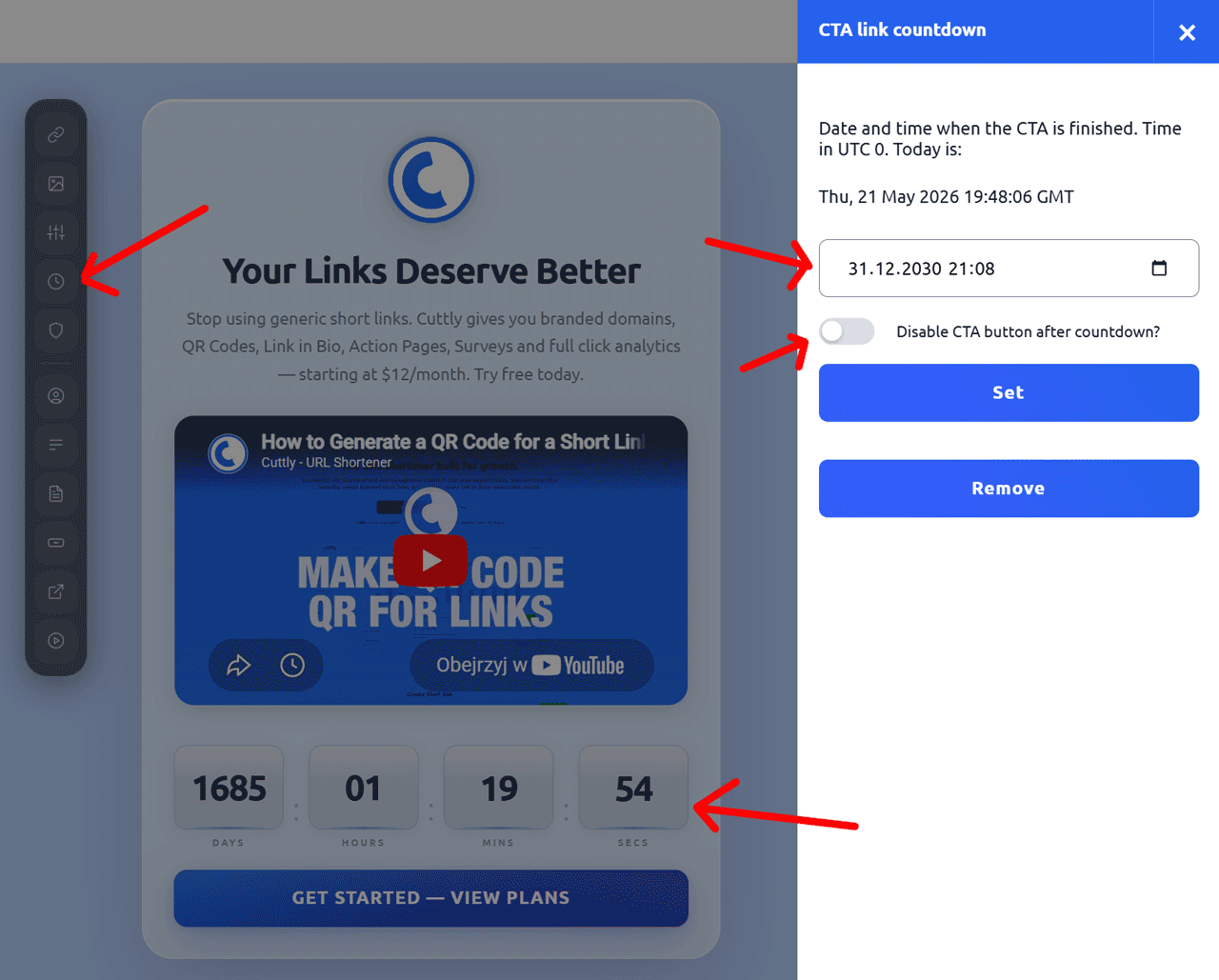
4. A side panel will slide out showing the CTA link countdown settings. The current date and time in UTC 0 is displayed for reference.
5. Set the date and time when the countdown should end. The time is entered in UTC 0.
6. Optionally, check the "Disable button after countdown?" checkbox if you want the CTA button to become inactive automatically when the timer reaches zero.
7. Click "Set" to save the countdown.
To remove the countdown from your Action Page, click the "Remove" button.
Time zone note: The countdown end time is based on UTC 0. The panel displays the current UTC time for reference. Make sure to account for your local time zone difference when setting the end date and time.
Find out more about the options available in your subscription plan here: Cuttly pricing and features
FAQ
What time zone does the countdown use?
The countdown end time is set in UTC 0. The current UTC time is displayed in the countdown panel for reference. Convert your local time to UTC when setting the end date.
Can the CTA button be disabled automatically when the countdown ends?
Yes. Check the "Disable button after countdown?" checkbox in the countdown settings. When the timer reaches zero, the CTA button will be deactivated automatically — useful for enforcing offer deadlines.
How do I remove the countdown?
Open the countdown panel and click the "Remove" button. The countdown will be removed from the Action Page immediately.
Is the countdown required?
No. The countdown is entirely optional. The layout adjusts automatically when no countdown is set.
-
What is an Action Page?
How to create an Action Page?
How to edit an Action Page?
How to delete an Action Page?
How to generate a QR code for an Action Page?
In which domains can I publish an Action Page?
How to change the alias / slug of an Action Page?
How to edit the background of an Action Page?
How to edit styles and template of an Action Page?
How to add or edit the logo on an Action Page?
How to edit the title of an Action Page?
How to edit the description of an Action Page?
How to add a video to an Action Page?
How to add a countdown timer to an Action Page?
How to edit the CTA button label?
How to edit the target URL (destination link)?
How to add a privacy policy and terms URL?
How to view analytics and CTR for an Action Page?