How to edit the title of an Action Page?
The title is the main headline of your Action Page — it is the first text element visitors see when they open the page, displayed below the logo and above the description.
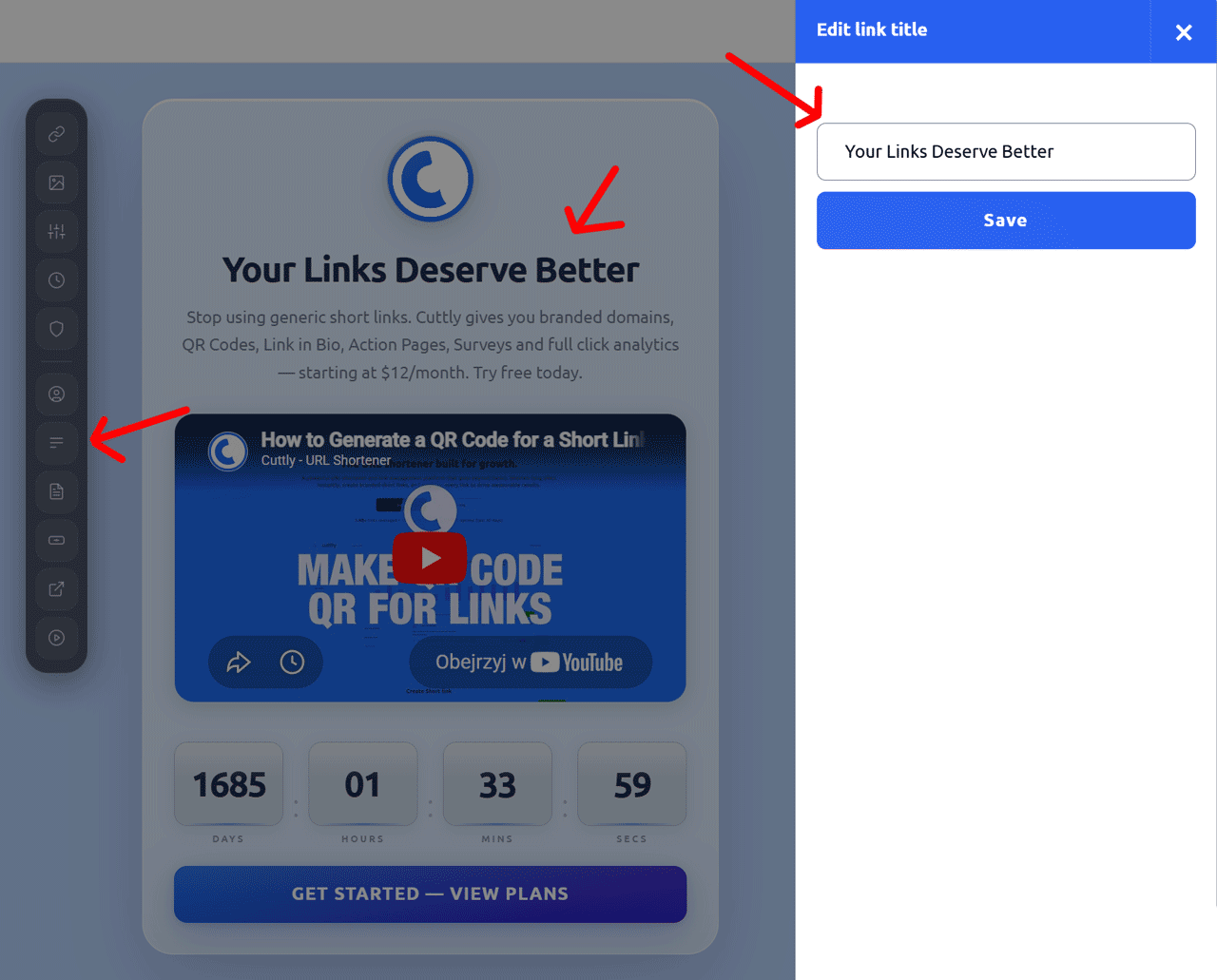
1. Log in to your Cuttly account and go to the Action Pages section.
2. Open the editor of the selected Action Page by clicking the edit icon.
3. In the editor toolbar on the left, click the title icon (the text / lines icon in the middle of the toolbar).
4. A side panel will slide out with the title input field, showing the current title text.
5. Enter the new title text and click "Save" to apply the changes.
You can also edit the description separately: How to edit the description of an Action Page
Find out more about the options available in your subscription plan here: Cuttly pricing and features
FAQ
Where does the title appear on the page?
The title is the main headline of your Action Page — displayed below the logo and above the description. It is the first text element visitors see when they open the page.
Can I change the title after the page has been published?
Yes. You can edit the title at any time from the Action Page editor. Changing the title does not affect the page URL or any other settings.
-
What is an Action Page?
How to create an Action Page?
How to edit an Action Page?
How to delete an Action Page?
How to generate a QR code for an Action Page?
In which domains can I publish an Action Page?
How to change the alias / slug of an Action Page?
How to edit the background of an Action Page?
How to edit styles and template of an Action Page?
How to add or edit the logo on an Action Page?
How to edit the title of an Action Page?
How to edit the description of an Action Page?
How to add a video to an Action Page?
How to add a countdown timer to an Action Page?
How to edit the CTA button label?
How to edit the target URL (destination link)?
How to add a privacy policy and terms URL?
How to view analytics and CTR for an Action Page?