How to generate a QR code for an Action Page?
Every Action Page in Cuttly can have a QR code generated directly from the dashboard. The QR code points to the Action Page URL — when scanned, it opens the page immediately. You can customize the appearance of the QR code before downloading it.
1. Log in to your Cuttly account and go to the Action Pages section in the left sidebar.
2. In the CTA Links list, find the Action Page you want to create a QR code for.
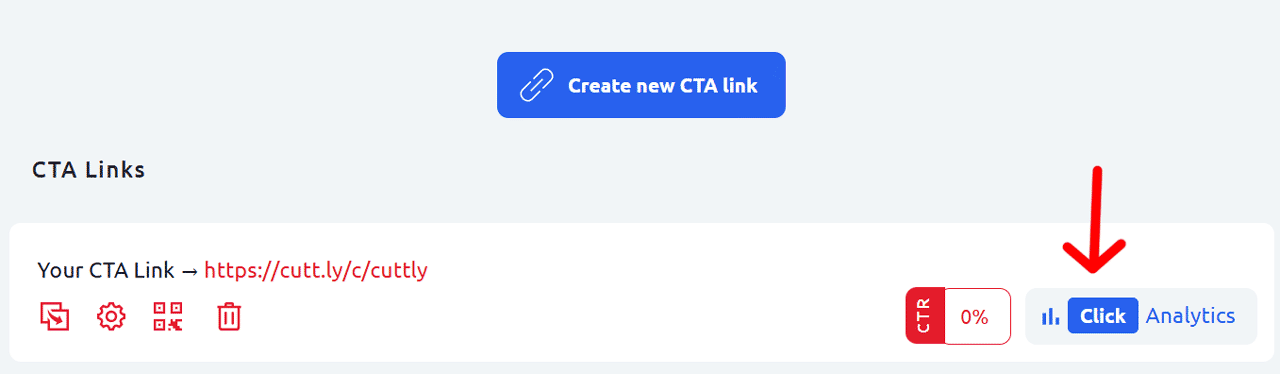
3. Click the QR code icon — the third icon in the row of action icons below the link.
4. The QR code panel will open on the right, showing:
— QR text: the URL the QR code points to (for example: cutt.ly/c/cuttly)
— A live preview of the QR code, updated in real time as you adjust settings
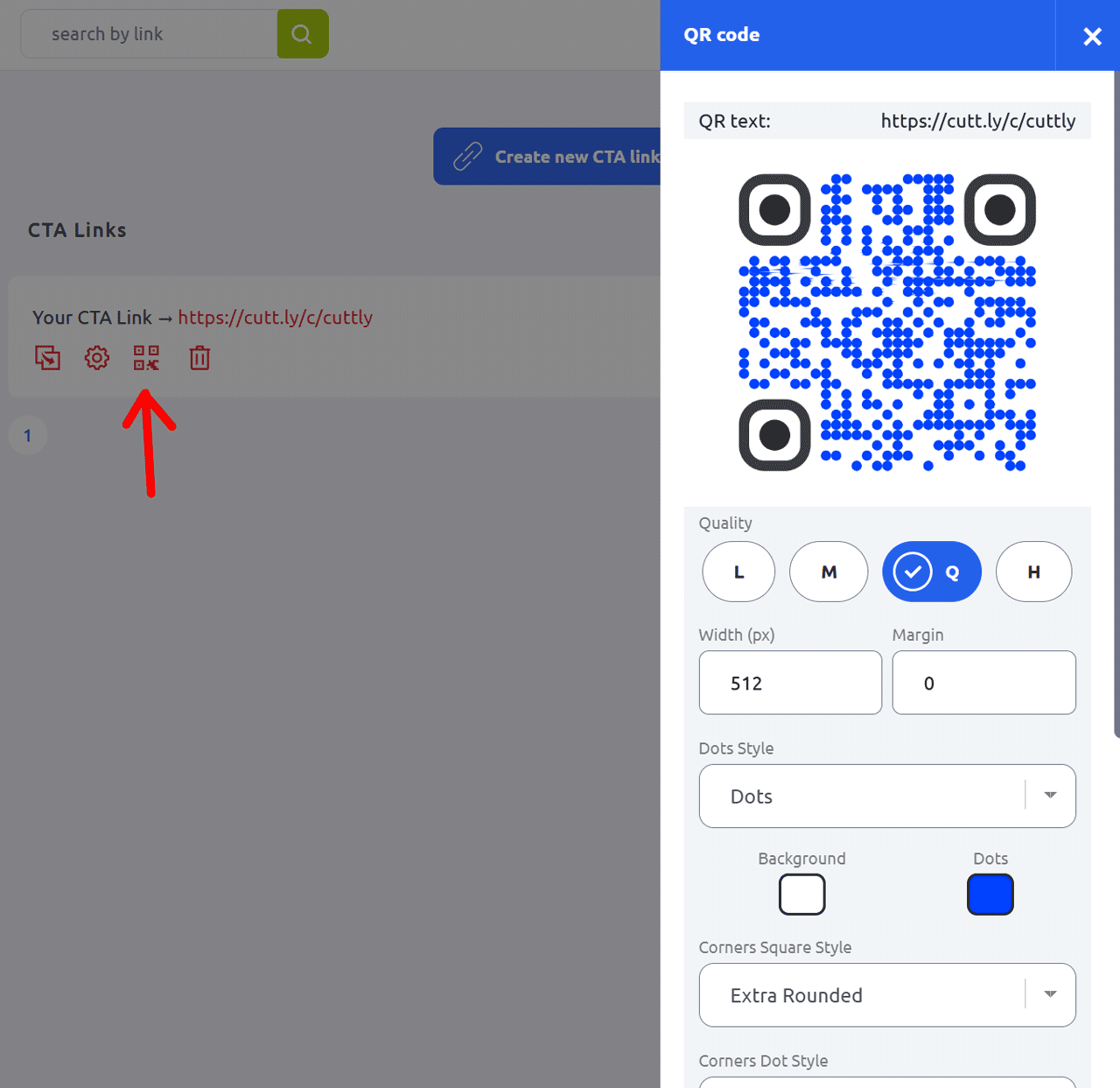
5. Customize the QR code using the available options:
Quality:
L — Low (smallest file, least error correction)
M — Medium
Q — Quartile
H — High (largest file, most error correction — recommended for print)
Width (px): Set the output width in pixels. Default is 512px. Use a larger value for print materials.
Margin: The white space around the QR code. 0 means no margin.
Dots Style: The shape of the individual data dots — for example Dots, Rounded, Classy, and others.
Background color: The background color of the QR code (default: white).
Dots color: The color of the QR code dots (default: dark / black).
Corners Square Style: The shape of the three large corner squares — for example Extra Rounded, Dot, Square.
Corners Dot Style: The style of the small dots inside the corner squares.
6. Once you are satisfied with the preview, download the QR code.
Important — generate the QR code after finalizing the alias. The QR code is tied to the specific Action Page URL. If you change the alias after generating the QR code, the URL changes and the QR code will stop working. Always finalize the page alias before generating and distributing the QR code — especially for printed materials.
Find out more about the options available in your subscription plan here: Cuttly pricing and features
Frequently Asked Questions
What URL does the QR code point to?
The QR code is generated for the Action Page URL — for example cutt.ly/c/cuttly or your-domain.co/c/your-action. When scanned, it opens the Action Page directly.
What happens to the QR code if I change the alias?
Changing the alias changes the URL, which means the previously generated QR code will stop working. You need to generate a new QR code after any alias change. Always finalize the alias before generating and distributing the QR code — especially in printed materials.
What quality level should I use?
For digital use (screens, email, web), M or Q quality is sufficient. For print — especially large-format print where the code may be partially obscured or worn — use H (High) quality for maximum error correction.
Can I customize the colors and style of the QR code?
Yes. You can set the background color, dot color, dot style, corners square style, and corners dot style. The preview updates in real time as you adjust the settings.
What size should I export the QR code at?
The default is 512px, which works well for most uses. For large-format print (posters, banners, signage) use a larger value. For small print (business cards, stickers) 300–512px is typically sufficient.
-
What is an Action Page?
How to create an Action Page?
How to edit an Action Page?
How to delete an Action Page?
How to generate a QR code for an Action Page?
In which domains can I publish an Action Page?
How to change the alias / slug of an Action Page?
How to edit the background of an Action Page?
How to edit styles and template of an Action Page?
How to add or edit the logo on an Action Page?
How to edit the title of an Action Page?
How to edit the description of an Action Page?
How to add a video to an Action Page?
How to add a countdown timer to an Action Page?
How to edit the CTA button label?
How to edit the target URL (destination link)?
How to add a privacy policy and terms URL?
How to view analytics and CTR for an Action Page?