How to create an Action Page in Cuttly?
1. Log in to your Cuttly account and go to the Action Pages section in the left sidebar.
2. Click the "Create new CTA link" button in the top area of the page.
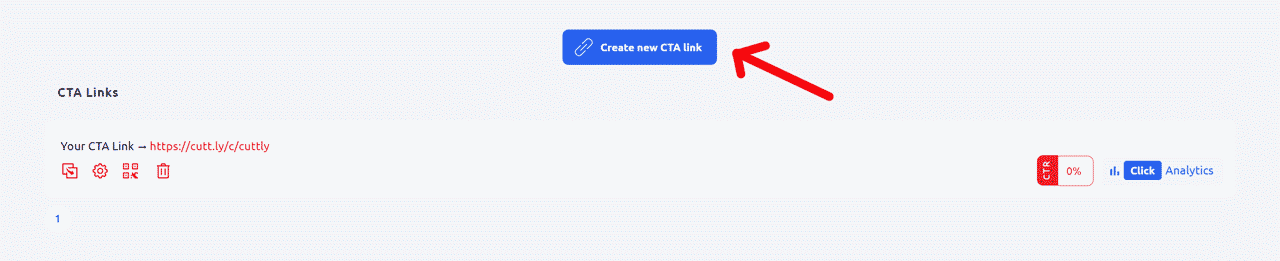
3. A side panel will slide out. Paste the destination URL — this is the target link your CTA button will point to. The link will be shortened and added to your Action Page automatically.
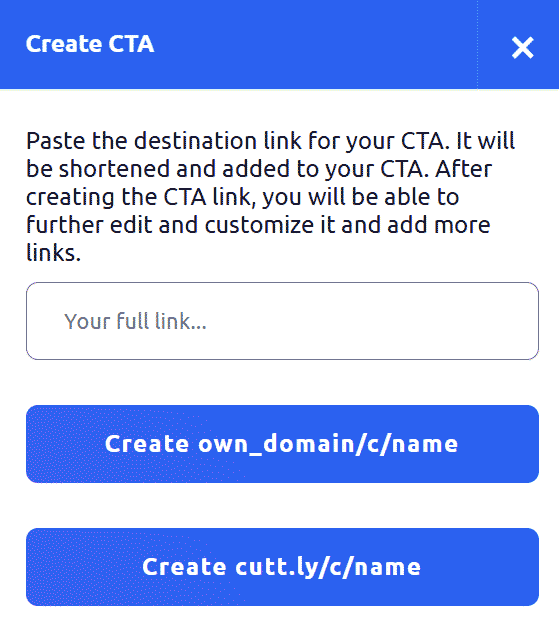
4. Choose where you want to publish the Action Page:
• Create cutt.ly/c/name — publishes the Action Page on the Cuttly domain (for example: cutt.ly/c/cuttly).
• Create own_domain/c/name — publishes it on your custom branded domain, for example: your-domain.co/c/your-action (requires a custom domain connected to your account).
5. Your Action Page will be created and will appear in the Action Pages list. You can copy the link and start sharing it immediately, or proceed to edit and customize it further.

6. To edit the Action Page, click the settings icon next to it. This will open the full editor where you can customize the logo, title, description, video, countdown, background, template styles, CTA button label, and more.
QR code tip: If you plan to generate a QR code for your Action Page, make sure the page is fully set up and the alias (the back-half of the URL) is finalized before generating the QR code. A QR code is tied to a specific URL — if you change the alias afterward, the previously generated QR code will no longer work and you will need to generate a new one.
Find out more about the options available in your subscription plan here: Cuttly pricing and features
FAQ
When should I generate a QR code for my Action Page?
Generate the QR code only after the Action Page is fully set up and the alias is final. Changing the alias after generating the QR code will break it — the QR code is tied to the specific URL and will not automatically update.
Can I publish an Action Page on my own domain?
Yes. When creating the Action Page, choose the "Create own_domain/c/name" option. This requires a custom branded domain connected to your Cuttly account (Single plan or higher). The result will look like your-domain.co/c/your-action.
Can I edit an Action Page after creating it?
Yes. After creating the Action Page you can edit all elements — logo, title, description, video, countdown, background, template styles, CTA button label, and target URL — at any time using the editor.
What happens if I change the alias after sharing the link?
Changing the alias makes the previous URL stop working, and any QR code generated for that URL will also become invalid. You will need to reshare the new URL and regenerate the QR code.
-
What is an Action Page?
How to create an Action Page?
How to edit an Action Page?
How to delete an Action Page?
How to generate a QR code for an Action Page?
In which domains can I publish an Action Page?
How to change the alias / slug of an Action Page?
How to edit the background of an Action Page?
How to edit styles and template of an Action Page?
How to add or edit the logo on an Action Page?
How to edit the title of an Action Page?
How to edit the description of an Action Page?
How to add a video to an Action Page?
How to add a countdown timer to an Action Page?
How to edit the CTA button label?
How to edit the target URL (destination link)?
How to add a privacy policy and terms URL?
How to view analytics and CTR for an Action Page?