How to edit the background of an Action Page?
1. Log in to your Cuttly account and go to the Action Pages section.
2. Open the editor of the selected Action Page by clicking the edit icon.
3. In the editor toolbar on the left, click the background icon (second icon from the top).
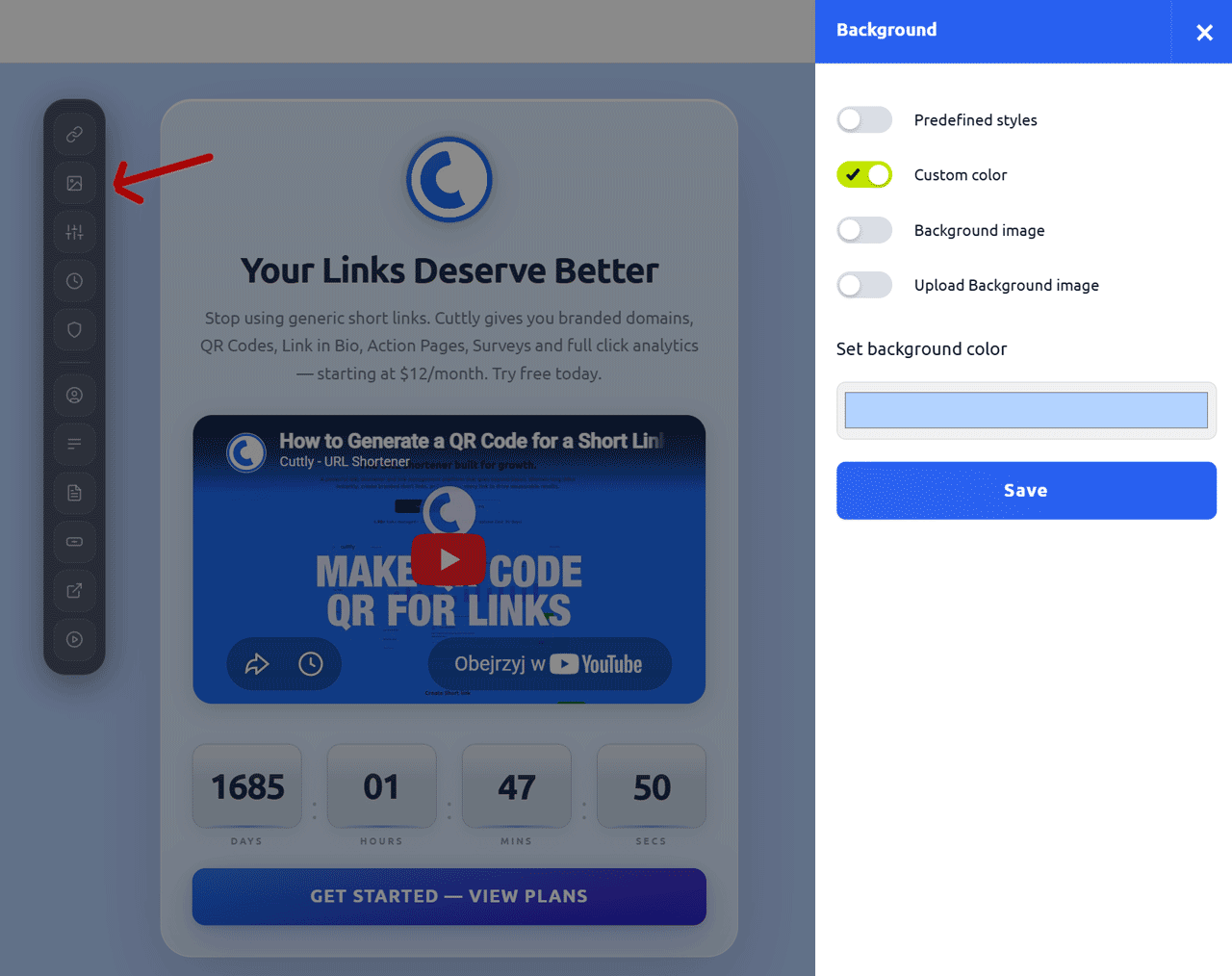
4. A side panel will slide out with the following background options:
a. Predefined styles — gradients:
Toggle this option on to select from a set of predefined gradient backgrounds. Click on the desired gradient, then click "Save" to apply it.
b. Custom color:
Toggle this option on to open a color picker. Choose any solid color for the background, then click "Save".
c. Background image (library):
Toggle this option on to select a background image from the available Cuttly image library. The library is updated regularly with new options. After selecting an image, configure the CSS options:
— Background Attachment (inherit, fixed, local): controls whether the background scrolls with content or stays fixed.
— Background Position (top, left, center, bottom): sets the starting position of the image.
— Background Repeat (no repeat, repeat, repeat-x, repeat-y, space, round): defines how the image tiles.
— Background Size (contain, cover): controls whether the image covers the whole area or is contained within it.
Then click "Save".
d. Upload Background image:
Toggle this option on to upload your own image directly from your device as the page background. After selecting the file, click "Save".
5. After making your selections, click "Save" to apply the changes.
Color contrast tip: Cuttly dynamically attempts to adjust the color scheme of your Action Page to maintain readability — for example, switching between light and dark text depending on your background. However, it is always worth previewing the result after saving, especially with custom colors or complex background images. If anything looks off, you can manually fine-tune text and button colors in the template editor.
Find out more about the options available in your subscription plan here: Cuttly pricing and features
FAQ
Can I upload my own background image?
Yes. The Upload Background image option lets you upload any image from your device. This is the best option when you want to use your own branded visuals or photography.
Does Cuttly automatically adjust text colors for the background?
Cuttly attempts to adapt the color scheme dynamically to maintain readability. That said, complex backgrounds — especially images with varying brightness — may require manual adjustment. You can always fine-tune header text color and button fill mode in the template editor.
What background options are available?
There are four options: predefined gradient styles, a custom solid color, a background image from the Cuttly library, or an image uploaded from your own device. Only one option can be active at a time.
-
What is an Action Page?
How to create an Action Page?
How to edit an Action Page?
How to delete an Action Page?
How to generate a QR code for an Action Page?
In which domains can I publish an Action Page?
How to change the alias / slug of an Action Page?
How to edit the background of an Action Page?
How to edit styles and template of an Action Page?
How to add or edit the logo on an Action Page?
How to edit the title of an Action Page?
How to edit the description of an Action Page?
How to add a video to an Action Page?
How to add a countdown timer to an Action Page?
How to edit the CTA button label?
How to edit the target URL (destination link)?
How to add a privacy policy and terms URL?
How to view analytics and CTR for an Action Page?