Analytics Settings
Cuttly has two levels of analytics settings: per-link settings (configured from the analytics page of each individual link) and global account settings (configured once for the entire account).
Per-link analytics settings
Accessed by clicking the "settings" button on the analytics page of any link.
Password: Set a password to protect the public analytics page for this link. Visitors accessing the public analytics URL will need to enter this password.
Block from public view: Choose which sections to hide when analytics are made public. Toggleable sections: Total clicks, hours, Source of clicks, Referrals/other sources, Devices, System (OS), Browsers, Brands, Languages, Geo-locations.
"Make analytics data public": Makes the analytics page for this specific link publicly accessible.
"Reset analytics data": Clears all recorded analytics data for this link. This action is irreversible.
Global analytics settings
Accessed via Your account → Other settings → Global statistics.
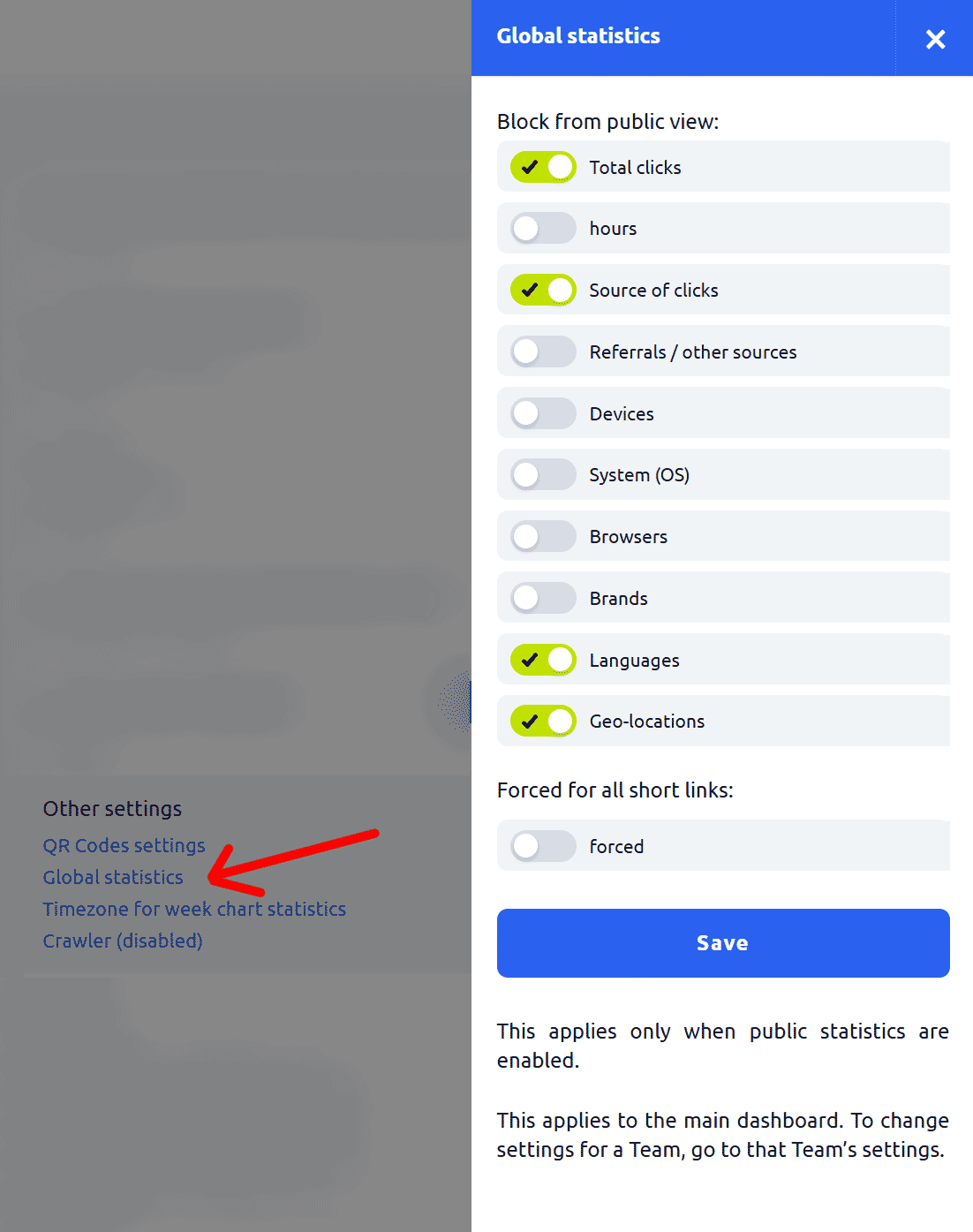
Block from public view (global defaults): Set the default visibility for each analytics section when any link's analytics are made public. Toggle sections on/off: Total clicks, hours, Source of clicks, Referrals/other sources, Devices, System (OS), Browsers, Brands, Languages, Geo-locations.
Forced for all short links: When enabled, the visibility settings configured here override the individual per-link settings for all public analytics pages in your account. Normally, each link can have its own custom visibility configuration (e.g. one link showing geo-location, another hiding it). Enabling "forced" means those individual overrides are ignored — the global settings defined here apply to all links whose analytics are public, regardless of what each link has configured individually.
Note: "This applies to the main dashboard. To change settings for a Team, go to that Team's settings."
Timezone for week chart statistics
Accessed via Your account → Other settings → Timezone for week chart statistics.
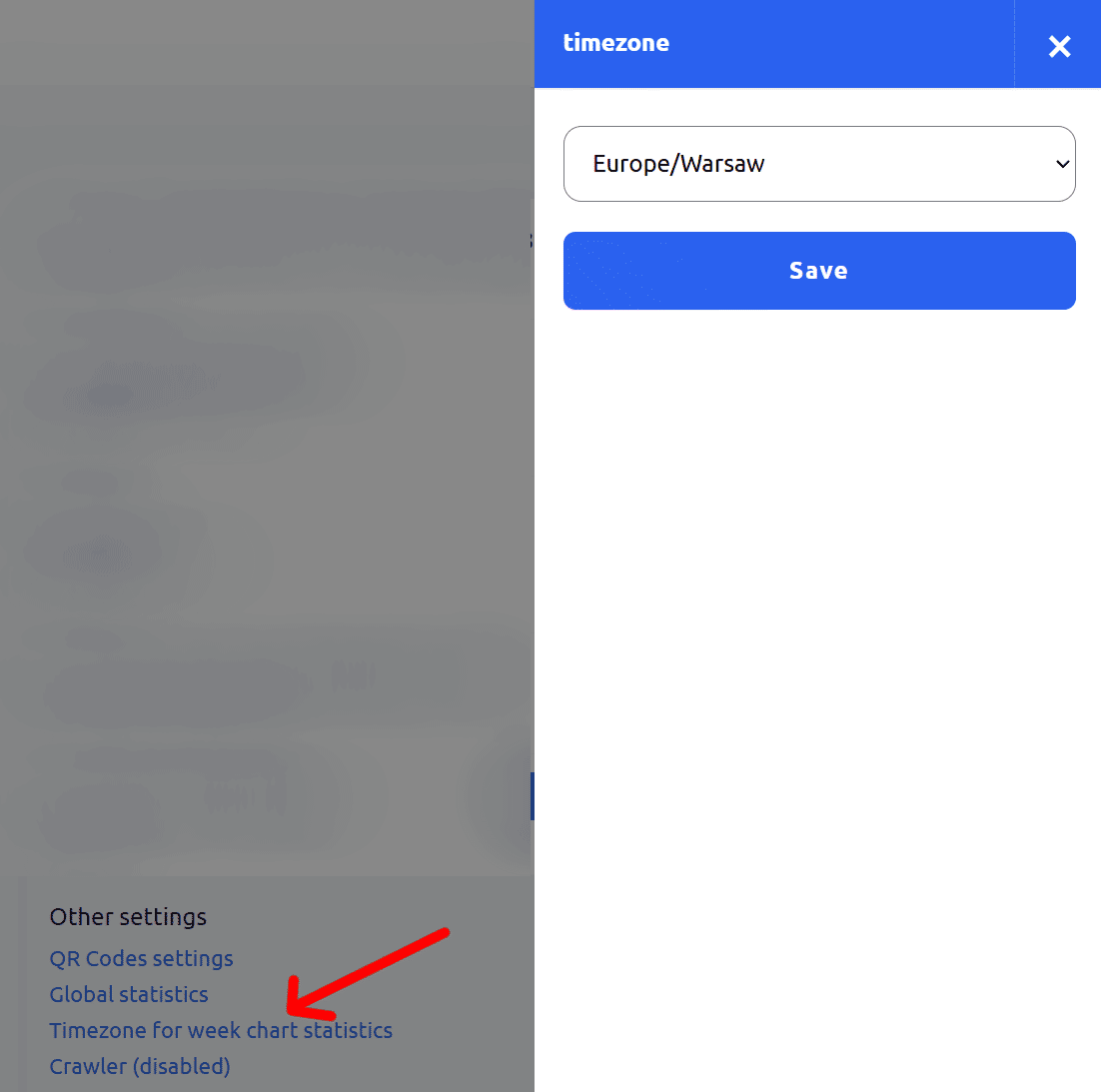
This setting controls the timezone used for the Hourly Insights heat maps. Select your preferred timezone from the dropdown (e.g. Europe/Warsaw) and click Save. The active timezone is shown below each heat map chart.
All other analytics data (charts, geo-location, source of clicks, etc.) is always shown in UTC.
Find out more: Cuttly pricing and features
-
What is Link Analytics?
How to view link analytics?
Time range filter (7 / 30 / 90 days / All)
Total Clicks Chart
Hourly Insights Heat Map
Source of Clicks (Facebook, Twitter, Instagram, LinkedIn, Direct)
Referrals / Other Sources
Devices Clicks (Desktop / Mobile / Other)
System (OS) Clicks
Browsers Clicks
Brand Clicks
Languages Clicks
Geo Location Clicks
Bots
Public and Private Analytics
Analytics Settings (per-link and global)
Download Analytics Report (.PDF)
Aggregated Link Analytics
Campaign Tag Analytics