Public and Private Link Analytics
By default, all link analytics in Cuttly are private — only you can see them when logged in. You can make the analytics page for any individual link public, which generates a shareable URL that anyone (or anyone with the password) can access without logging in.
Status indicator: The analytics page shows the current privacy status below the time range selector — either "Status: Private stats" or "Status: Public stats".
How to make analytics public:
1. Open the analytics page for any short link.
2. Click the "settings" button at the top right of the analytics area.
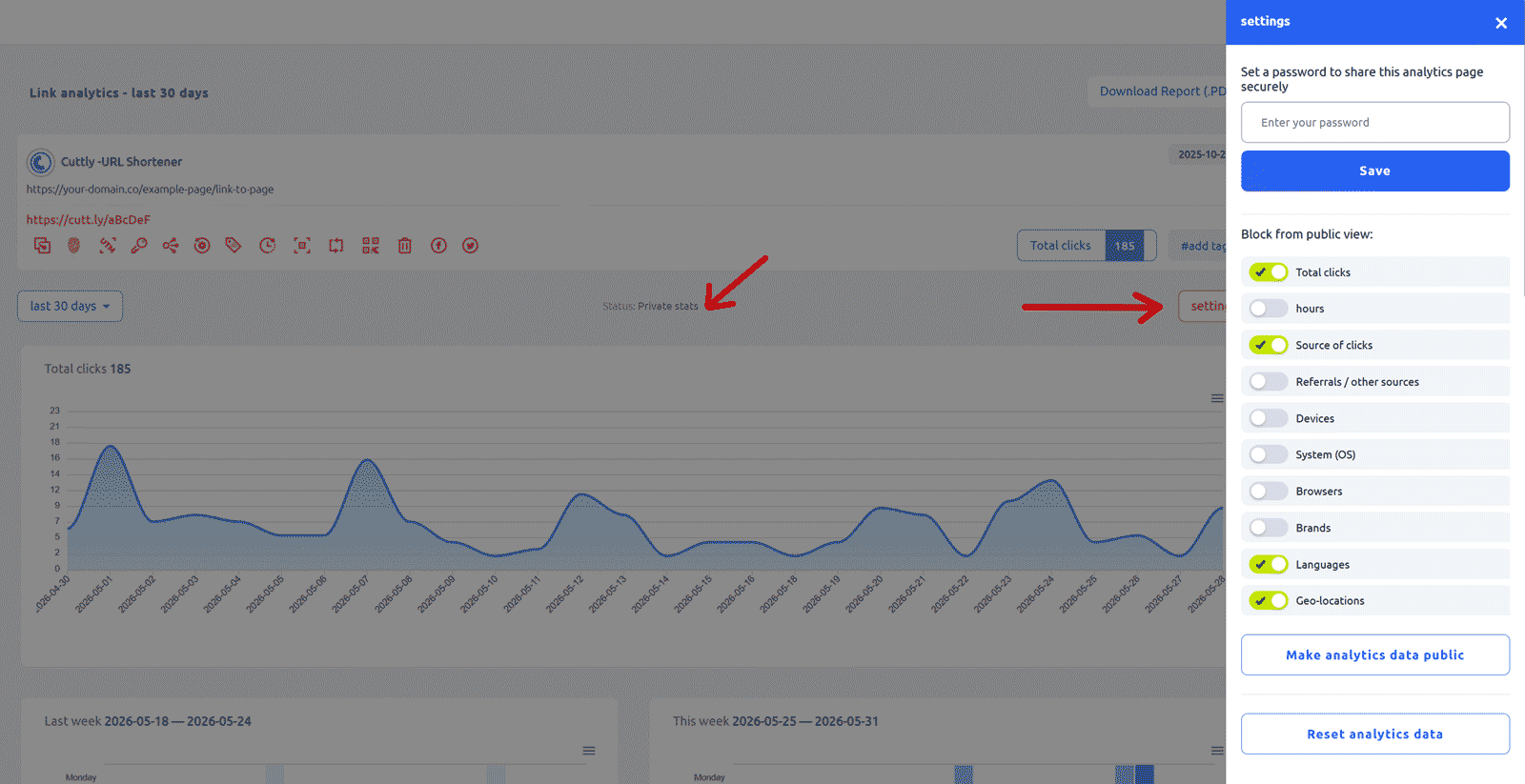
3. The settings panel opens with the following options:
• Password field — optionally set a password to protect the public analytics page. Anyone accessing the public URL will need to enter this password.
• Block from public view — toggle individual sections on/off. You can hide: Total clicks, hours, Source of clicks, Referrals/other sources, Devices, System (OS), Browsers, Brands, Languages, Geo-locations.
• "Make analytics data public" button — click to make the analytics public.
4. After clicking "Make analytics data public", the status label changes to "Status: Public stats". The analytics page is now accessible via its URL without login.
Global statistics settings: In your account settings (Other settings → Global statistics), you can set default visibility rules for all new public analytics pages — which sections are shown and whether they are forced-public for all short links.
Note: Making analytics public shares click data about your link with anyone who has the URL. If you track sensitive campaigns, use a password or keep stats private.
Find out more: Cuttly pricing and features
FAQ
Are analytics private or public by default?
Private by default on all plans. You must explicitly make analytics public per link.
Can I password-protect public analytics?
Yes. Enter a password in the analytics settings panel before making analytics public. Anyone accessing the public URL will need to enter the password.
Can I hide specific sections from the public view?
Yes. In the settings panel, toggle off any sections you do not want visible: Total clicks, hours, Source of clicks, Referrals, Devices, System (OS), Browsers, Brands, Languages, Geo-locations.
-
What is Link Analytics?
How to view link analytics?
Time range filter (7 / 30 / 90 days / All)
Total Clicks Chart
Hourly Insights Heat Map
Source of Clicks (Facebook, Twitter, Instagram, LinkedIn, Direct)
Referrals / Other Sources
Devices Clicks (Desktop / Mobile / Other)
System (OS) Clicks
Browsers Clicks
Brand Clicks
Languages Clicks
Geo Location Clicks
Bots
Public and Private Analytics
Analytics Settings (per-link and global)
Download Analytics Report (.PDF)
Aggregated Link Analytics
Campaign Tag Analytics