How to use the time range filter in link analytics?
The time range filter lets you choose the period of data shown across all charts on the analytics page for a short link. The default view is last 30 days.
1. Open the analytics page for any short link from the dashboard.
2. At the top left of the analytics area, click the time range selector (shows "last 30 days" by default with a dropdown arrow).
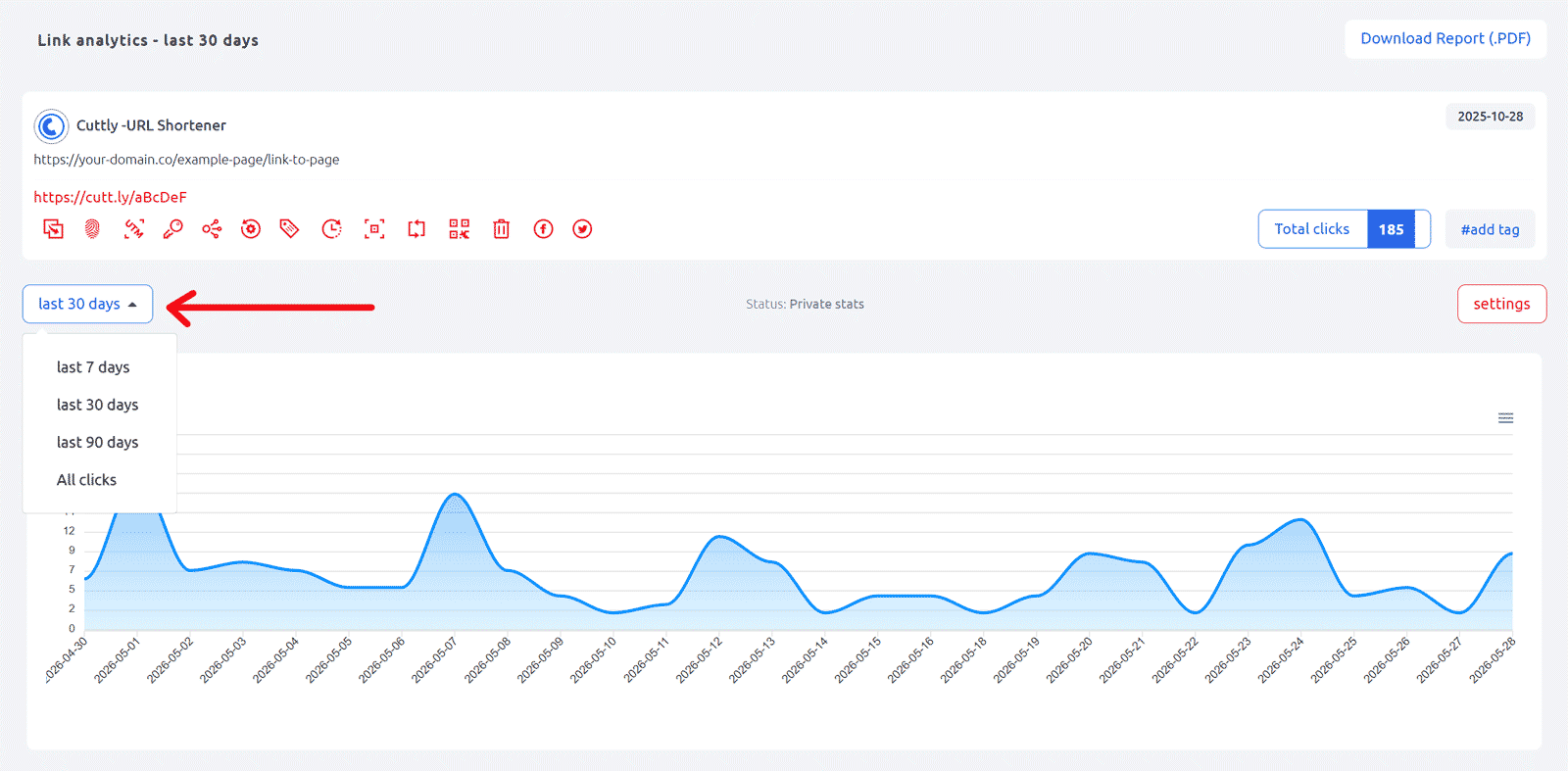
3. The dropdown shows four options:
• last 7 days — click data from the past 7 days
• last 30 days — click data from the past 30 days (default)
• last 90 days — click data from the past 90 days
• All clicks — all click data within your plan's analytics history retention
4. Select the desired range. All charts on the page — total clicks by day, source of clicks, referrals, devices, OS, browsers, brands, languages, geo-location and bots — update immediately to reflect the selected period.
Analytics history visible by plan:
Free & Starter — last 30 days
Single — last 1 year
Team & Team Enterprise — last 2 years
The "All clicks" option shows all data within your current plan's visible window.
Important: Cuttly collects click data continuously for all links regardless of plan. The plan determines how far back you can see the data — not when collection started. This means that if you upgrade your plan, you may gain access to historical data that was already collected but not previously visible. For example, upgrading from Free to Single can reveal up to a year of click history that was already recorded for your links.
Find out more about the options available in your subscription plan here: Cuttly pricing and features
FAQ
What time range options are available?
Four options: last 7 days, last 30 days (default), last 90 days, and All clicks.
How far back does the analytics history go?
The visible range depends on your plan: Free and Starter show the last 30 days; Single shows the last 1 year; Team and Team Enterprise show the last 2 years. However, Cuttly collects click data continuously for all links regardless of plan — the plan determines how far back you can see the data, not when recording started. If you upgrade your plan, historical data that was already collected but not previously visible may become accessible — including data from links created before the upgrade, as long as the data falls within the new plan's visible window.
Does switching the time range affect all charts?
Yes. All charts on the analytics page update when you change the time range — total clicks, sources, referrals, devices, OS, browsers, brands, languages, geo-location and bots all reflect the selected period.
-
What is Link Analytics?
How to view link analytics?
Time range filter (7 / 30 / 90 days / All)
Total Clicks Chart
Hourly Insights Heat Map
Source of Clicks (Facebook, Twitter, Instagram, LinkedIn, Direct)
Referrals / Other Sources
Devices Clicks (Desktop / Mobile / Other)
System (OS) Clicks
Browsers Clicks
Brand Clicks
Languages Clicks
Geo Location Clicks
Bots
Public and Private Analytics
Analytics Settings (per-link and global)
Download Analytics Report (.PDF)
Aggregated Link Analytics
Campaign Tag Analytics